Programming with ’VIDEOPlus+’
All the information required for a programming is encoded in the VIDEOPlus+ code.
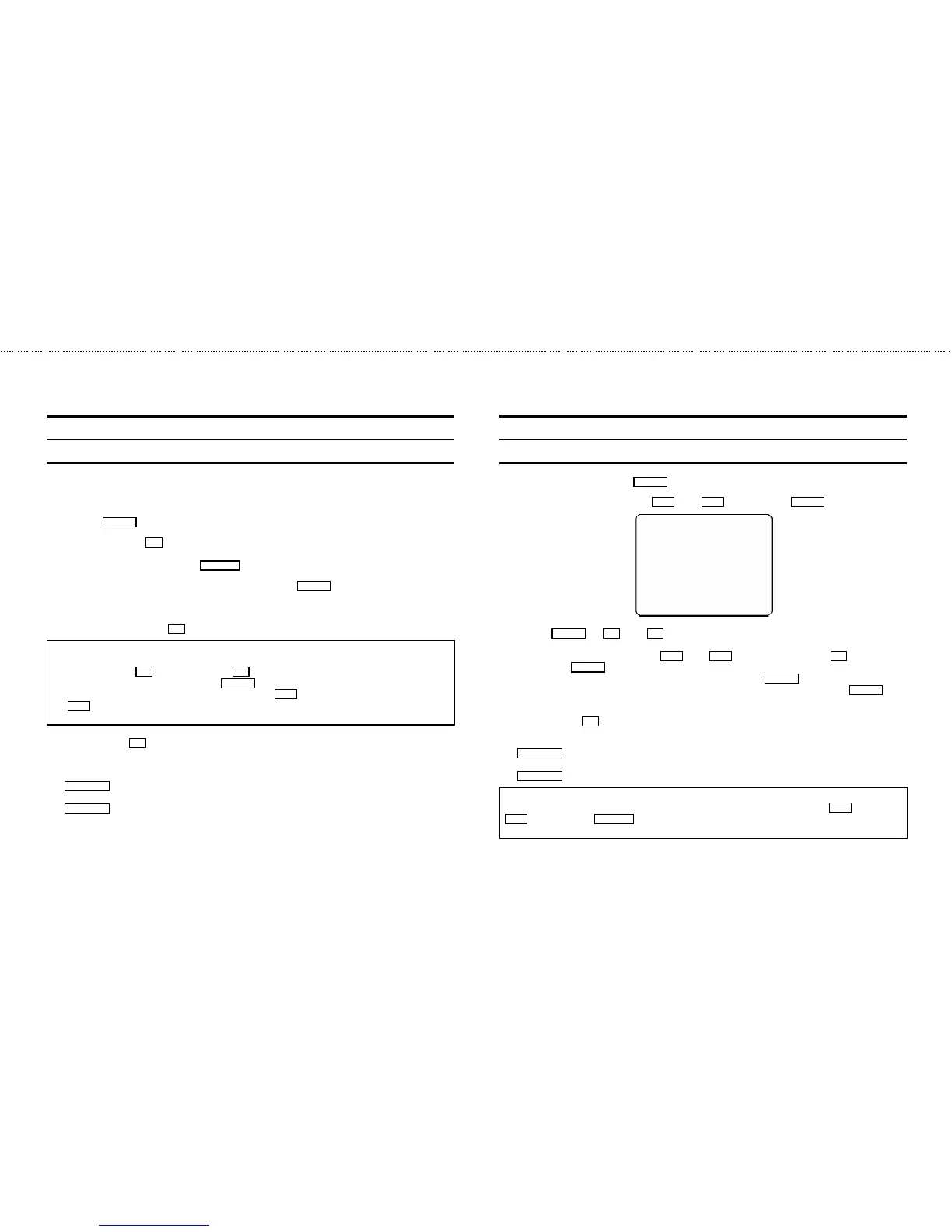
1 Switch on the TV set.
2 Press the TIMER k button on the remote control.
3 With the digit buttons 0-9 , enter the VIDEOPlus+ code (up to 9 digits) printed in your TV guide next to the
start time of a TV programme.
If you make a mistake, clear with the CLEAR (CL) button.
4 If you want to programme at daily or weekly intervals, press the SELECT button until ’D-DAILY’ (daily inter-
vals) or ’W-WEEKLY’ (weekly intervals) appears in the display. The ’daily intervals’ function can only be used
for recordings to be made from Mondays to Fridays inclusive.
5 Confirm the entries with the OK button . The resultant data appears on the TV screen.
Note: If you use VIDEOPlus+ for the first time for this TV channel, the line ’SELECT PROG’ appears when you
confirm the VIDEOPlus+ code. Instead of ’E2’, select the programme number for this particular TV channel,
using the digit buttons 0-9 and confirm with the OK button.
* Switch ’VPS’ or ’PDC’ (V/P) on or off with the SELECT button.
* If you wish to set a later end time for a recording, press the P q button at step 5 . Each time you press
the P q button you will add 15 minutes to the end time.
* If e.g.: ’20:00’ flashes in the display, please set the clock.
6 Finally, press the OK button. Programming is now complete.
The data has been stored in a TIMER block.
7 Make sure that a cassette without erase protection has been loaded. Switch to standby with the
STANDBY m button.
A programmed recording will only function when the video recorder is switched to standby with the
STANDBY m button.
How to programme a recording manually
1 Switch on the TV set. Press the TIMER k button twice.
2 Select a free TIMER block, using the P q or the P r button. Press the TIMER k button.
DATE PROG START V/P END
01 01 20:00 21:30
------------------------
NEXT gTIMER CLEAR gCL
-/+ 0-9 D/WgSELECT OK
3
With the TIMER k the C or the D button you can select between the entries ’DATE’ (date), ’PROG’
(programme number), ’START’ (start time) and ’END’ (end time).
You can enter or adjust data, using the P q or the P r button or the digit buttons 0-9 . Confirm each
entry with the TIMER k button.
You can switch ’VPS/PDC’ (’V/P’) on and off at step ’START’ with the SELECT button.
You can select between ’D’ (daily intervals) or ’W’ (weekly intervals) at step ’DATE’ with the SELECT but-
ton.
4 Finally, press the OK button. Programming is now complete.
5 Make sure that a cassette without erase protection has been loaded. Switch to standby with the
STANDBY m button.
A programmed recording will only function when the video recorder is switched to standby with the
STANDBY m button.
Note:
* Clear a TIMER-block: After step 1 , select the TIMER block you want to clear with the P q or the
P r button. Press the CLEAR (CL) button.
* If e.g.: ’20:00’ flashes in the display, the clock must be set.
&



 To Next Page