14 MultiMedia
Camera
Learn about camera function. Let you take photos
as desired by using your phone.
Take a photo
1
Go to Menu>Camera, select camera mode.
2
Aim the lens at the subject.
-
Press navigation key
<
or
>
to adjust the
brightness.
-
Press side volume key to zoom in/zoom out.
3
Press , or side camera key to take a photo.
4
Press right soft key R to exit.
Tips:
•
All the photos taken are saved to My files>Phone or
Memory card>Pictuers.
View photos
Go to Media player>Image viewer,
1
View photos: press navigation key
<
or
>
to
select a photo.
2
Zoom in/out photos: press side volume key to
zoom in or out a photo. After zooming in a
photo, press navigation key
+, -,
<
or
>
to
adjust the photo.
3
Rotate photos: press left soft key R to rotate
a photo.
4
Set as full-screen wallpaper: press ,.
Camera settings
While using the camera, press left soft key L to
select settings:
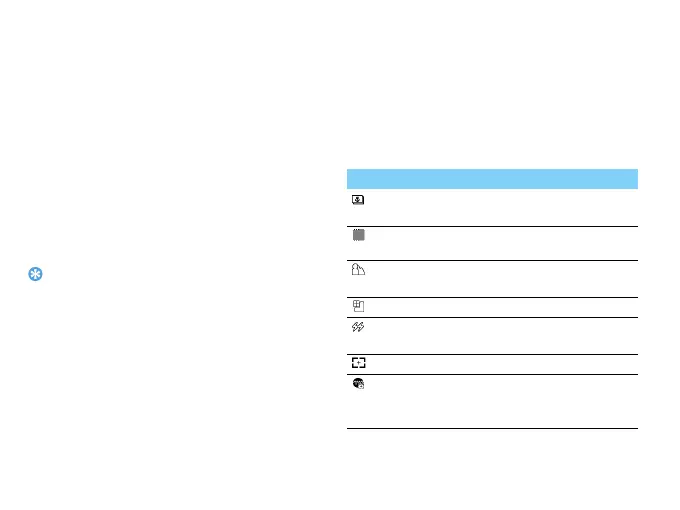
Icon Option Function
View picture
View the photos you have
taken.
Capture
mode
Switch the picture mode.
Scene mode
Select a scene to take a
photo.
Image size
Select image size.
Flash
Use the flash to increase
the brightness.
AF range
Adjust the auto focus range.
Face
detection
Turn on to get the best
condition for taking a photo
for face.


 To Next Page