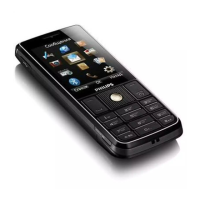
Your phone 1
Home screen
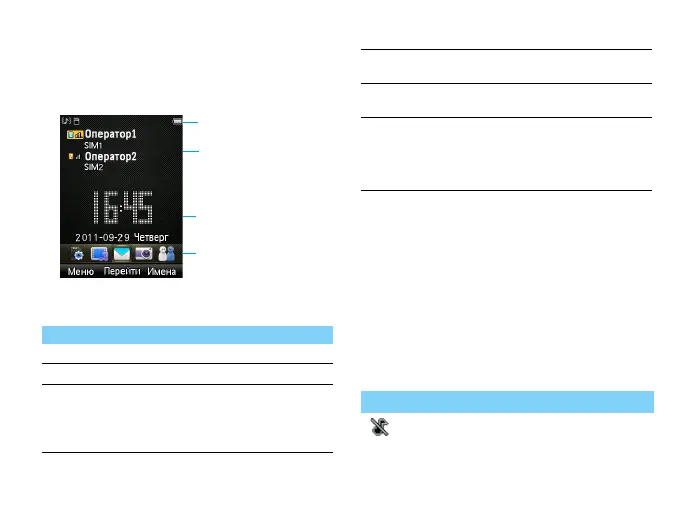
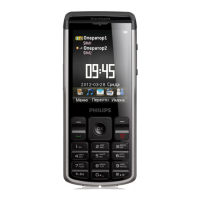
Your phone’s home screen consists of the following
areas:
Keys
Learn about the main keys.
Shortcut menu
The shortcuts on the home screen can open the
applications tab you often used.
Select shortcut menu:
1
Go to Menu>Settings>General>Shortcuts
to enter shortcut list.
2
Press left soft key L to change the shortcut
menu
or change the order of the shortcuts.
Icons & symbols
Learn about the icons and symbols on the screen.
Key Definition Function
(
Dial Make or answer a call.
,
Confirm Select or confirm an option.
)
Hang-up/
Power/
Exit
End a call;
Return to home screen;
Hold to turn on/turn off the
phone.
Status Bar
SIM status bar
Clock status bar
Shortcuts
L
Left soft
key
Select the options on the screen.
R
Right soft
key
Select the options on the screen.
*
Lock/
Unlock
Long press * to lock keys on
the home screen;
Press left soft key
R and then
* to unlock keys.
Icons Definition Function
Silent
Your phone will not ring
when receiving a call.


 To Next Page