4
www.phywe.com, © All rights reserved 12601-09 and 12601-10 / 4716
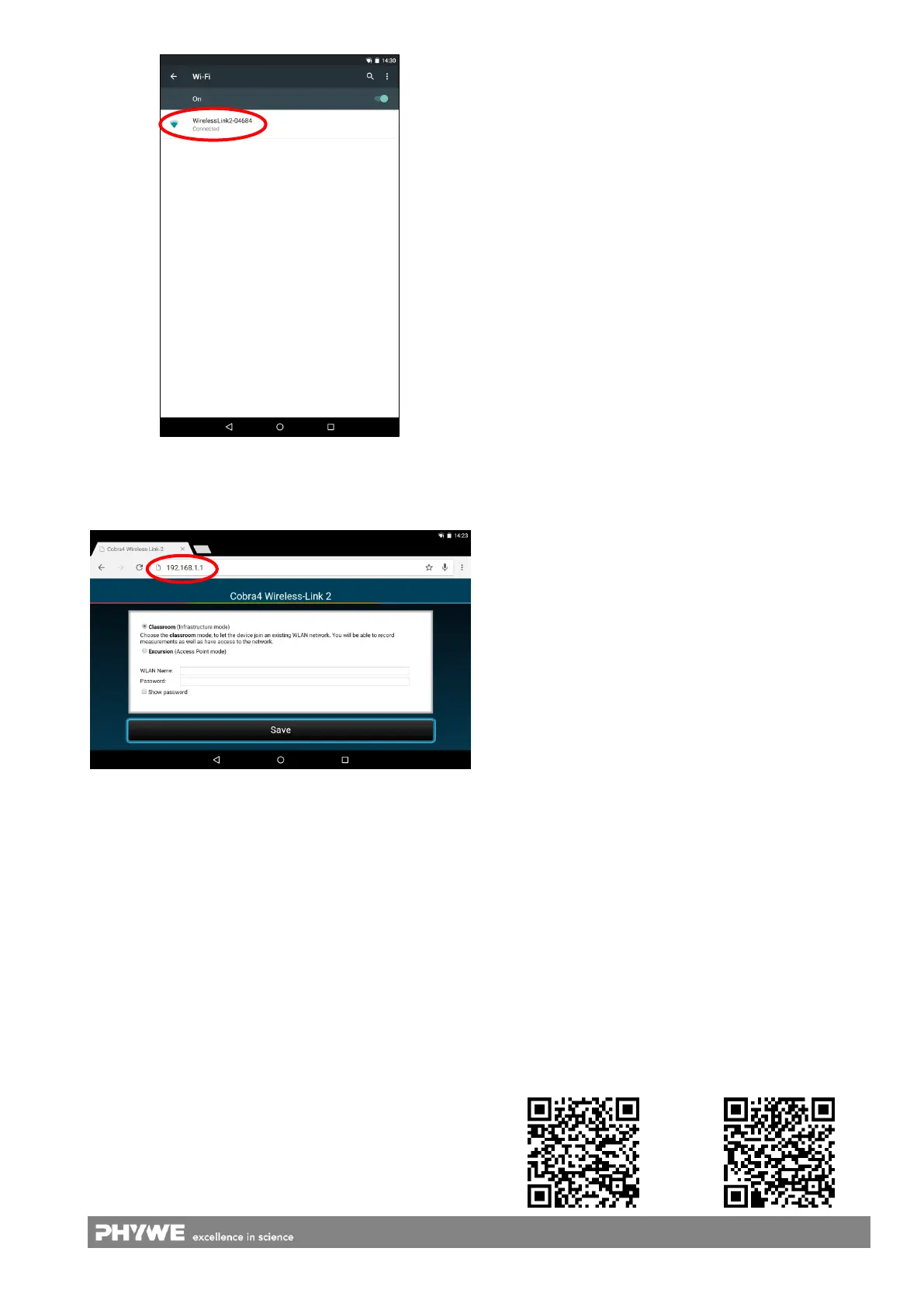
Fig. 7: WiFi settings on a tablet
Start the browser on the end device. Type the IP address
“192.168.1.1” or “WirelessLink2-xxxxx.local” (without quota-
tion marks) into the address bar (Fig. 8).
Fig. 8: Browser on a tablet
Now you can select the operation mode of the Wireless/USB-
Link:
Establish individual network.
Choose Excursion (Access Point mode). In this mode, the
Wireless/USB-Link establishes its own WiFi network, to
which an end device can be directly connected. If the end
device was connected to a different WiFi network before, this
network cannot be accessed during the connection to the
Wireless/USB-Link.
Embed in an existing WiFi network.
Select Classroom (Infrastructure mode). Now you have to
enter the name of the existing WiFi network (SSID), to which
the Wireless/USB-Link should be connected. Enter the corre-
sponding password, as well. If necessary, ask your system
administrator for the password.
The Wireless/USB-Link will disconnect from the end device
and connect to the entered network. In this mode, every de-
vice that is connected to this network can access the Wire-
less/USB-Link.
By clicking the “Save” button, the settings will be applied and
the device will connect to the existing network.
5.4 Reset the network settings
To reset the instrument to factory default settings (“Excur-
sion”), press and hold the record button for at least 5 s.
Flashing of all LEDs will indicate the execution of the system
reset. Afterwards, the device restarts automatically to “Excur-
sion” mode.
5.5 Starting the instrument into USB mode
Press and hold the record button during the switch-on pro-
cedure until the identification LED starts to blink. Then the
Wireless/USB-Link is set to USB mode and will not respond
via WiFi. In USB mode, the device behaves just like a Cobra4
USB-Link (article no. 12610-00). To switch back to WiFi
mode, the Wireless/USB-Link has to be switched off and on
again.
6 TECHNICAL DATA
typical for 25 °C:
Operating temperature range 5–40 °C
Relative humidity < 80 %
Interface module for wireless-based transmission of sensor
measured values at a carrier frequency of 2.4 GHz.
Voltage supply Li-ion battery 1950 mAh
Power consumption < 400 mA
Wireless WiFi, 2.4 GHz, 54 Mbps
Output performance, wireless < 10 mW
Data rate, max. (burst) 125 000 s
−1
Data rate (online) 2 000 s
−1
Range, without obstacles 50 m
Dimensions (L x B x H) 125 x 65 x 35 mm
Weight 200 g
Battery life up to 5 h
7 PARTS SUPPLIED
Cobra4 Wireless/USB-Link is supplied with the following
components:
Operating instructions
Li-ion battery
In addition, the set “Cobra4 Wireless/USB-Link incl. accesso-
ries” (Art. no. 12601-10) contains:
USB cable
measure SoftwareDVD
for driver installation, and operating software
in USB mode (for PC) 14501-00
8 SOFTWARE
For operation, an end device with installed measurement
software is required. For use with a PC in USB mode, PHY-
WE provides the following software:
Software measure Cobra4, multi-user license 14550-61
For smartphones and tablets in WiFi mode, operating on iOS
or Android platforms, the software “PHYWE measure” can be
obtained from the respective store for free:



 To Next Page