EasyManua.ls Logo

Pioneer AVIC-F320BT - User Manual

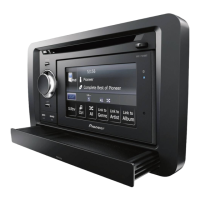
Pioneer AVIC-F320BT
148 pages
Print Icon
To Next Page IconTo Next Page
Loading...
Operation Manual
GPS NAVIGATION AUDIO SYSTEM
AVIC-F320BT
AVIC-F3210BT
Be sure to read Important Information for the User
first!
Important Information for the User includes the
important information that you must understand before
using this navigation system.
English

Table of Contents

Other manuals for Pioneer AVIC-F320BT

Questions and Answers

  • M
    Mark HughesJul 26, 2025
    How to fix a Pioneer Car Receiver that won't turn on?
    • A
      Allison FreemanJul 26, 2025
      If your Pioneer Car Receiver isn't turning on, there are a couple of things to check: First, make sure all the leads and connectors are correctly connected. Second, check the fuse. If it's blown, figure out why, replace it with a fuse that has the same rating.
  • M
    mbradyJul 31, 2025
    Why is the detachable device of my Pioneer AVIC-F320BT not turning on?
    • M
      Michael LeeJul 31, 2025
      If the detachable device of your Pioneer Car Receiver does not turn on, the battery of the detachable device may be run down. Charge the battery.
  • M
    Mary PerezAug 5, 2025
    Why is my Pioneer AVIC-F320BT Car Receiver GPS inaccurate?
    • J
      Jennifer SmithAug 5, 2025
      If your Pioneer Car Receiver GPS is showing reduced positioning accuracy, the GPS aerial might be in an unsuitable location. Check the GPS signal reception and the position of the GPS aerial if necessary.
  • S
    Samantha NormanAug 10, 2025
    What to do if obstacles are blocking GPS signals in my Pioneer AVIC-F320BT?
    • C
      cathy39Aug 10, 2025
      If obstacles are blocking signals to your Pioneer Car Receiver, it could cause reduced positioning accuracy. Check the GPS signal reception and the position of the GPS aerial if necessary, or continue driving until reception improves. Keep the aerial clear.
  • W
    Willie RobersonAug 15, 2025
    Why is the GPS on my Pioneer AVIC-F320BT not working well?
    • J
      Jennifer IngramAug 15, 2025
      If the position of satellites relative to your vehicle is inadequate, the quality of signals from the GPS satellites is poor, causing reduced positioning accuracy. Continue driving until reception improves.
  • J
    Jeffrey HoweAug 20, 2025
    What to do if GPS signals have been modified on my Pioneer AVIC-F320BT Car Receiver?
    • C
      Carla CruzAug 20, 2025
      If signals from the GPS satellites have been modified to reduce accuracy, the quality of signals from the GPS satellites is poor, causing reduced positioning accuracy. Wait until reception improves.

Summary

Introduction

Resetting the microprocessor

Explains how to reset the microprocessor, cautioning about data loss.

Before you start

On first-time startup

Guides new users through the initial setup process, including language selection.

How to use the detachable device

Checking part names and functions

Identifies the USB port, power switch, and SD card slot on the detachable device.

How to use the navigation menu screens

Screen switching overview

Illustrates the navigation flow between different menu screens.

How to use the map

How to read the map screen

Explains the various elements displayed on the 2D map screen.

Eco-driving function

Displaying “Eco Graph”

Explains how to display and interpret the Eco Graph.

Searching for and selecting a location

The basic flow of creating your route

Outlines the fundamental steps involved in planning a route.

Searching for a POI directly from the name of the facilities

Details how to search for POIs by typing their names.

Searching for a location by address

Provides detailed steps for finding locations using address components.

Searching for POIs by preset categories

Guides users on selecting POIs from predefined categories.

Selecting destination from “Favourites”

Guides users on selecting destinations from their saved favorite locations.

After the location is decided

Setting a route to your destination

Provides steps to confirm a location and set it as the route destination.

Checking and modifying the current route

Displaying the “Route info” screen

Explains how to access and view the route information screen.

Modifying the route calculation conditions

Guides on changing route preferences like avoiding tolls or motorways.

Cancelling the route guidance

Provides steps to stop or skip route guidance.

Editing waypoints

Instructions on adding, deleting, or sorting intermediate destinations.

Registering and editing locations

Storing a location in “Favourites”

Explains how to save frequently visited locations for quick access.

Editing your home

How to modify the registered home address details.

Registering a location by “Favourites”

Step-by-step process for saving locations via the Favourites menu.

Editing the entry in the “Favourites” list

Detailed instructions for editing saved favourite locations.

Using traffic information

Checking all traffic information

Explains how to view a list of all traffic incidents.

Checking for traffic jams automatically

How the system automatically recommends new routes around traffic.

Checking traffic information on the route

How to check traffic incidents specifically affecting the current route.

Setting an alternative route to avoid traffic jams

Describes how the system automatically suggests detours for traffic jams.

Using hands-free phoning

Displaying the Phone Menu

Explains how to access and navigate the phone menu screen.

Direct dialling

Instructions for making calls using the dial pad.

Registering your mobile phone

Guides on pairing a mobile phone with the system for the first time.

Making a call home easily

How to quickly call a registered home number.

Transferring the phone book

Guides on copying phone book entries from a mobile phone to the system.

Searching for nearby phones

Instructions for discovering and connecting to nearby Bluetooth-enabled phones.

Connecting and disconnecting a registered mobile phone

Explains how to manually connect or disconnect paired phones.

Calling a number in the “Contacts”

Guides on making calls from the transferred phone book.

Clearing memory

How to delete phone book, call history, and preset dial data.

Pairing from your mobile phone

Describes the process of initiating pairing from the mobile phone.

Making a phone call

Details various methods for initiating phone calls.

Dialling from the history

How to call numbers from the recent call history.

Answering an incoming call

Details how to answer or reject incoming calls.

Fuel cost management

Using the “Fuel details” function

Explains how to input fuel consumption data to estimate costs.

Inputting the fuel consumption information for calculating the fuel cost

Step-by-step guide for entering fuel usage details.

Calculating the fuel consumption

How to export data and check fuel consumption using external software.

Exporting the data of fuel cost information

Instructions for saving fuel cost data to an SD memory card.

Using Applications

Switching to “PC Mode”

How to enable PC connection mode for data transfer.

Launching the application

How to start applications downloaded via navgate FEEDS.

Basic operations of the audio source

Switching the audio source

Explains how to select different audio sources like TUNER, CD, USB, iPod, AUX.

Turning off the audio source

Instructions on how to power down the audio system.

Using the radio (TUNER)

Storing the strongest broadcast frequencies

How to automatically store the six strongest available stations.

Receiving traffic announcements

Details on enabling and receiving traffic announcements.

Storing and recalling broadcast frequencies

How to save and retrieve favorite radio station frequencies.

Playing audio CDs

Playing music files on ROM

Playing music files on USB

Using an iPod

Playing all songs in random order (shuffle all)

Instructions for enabling shuffle mode for all songs on the iPod.

Selecting a song from the list

Guides on choosing a song by category from the iPod list.

Operating the functions from your iPod

How to control the iPod directly while connected.

Using Sound Retriever

Explains how Sound Retriever enhances audio quality for iPod files.

Using the function menu

Guides on navigating the function menu for iPod settings.

Playing songs related to the currently playing song

How to play songs based on genre, artist, or album of the current track.

Using the AUX source

Reading the screen

Explains the display elements for AUX source input.

Selecting “AUX” as the source

How to enable and select the AUX input as the audio source.

Customising preferences

Displaying the “Settings Menu” screen

How to access the main settings menu for customization.

Customising the map screen settings

Explains how to adjust various map display preferences.

Registering and editing your home

Refers to the section on setting and modifying home location.

Customising the regional settings

Covers setting languages, time differences, and units.

Selecting the language

Guides on setting display and voice guidance languages.

Adjusting the equaliser curves

Detailed instructions for fine-tuning equalizer settings using parametric EQ.

Other functions

Returning the navigation system to the default or factory settings

Explains methods for resetting the system to its original state.

Appendix

Troubleshooting

Provides solutions for common navigation system problems.

Messages and how to react to them

Explains system messages and recommended actions.

Problems with the navigation screen

Lists symptoms and solutions for navigation screen issues.

Media compatibility chart

A chart detailing compatibility for various media formats like MP3, WMA, WAV, AAC.

Problems with the audio screen

Lists symptoms and solutions for audio playback problems.

Problems with the phone screen

Lists symptoms and solutions for phone connection issues.

Detailed information regarding connectable iPods

Specific details and compatibility information for iPod devices.

Specifications

Audio

Technical details for audio output, equalizer, and loudness.

Pioneer AVIC-F320BT Specifications

General IconGeneral
Geocaching (GPS stash hunt)Yes
Marine (chartplotters, sounders)No
Live service-
Languages supportMulti
Number of points of interest2300000
Form factorFixed
Product colorBlack
Display diagonal4.3 \
Map coverageAll Europe
Number of countries covered44
Storage media typeFlash
Compatible memory cardsSD
Power source typeDC
Weight and Dimensions IconWeight and Dimensions
Weight- g

Related product manuals