EasyManua.ls Logo

Pioneer XDJ-R1 - User Manual

Pioneer XDJ-R1
38 pages
Print Icon
To Next Page IconTo Next Page
Loading...
DJ SYSTEM
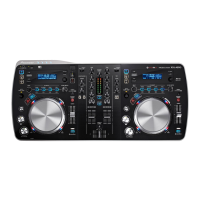
XDJ-R1
Operating Instructions
http://rekordbox.com/
For various types of information and services regarding rekordbox™, see the Pioneer website above.
http://pioneerdj.com/support/
The Pioneer DJ support site shown above offers FAQs, information on software and various other types of
information and services to allow you to use your product in greater comfort.

Other manuals for Pioneer XDJ-R1

Questions and Answers

  • J
    Jesus JonesAug 20, 2025
    How to fix no sound on Pioneer XDJ-R1?
    • E
      Elizabeth AndersonAug 20, 2025
      To fix the issue of no sound or small sound on your Pioneer DJ Equipment, switch the channel’s input source using the [DECK 1, PHONO1/LINE1] and [DECK 2, PHONO2/LINE2] selector switches. Also, ensure that the [TRIM] control, channel faders, crossfader, and [MASTER LEVEL] control are set to the proper positions.
  • T
    Thomas MitchellAug 22, 2025
    Why is the sound distorted on my Pioneer DJ Equipment, and how can I fix it?
    • M
      michealsimpsonAug 22, 2025
      If you are experiencing distorted sound on your Pioneer DJ Equipment, ensure the [LINE, PHONO] selector switch on the rear panel is properly set according to the connected device. Adjust the [MASTER LEVEL] so that the orange indicator on the master level indicator lights at the peak level. Also, adjust [TRIM] so that the orange indicator on the channel level indicator lights at the peak level. Check that the [MIC LEVEL] and [AUX LEVEL] controls are properly set.
  • J
    Joshua CareyAug 25, 2025
    Why is there no sound or distorted sound on my Pioneer XDJ-R1 DJ Equipment?
    • P
      Patrick LittleAug 25, 2025
      If no sound is produced, or the sound is distorted or noisy, try turning the TV’s power off or install this unit and TV away from each other. Also, set the [MIC LEVEL] control to the proper position. For analog players with built-in phono equalizers, use with the [LINE, PHONO] selector switch on this unit’s rear panel switched to [LINE]. If the analog player with built-in phono equalizer has a PHONO/LINE selector switch, switch it to PHONO. If the output of the audio interface for computers is line level, use with the [LINE, PHONO] selector switch on this unit’s rear panel switched to [LINE].
  • K
    Kimberly SantosAug 26, 2025
    How to fix beat effect that is not working on Pioneer XDJ-R1?
    • M
      Marcus PadillaAug 26, 2025
      If the beat effect is not working on your Pioneer DJ Equipment, make sure to press one of the [BEAT FX] buttons (TRANS, FLANGER, ECHO or ROLL). Additionally, turn the [LEVEL/DEPTH] control clockwise or counterclockwise and set the [BEAT] control to the proper position.
  • B
    Bryan SpenceAug 28, 2025
    Why doesn't the color effect work on my Pioneer DJ Equipment?
    • K
      Kevin TannerAug 28, 2025
      If the color effect is not working on your Pioneer DJ Equipment, ensure that you press one of the [SOUND COLOR FX (NOISE, PITCH, CRUSH, FILTER)] buttons. Also, make sure the [COLOR] control is set to the proper position.
  • C
    Carolyn NobleAug 29, 2025
    How to turn on Pioneer XDJ-R1 if none of the indicators light?
    • C
      Courtney DanielsAug 29, 2025
      To resolve the issue of the power not turning on and none of the indicators lighting up, plug the power cord into an AC outlet.
  • R
    Robyn GuzmanAug 31, 2025
    Why doesn't the sync function work on Pioneer XDJ-R1?
    • K
      kchungAug 31, 2025
      If the [SYNC] function does not work on your Pioneer DJ Equipment, analyze the file.
  • M
    melissa04Sep 2, 2025
    Why doesn't the back cue function work on my Pioneer XDJ-R1 DJ Equipment?
    • C
      Charles GrantSep 2, 2025
      If the back cue function does not work on your Pioneer DJ Equipment, set a cue point.
  • A
    Alicia TorresSep 4, 2025
    What to do if my Pioneer XDJ-R1 doesn't recognize the USB device?
    • J
      Jimmy GuerraSep 4, 2025
      If your Pioneer DJ Equipment isn't recognizing the USB device, ensure it's securely connected. Note that USB hubs cannot be used. Check the file format of the USB device, and use a USB device within the unit’s rated current. You can also try turning the power off, waiting 1 minute, and then turning it back on.
  • M
    Mark JacksonSep 6, 2025
    What to do if the standby/on indicator flashes on Pioneer XDJ-R1?
    • H
      hernandezsarahSep 6, 2025
      If the [STANDBY/ON] indicator is flashing and the power does not turn on, try unplugging the power cord, waiting at least 1 minute, and then plugging it back in to restore normal operation. If the problem continues, unplug the power cord and request repairs. Also, ensure the [STANDBY/ON] button for power supply is set to [ON].

Summary

Connections

Connecting Input;Output Terminals

Details all physical connection ports and their uses for audio and data transfer.

Part Names and Functions

Player Section Controls

Details buttons and dials for track playback and manipulation.

Mixer Section Controls

Describes channel faders, EQs, and crossfader for mixing.

Operation

Playback and Track Selection

Basic operations for playing music from media.

Mixing Techniques

Explains channel fader and crossfader mixing for seamless transitions.

Troubleshooting

Power and Audio Output Issues

Common problems related to power supply, no sound, or distorted audio.

Pioneer XDJ-R1 Specifications

General IconGeneral
Sample rate44.1 kHz
Mixer section-
Product colorBlack
Frequency range20 - 20000 Hz
Disc types supportedCD, CD-R, CD-RW
Built-in optical driveYes
Audio formats supportedAAC, AIFF, MP3, WAV
Number of mixer channels2 channels
Signal-to-Noise Ratio (SNR)98 dB
Headphone outputs2
Apple docking compatibilityiPad, iPhone 3GS, iPhone 4, iPhone 4S, iPhone 5, iPod Touch 3, iPod Touch 4, iPod Touch 5
Number of microphone inputs1
Power supply typeAC
Minimum RAM0.5 GB
Minimum storage drive space50 MB
Mac operating systems supportedMac OS X 10.5 Leopard, Mac OS X 10.6 Snow Leopard, Mac OS X 10.7 Lion, Mac OS X 10.8 Mountain Lion
Windows operating systems supportedWindows 7 Home Premium, Windows 7 Professional, Windows 7 Ultimate, Windows 8, Windows 8 Pro, Windows Vista Business, Windows Vista Home Basic, Windows Vista Home Premium, Windows Vista Ultimate, Windows XP Home, Windows XP Professional
Minimum display resolution requirement1024 x 768 pixels
Weight and Dimensions IconWeight and Dimensions
Depth308.4 mm
Width623 mm
Height107.7 mm
Weight6800 g

Related product manuals