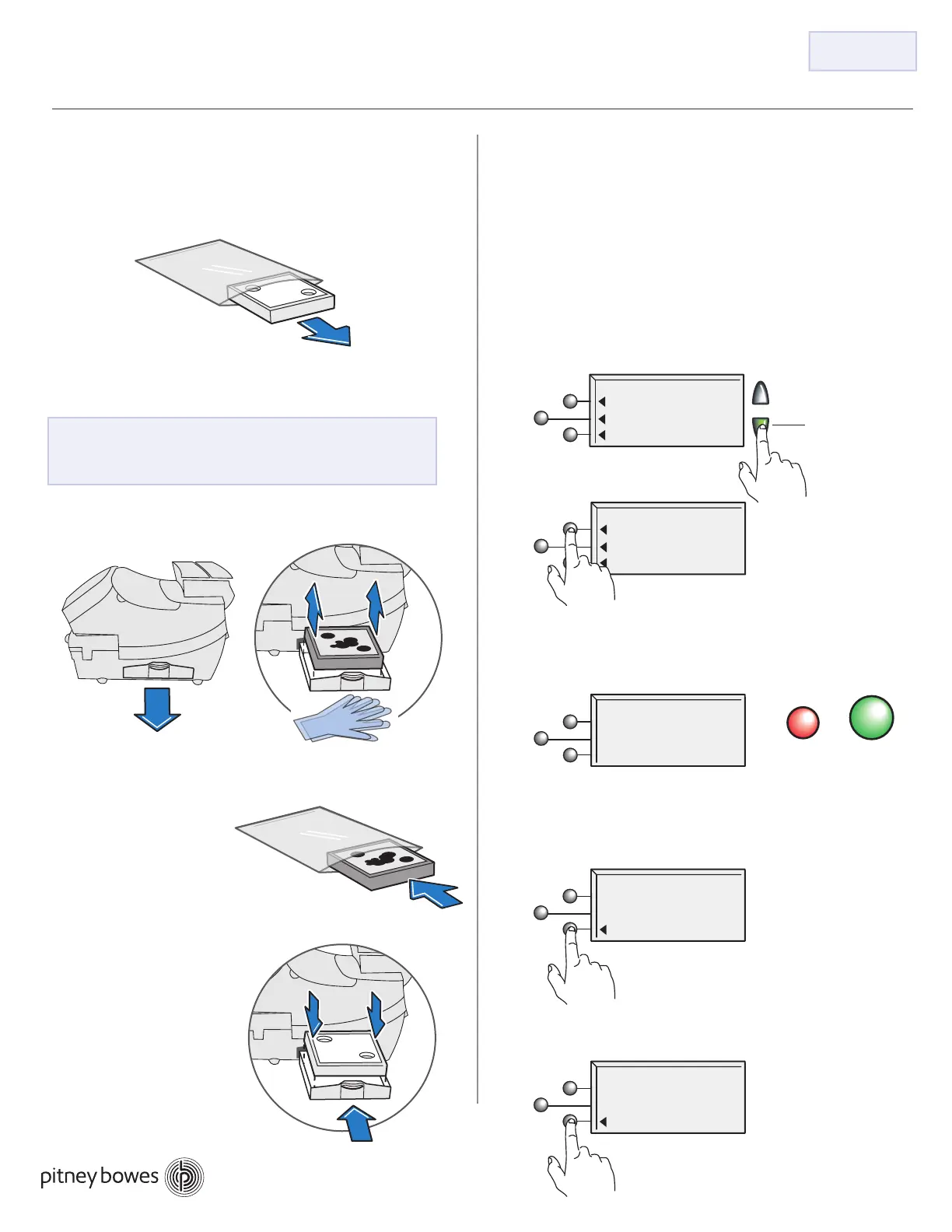
1. Replace Ink Tray 2. Resetting the Ink Tank Counter
B.
A.
B.
C.
D.
A.
C.
DM125 / DM225 Ink Tray Replacement Instructions
From the home screen, select the Options key,
press the Page Down button twice. Select
Advanced Features.Select the Maintenance Mode
option, and then select Printer Maintenance.
From the PM MAINTENANCE screen, press the
Page Down button and then select the Reset
Waste Tank option.
Select Yes, to confirm resetting the waste
ink tank counter to zero.
No Yes
Enter the 4-digit code that is printed in the
upper right corner of this sheet. Select
Continue to proceed.
Remove the new ink tray from the plastic bag.
AW22455 Rev C 12/2015
Test Print
Purge
Replacement
Page Down
PM MAINTENANCE
Reset Waste Tank
PM MAINTENANCE
want to reset the
Waste Ink Tank flag
(Yes or No)?
Are you sure you
in replacement kit.
<****>
Continue
Enter code supplied
E.
Select Press to restart.
Postage printing will be enabled.
flag reset.
Press to restart.
Waste Ink Tank
9287
Reset Code:
Pull ink drawer out from side of meter. Remove ink tray.
Dispose of used ink tray
in envelope that new
ink tray came in.
WARNING:
Ink may stain skin or permanently
damage clothing. Gloves are included
in the kit for your convenience.
Insert new ink tray
into ink drawer and
close drawer.
D.


 To Previous Page