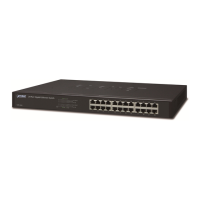
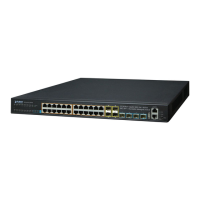
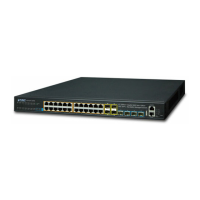
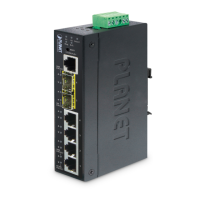
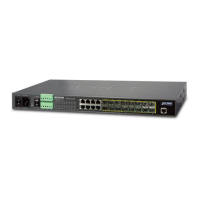
The document describes the PLANET L3 and L2+ Managed Metro Ethernet Switches (MGSW/MGSD/MGS Series), which are designed for robust network management in metro Ethernet environments. These switches offer advanced features for both Layer 2 and Layer 3 networking, providing flexibility and control over network traffic. The quick installation guide focuses on initial setup, configuration, and basic management, ensuring users can quickly deploy and operate the devices.
Function Description
The Managed Metro Ethernet Switches are designed to provide comprehensive network management capabilities. They support various port configurations, including 100/1000X SFP, 1G/2.5G SFP, 10/100/1000T, and 10G SFP+, catering to diverse network requirements. These switches enable efficient data transmission and network segmentation, making them suitable for complex network architectures.
Key functions include:
- Layer 2+ and Layer 3 Switching: Depending on the model, the switches offer advanced Layer 2+ features like VLANs, Spanning Tree Protocol (STP), Link Aggregation, and Layer 3 routing capabilities for inter-VLAN routing and more complex network designs.
- Metro Ethernet Capabilities: Optimized for metropolitan area networks, these switches support features essential for service providers and large enterprises, ensuring high availability and performance.
- Console and Web Management: The switches provide dual management interfaces: a command-line interface (CLI) accessible via a serial console port and a graphical user interface (GUI) accessible via a web browser. This dual approach offers flexibility for different administration preferences and scenarios.
- IP Address Configuration: Users can configure the switch's IP address and subnet mask, allowing it to be integrated into an existing network infrastructure. The guide details how to view and modify these settings via the console.
- Configuration Storage: The device allows saving the current running configuration to non-volatile memory, ensuring that settings are preserved across reboots and become the startup configuration.
- Default Configuration Recovery: A hardware-based reset button is available to restore the switch to its factory default IP address and login password, providing a recovery mechanism in case of forgotten credentials or misconfigurations.
Usage Features
The Managed Metro Ethernet Switches are designed for ease of use while offering powerful management options.
Initial Setup and Connectivity:
- Power Input Wiring: The switches feature a DC inlet power socket with a terminal block connector, allowing for secure power connections. The guide specifies the wire gauge (12 to 24 AWG) for optimal performance and safety.
- Serial Port Connection: For initial configuration, a serial connection is established between a workstation and the switch's console port using an RJ45 to RS232 console cable. This requires a terminal emulator program (e.g., Tera Term, PuTTY) on the workstation, with specific COM port settings (Baud: 115200, Data bits: 8, Parity: None, Stop bits: 1, Flow control: None).
- Ethernet Port Connection: For web-based management, the switch connects to a PC via a standard UTP cable with RJ45 connectors. The PC must be configured with an IP address within the same subnet as the switch.
Login and Access:
- Console Login: After powering on, the console displays "running testing procedures" and then prompts for a username and password. The default username is "admin." The default password varies based on the firmware version: "admin" for older versions (before February 2024) and "sw" followed by the last six lowercase characters of the MAC ID for newer versions.
- Web Login: Accessing the web interface involves entering the switch's IP address (e.g.,
https://192.168.0.100) into a web browser. Similar to the console, the default username is "admin," and the password depends on the firmware version.
- Password Management: For security, users are prompted to change the initial password upon first login, whether via console or web. The new password must meet specific complexity requirements (8-31 characters, including upper case, lower case, numerals, and other symbols).
Configuration and Management:
- CLI Commands: The console interface allows users to enter commands for detailed configuration. The guide provides examples for checking IP address (
show ip interface brief) and configuring a new IP address (configure terminal, interface vlan 1, ip address <IP> <Subnet Mask>). The "help" command is available for assistance with commands and parameters.
- Web Interface Navigation: The web interface provides a user-friendly graphical environment with a "Switch Menu" at the top. This menu offers access to various management categories such as System, Switching, QoS, Security, Ring, and Maintenance. Buttons like "Refresh," "Save," "Help," and "Logout" are consistently available.
- Web-based Configuration: The web interface simplifies complex configurations through organized menus and forms, allowing users to manage various network settings without needing to memorize CLI commands.
Maintenance Features
The Managed Metro Ethernet Switches include features that facilitate maintenance and ensure network stability.
- Configuration Backup and Restore: The ability to save the running configuration to startup configuration (
copy running-config startup-config command) is a crucial maintenance feature. This ensures that desired settings are loaded automatically after a power cycle or reboot, preventing loss of configuration.
- Factory Default Reset: The hardware reset button on the front panel serves as an essential recovery tool. Holding it for approximately 10 seconds restores the switch to its factory default IP address (192.168.0.100) and default login password. This is invaluable for troubleshooting or regaining access if administrative credentials are lost or configurations become unmanageable.
- Firmware Updates: While not explicitly detailed in the quick installation guide, the "Switch Maintenance" section in the web interface typically includes options for "Web Firmware Upgrade" and "TFTP Firmware Upgrade," indicating support for updating the device's firmware to enhance functionality, fix bugs, and improve security.
- Diagnostics: The web interface's "Switch Maintenance" menu also lists "Diagnostics," suggesting built-in tools for monitoring device health, identifying network issues, and gathering information for troubleshooting.
- Customer Support Resources: PLANET provides comprehensive customer support, including an online FAQ resource, user manuals, and a dedicated support team email address. This ensures that users have access to assistance for any issues encountered during operation or maintenance. The guide directs users to specific URLs for FAQs and user manuals, emphasizing the importance of selecting the correct switch model.
- Documentation and Guides: The availability of a detailed user manual (beyond the quick installation guide) is a key maintenance feature, providing in-depth information on all aspects of the switch's operation, configuration, and troubleshooting.

 Need help?
 General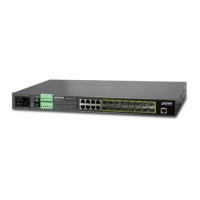





 To Next Page