EasyManua.ls Logo

Plus U3-1080 - User Manual

Plus U3-1080
213 pages
Print Icon
To Next Page IconTo Next Page
Loading...
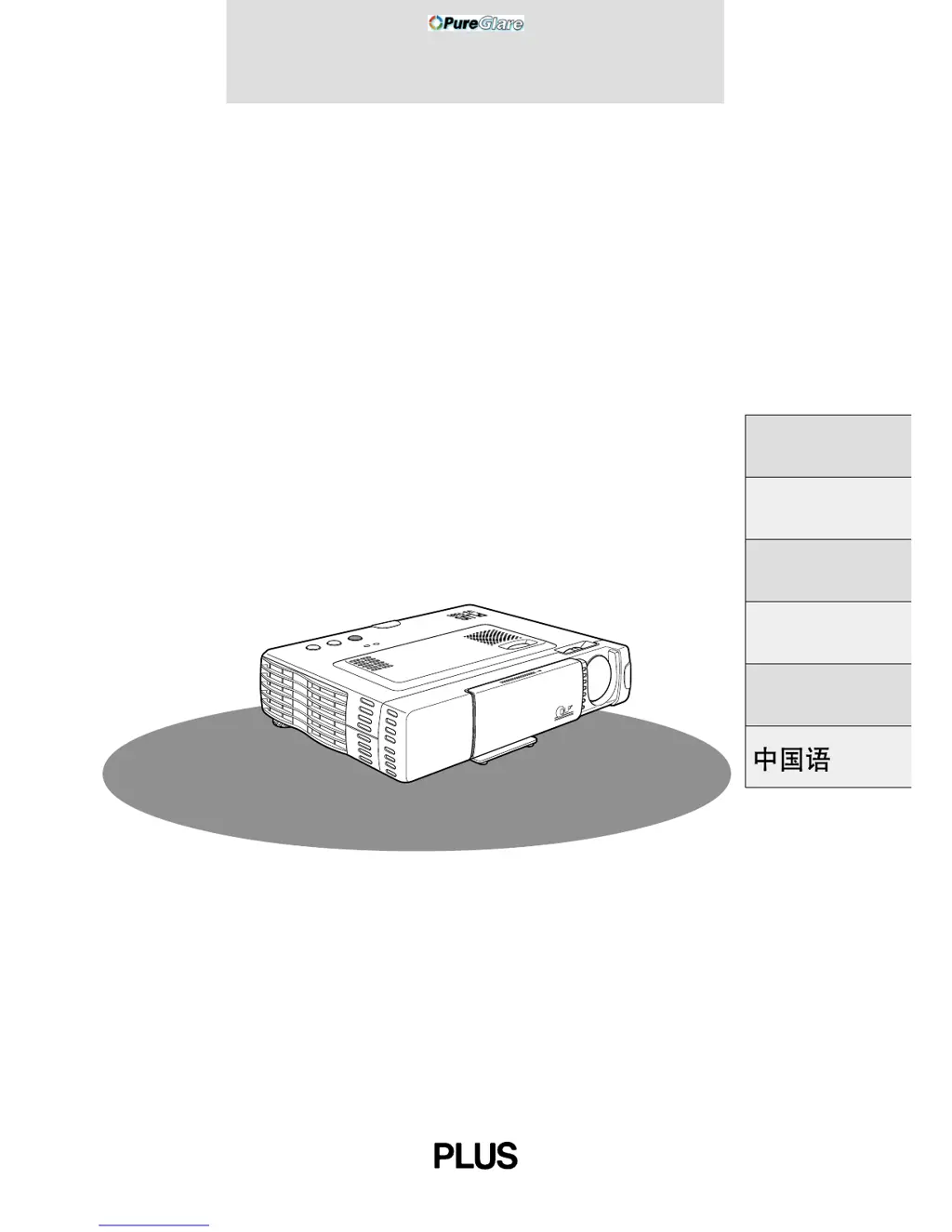
U3-1080/U3-880
DATA PROJECTOR
USER’S MANUAL
Deutsch
Italiano
Français
English
Español
PLUS
AUTOSOURCEPOWER
POWER
OPEN
STATUS
http://www.pureglare.com.au

Table of Contents

Questions and Answers

  • S
    Steven JohnsonAug 13, 2025
    Why won't my Plus U3-1080 Projector power on?
    • B
      Brian MurphyAug 13, 2025
      There are several reasons why your Plus Projector might not be turning on. First, ensure the power plug is securely connected to the power outlet and that the lamp cover is correctly installed. The projector has a protective feature that prevents it from turning on if the internal temperature is too high. Also, the power will not turn on when the lamp usage time has exceeded 1100 hours. Finally, high-tension noise to the power line with extremely high pulse can stop the projector; if this happens, unplug the power cord from the outlet and plug it in again.
  • J
    jeremiahmillerAug 16, 2025
    What to do if Plus Projector has no image?
    • C
      Carl MurphyAug 17, 2025
      If your Plus Projector is displaying no image, check the following: * Ensure the connected input has been selected. * Verify the cable is correctly connected to the input jack. * Make sure the brightness and contrast are not set to minimum. * Confirm the sliding lens cap is open. * Check if the lamp is blown or if the lamp usage time has exceeded 1100 hours. * If using a notebook computer, ensure it was powered on after connecting to the projector and that it is not set to disable output to the external RGB jack. * Also, check if the STATUS indicator is blinking.
  • B
    brent85Aug 20, 2025
    Why does my Plus U3-1080 Projector remote control not work?
    • J
      jose80Aug 20, 2025
      If your Plus Projector remote control isn't working, first check if the send indicator (LED) lights up when you press a button. If it doesn't, replace the batteries with fresh ones. Also, make sure there are no obstacles between the remote control and the photoreceptor on the main unit. Ensure the remote control is being used within its effective range and that there isn't a fluorescent light or other strong light source close to the photoreceptor.
  • J
    Jennifer DyerAug 25, 2025
    How to fix distorted images on Plus Projector?
    • R
      Ryan BatesAug 25, 2025
      To correct distorted images on your Plus Projector, first verify that the projector is installed correctly. Then, ensure that the Keystone adjustment was performed correctly.
  • M
    Michael StephensAug 27, 2025
    How to fix blurred images on Plus Projector?
    • M
      Michael CarpenterAug 28, 2025
      If your Plus Projector images are blurred, start by ensuring the lens is properly focused. Check that the screen and projector are positioned at the correct angle and that the projection distance places the screen within the focus range. Also, inspect the lens for any condensation, dirt, or other obstructions. If condensation is present on the internal optical system because the projector has been stored in a cool place and then used in a warm place, wait several minutes for it to evaporate.
  • S
    Shelly GonzalesAug 31, 2025
    What to do if images are offset vertically or horizontally on Plus Projector?
    • L
      lcookeAug 31, 2025
      To resolve images that are offset vertically or horizontally on your Plus Projector, correctly adjust the horizontal and vertical position of the screen. Also, ensure that the clock frequency is correctly adjusted and that the resolution and frequency are correct for the input signal.
  • D
    Daniel HoltSep 4, 2025
    Why does my Plus U3-1080 wireless mouse not work?
    • J
      James MyersSep 4, 2025
      If the wireless mouse is not working with your Plus Projector, verify that the MOUSE jack of the main unit and the personal computer are correctly connected. Also, ensure that the personal computer was started after being connected to the MOUSE jack of the main unit.
  • S
    Stephanie MartinezSep 8, 2025
    How to resolve flickering text or offset colors with RGB input on Plus U3-1080?
    • M
      Michael RobinsonSep 8, 2025
      To fix flickering text or offset colors with RGB input on your Plus Projector, manually adjust the clock frequency and phase. You can also try pressing the AUTO button.

Summary

IMPORTANT SAFETY INFORMATION

Precautions

General advice before using the projector.

CAUTION & WARNING

Safety warnings to prevent shock, fire, and damage.

RF Interference

FCC compliance and radio frequency emission information.

Important Safeguards

Essential safety instructions for unit longevity and user protection.

Installation

Guidelines for properly placing the projector for use.

Power Supply

Requirements and handling of the projector's power connection.

Rear and side panel view

Terminal Panel

Details the various input and output ports on the projector's rear.

Installation

Positioning the unit

Guidance on placing the projector for optimal projection distance and alignment.

Connections

Connecting video equipment

How to connect external video sources like VCRs and DVD players.

Connecting Video Equipment With Component Video Signal (YCbCr) Output

Connection to the RGB;YCbCr connector

Steps for connecting video equipment using the component YCbCr signal.

Connecting a PC or Macintosh

Changing the computers video resolutions

Outputting Notebook Type Personal Computer External Output Signals

Steps for connecting notebooks and ensuring external signal output.

Operation

Using the unit

Basic steps to power on, connect sources, and adjust image position.

Adjust the position and height of the unit

How to align the projected image horizontally and vertically.

Adjuster Adjustment

Keystone adjustment

Using the remote control for fine keystone correction.

Adjust image size and focus

Using the focus ring and adjusting image size for clarity.

Using the unit (continued)

Using the Remote Control (Input Selection)

Using the Remote Control as the PC Mouse

Connecting a PC and the MOUSE connector

Steps for connecting a PC to use the projector's wireless mouse feature.

Menu operation

Manual Adjustment of Personal Computer Images

Resetting

Resetting Lamp Hours of Usage

Procedure to reset the lamp usage counter after replacement.

Power not turning on due to lamp hours

Specific steps to address power issues when lamp hours are exceeded.

Others

Troubleshooting

Guide to diagnosing and resolving common projector issues.

When the STATUS indicator lights or flashes

Status Light Messages

Detailed explanations for each status indicator message.

Replacing the lamp cartridge

Lamp cartridge replacement procedure

Step-by-step instructions for safely replacing the projector lamp.

Plus U3-1080 Specifications

General IconGeneral
Contrast Ratio2000:1
Display TypeDLP
Weight2.5 kg
Resolution1920x1080
Native Resolution1920x1080
Throw Ratio1.5:1
Lamp Life3000 hours
Input PortsHDMI, VGA, Composite
Projection TechnologyDLP

Related product manuals