
 Need help?
Do you have a question about the Plustek OpticBook 3600 and is the answer not in the manual?
Explains how to use the user's guide and what each section covers.
Defines the icons and formatting used in the guide for clarity.
Explains the meaning of special icons used to highlight important information.
Provides crucial safety information to prevent damage and personal injury during use.
Lists the hardware and operating system requirements for the scanner.
Specifies the software requirements for installing the scanner.
Details the necessary hardware specifications and connections for the scanner.
Step-by-step procedures for installing and setting up the scanner.
Instructions on how to unlock the scanner's scanning head before use.
Guide on connecting the scanner to the computer using USB and power cables.
Detailed steps for installing the scanner's software and drivers on Windows.
Procedure to verify if the scanner is functioning correctly after installation.
Common issues and checks for resolving software installation problems.
Guidance on installing compatible TWAIN software with the scanner.
Explains the different methods and software to operate the scanner.
Step-by-step instructions for performing the first scan using bundled software.
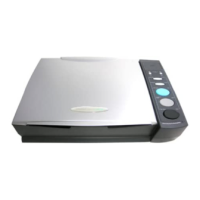
Details the functions of the scanner buttons for paper scanning.
Explains how to use the scanner's function buttons for various scanning modes.
How to assign custom functions to the scanner's custom button.
Explains the meaning of the scanner's Power LED indicator lights.
Steps to troubleshoot physical connection issues with the scanner.
Describes the scanner's lock statuses for protection during transport or use.
Provides essential tips for keeping the scanner in good working condition.
Lists detailed technical specifications of the Plustek OpticBook 3600 scanner.
Information on how to contact customer support and warranty details.
Outlines the terms and conditions of the product's limited warranty.
Provides compliance information regarding FCC radio frequency regulations.
Contact information for Plustek customer support in different regions.


 To Next Page
 General