
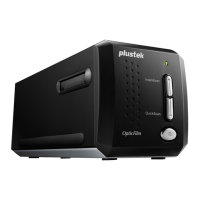
 Need help?
Do you have a question about the Plustek OpticFilm 8200i Ai and is the answer not in the manual?
 General
| Optical Resolution | 7200 dpi |
|---|---|
| Hardware Resolution | 7200 x 7200 dpi |
| Color Depth | 48-bit |
| Interface | USB 2.0 |
| Light Source | LED |
| Scanner Type | Film Scanner |
| Image Sensor | CCD |
| Weight | 1.6 kg |
| Dimensions | 120 x 272 x 119 mm |
| Supported Film Types | 35mm Slides |
| Dynamic Range | 4.0 Dmax |
| Software Included | SilverFast Ai Studio 8 |
Explains how to use the guide and what each section covers.
Explains conventions like bold text and bracketed items used in the guide.
Explains icons like Danger, Caution, and Attention used in the manual.
Describes how the scanner's light source automatically turns off to save power.
Lists necessary software and hardware prerequisites for scanner installation.
Covers connecting hardware, installing drivers, and basic setup on Windows.
Step-by-step guide for installing the SilverFast scanning application on Windows.
Guides users through installing the SilverFast scanning application on Mac OS X.
Explains how to use the IntelliScan button to launch advanced scanning features.
Explains how to use the QuickScan button for convenient scanning.
Details how to configure QuickScan settings and previews for optimal scanning.
Covers turning on the scanner and preparing the film with holders.
Details inserting the film holder and pressing the QuickScan button.
Covers previewing, adjusting settings, and finishing the scan.
Addresses common issues related to connecting the scanner to the computer.
Lists common scanning problems and their recommended solutions.
Lists the technical specifications for the OpticFilm 8100 model.
Lists the technical specifications for the OpticFilm 8200i SE model.
Lists the technical specifications for the OpticFilm 8200i Ai model.
Provides information on service and support availability for customers in EU countries.
Outlines the terms and conditions of the limited warranty provided with the scanner.
Details compliance with FCC regulations regarding radio frequency emissions.

 To Next Page