EasyManua.ls Logo

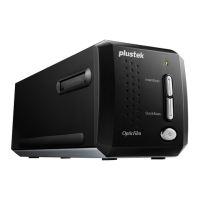
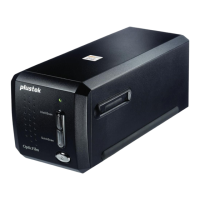
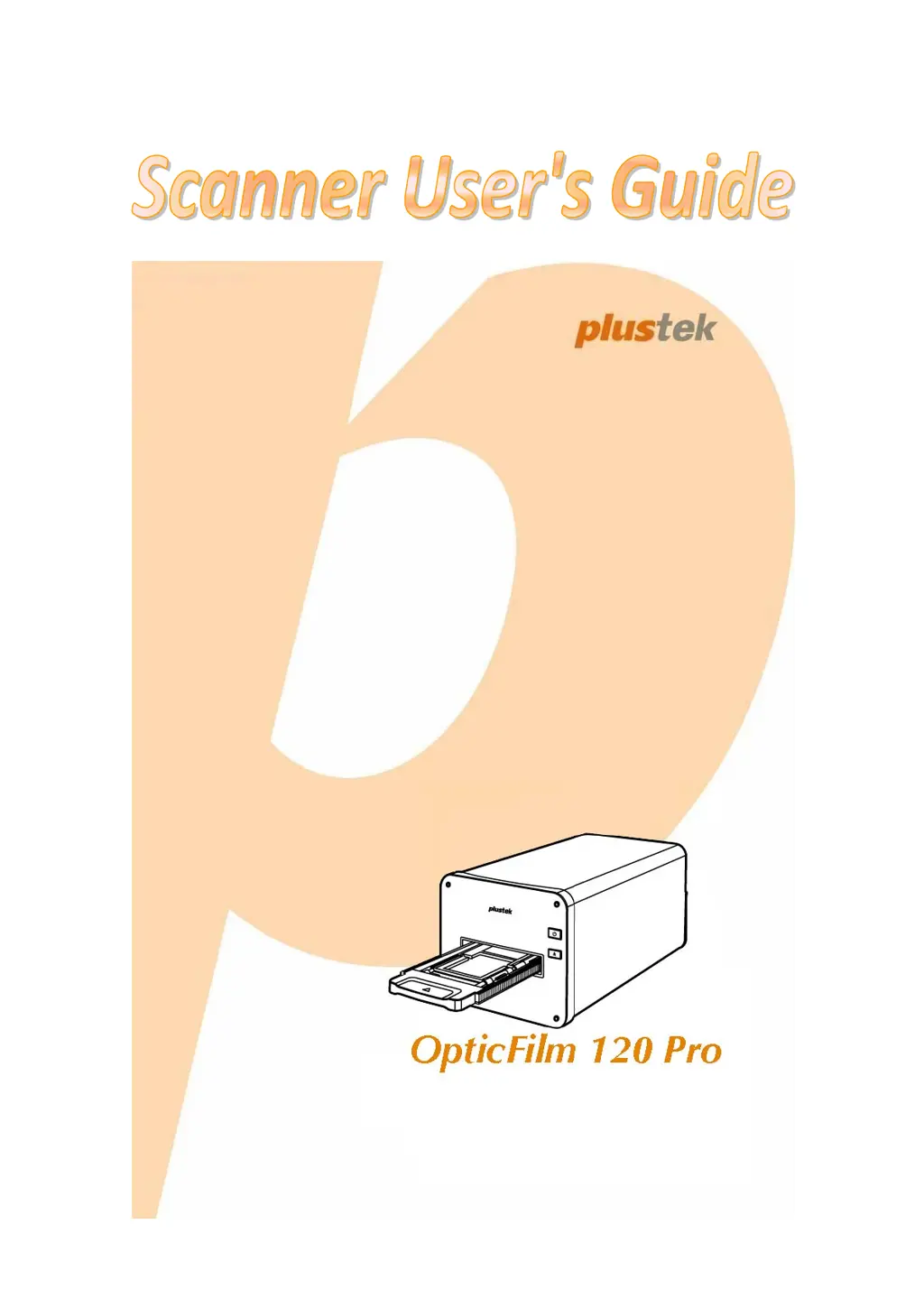
Plustek OpticFilm 120 Pro - User Manual

Plustek OpticFilm 120 Pro
33 pages
Print Icon
To Next Page IconTo Next Page
Loading...
Installation
Usage&Maintenance
Troubleshootin
g

Questions and Answers

  • D
    David SmithAug 8, 2025
    Why is there a grinding or rattling noise at the beginning of each scan with my Plustek Scanner?
    • M
      Michael StewartAug 8, 2025
      The grinding or rattling noise you hear at the beginning of each scan with your Plustek Scanner is normal. It occurs because the scanner engages the gears and initializes itself before scanning.
  • A
    Angela HamiltonAug 14, 2025
    What to do if the film holder is stuck inside my Plustek Scanner?
    • K
      Keith SantiagoAug 14, 2025
      If your Plustek Scanner film holder is stuck inside the scanner, disconnect and reconnect the power and USB cables. Upon turning on, the scanner will attempt to automatically eject the film holder. If it doesn't eject automatically, manually push the film holder through the device until it can be removed from the Rear Film Holder Slot, allowing about 35 cm behind the scanner for removal. This issue is usually caused by a power or USB cable disconnection during the scan, or some other error that caused the scan to fail.
  • B
    Brooke LewisAug 18, 2025
    How to fix Plustek OpticFilm 120 Pro Scanner when it cannot be found?
    • P
      Patrick PatelAug 18, 2025
      If your Plustek Scanner cannot be found, ensure the USB cables are tightly connected to the proper port and that you're using the USB cable that came with your scanner. Also, verify the AC adapter is connected to an outlet or that the surge protector (if used) is turned on. Finally, make sure the scanner is powered on by pressing and holding the power button for 2 seconds. The issue might be that the USB cables are not connected properly, the USB cable might be too long, the scanner’s power cord is not connected properly, or the scanner is not powered on.
  • J
    John LewisAug 25, 2025
    Why is the film holder automatically ejected from my Plustek OpticFilm 120 Pro?
    • L
      lkingAug 25, 2025
      The Plustek Scanner automatically ejects the film holder when a connection with a computer has been established. This behavior is normal and usually happens when you just connected the USB cable after accidentally disconnecting it.
  • D
    david92Aug 28, 2025
    What to do if the scanned film appears abnormal with my Plustek OpticFilm 120 Pro?
    • J
      Justin MooreAug 29, 2025
      If the scanned film from your Plustek Scanner appears abnormal with an offset in the picture, eject the film holder by pressing the Eject button, then reinsert it. Rescan the film, ensuring the scanner and the surface it's on are not bumped during the process. This issue is usually caused by the scanner or the surface it is placed on being bumped into during the scanning process.
  • W
    William MorrisSep 3, 2025
    Why is the film holder not pulled into my Plustek Scanner?
    • E
      Emily RobertsSep 3, 2025
      Ensure the Plustek Scanner and your computer are connected via a USB cable. The scanner will not pull in the film holder if the USB cable is disconnected. This is because the scanner and computer are not connected via USB cable.

Plustek OpticFilm 120 Pro Specifications

General IconGeneral
BrandPlustek
ModelOpticFilm 120 Pro
CategoryScanner
LanguageEnglish

Related product manuals