For example, 6-2-RIGHT-2021-8-27_14-30.json would indicate a preset le
from the right-hand PMC6-2 saved on 14:30 on the 27th August 2021.
• Multi-channel presets: N-CHANNEL1-CHANNEL2…CHANNELN-DATE_TIME
N is the number of channels in the preset, so, 3-LEFT-CENTRE-
RIGHT-2021-8-27_14-30.json would indicate a preset le with an entry for left,
centre and right speakers (3 total) saved at 14:30 on the 27th August 2021
Previously saved preset les stored on your device can be uploaded to the
speakers by selecting the ‘Load from File’ button. If a single-channel preset
le is uploaded it will be applied to all selected speakers.
If a mutli-channel preset le is uploaded the settings for each channel in the
preset will be applied to any speakers in the selected group with the same
channel assignment. For example, if the preset le contains settings for a
5.1 system, the settings for the ‘Left’ speaker entry in the preset le will be
applied to all selected speakers that have their Channel set to ‘Left’, and
the settings for the ‘Centre’ speaker entry in the preset le will be applied
to all selected speakers that have their Channel set to ‘Centre’, and so on.
Firmware Updates
The rmware of PMC speakers that contain SoundAlign can be updated
through the web interface.
The Get Firmware button links to an area of the PMC website where rmware
les can be downloaded to your device (PC, Mac etc.) Firmware les have
a .pmc le extension.
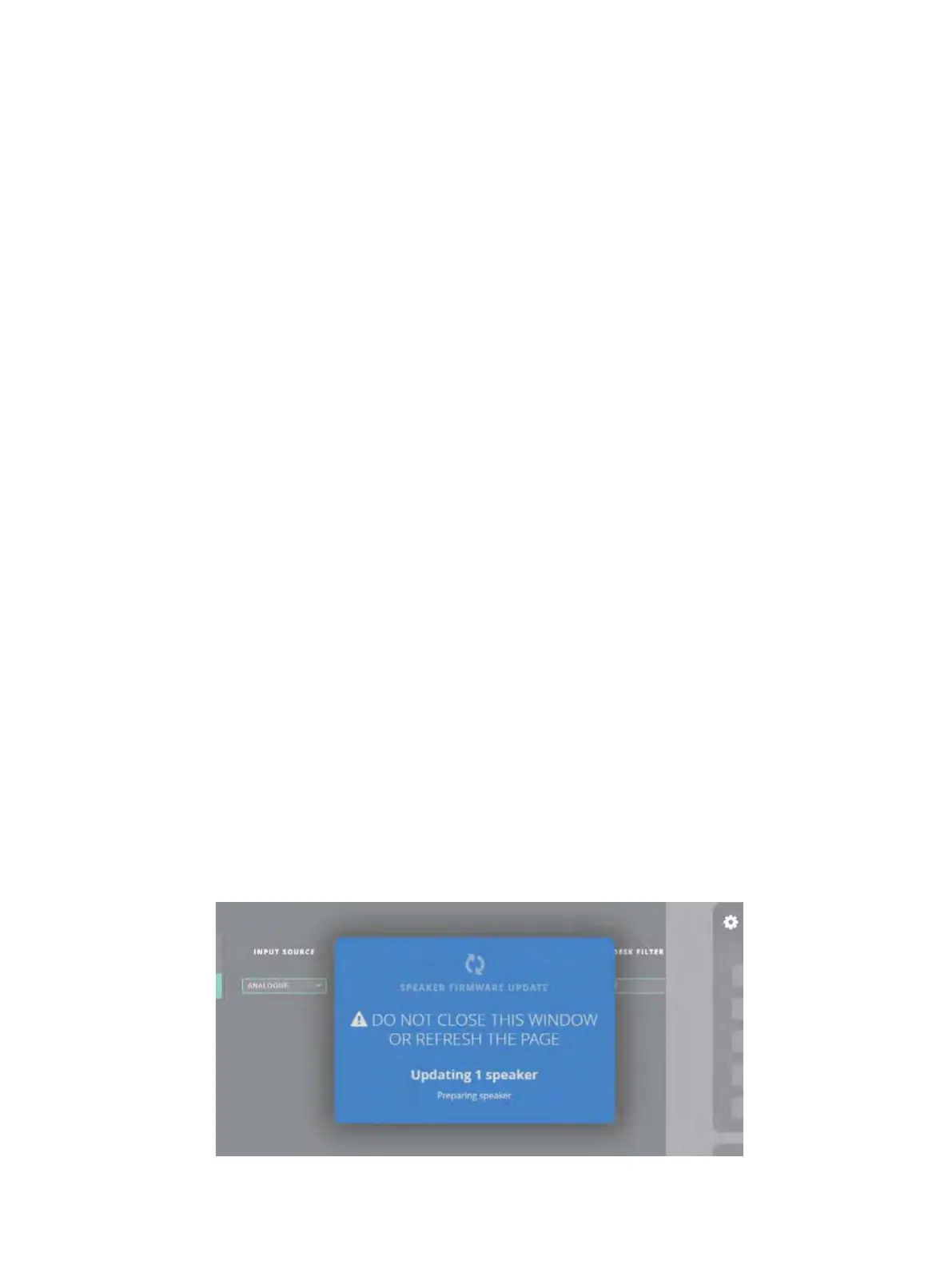
The Update Firmware button allows you to upload a rmware le from your
device to all selected speakers. Once a rmware le is selected in the pop-
up window on your device, the rmware update process will begin.


 To Next Page