User manual 6
English
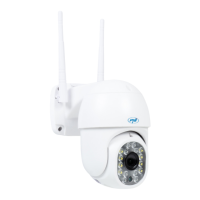
4. Power the camera to a 230V power source using the 12V/2A
power adapter included in the package.
Note: We recommend configuring and testing the camera before
mounting it in the final location.
Quick setup. Adding the camera to the application
without a cable.
Note: the camera must not be connected by cable to the router.
• Connect the mobile phone to the WiFi 2.4GHz network of
the router. Activate “Location” on your phone.
• In the CamHi Pro application, click on the “+” icon.
• Select the “IP camera” option.
• In the following interface, select the “New device” option.
• Click on “Power is on, next step”.
• In the following interface, select the “Not connected to the
network cable” option.
• Select the “AP distribution network equipment - Go add”
option.
• Scan the QR code on the camera.
• Wait for the application to identify the camera
• Wait for the application to identify the camera. Connect to
the camera’s AP.
• Select the WiFi network you want to connect to and add the
network password. To finish, press “Configure wireless and
add”.
Note: If the procedure fails, reset the camera by pressing the
reset button on the wire or the reset button on the mainboard and
repeat the steps above.


 To Next Page