EasyManua.ls Logo

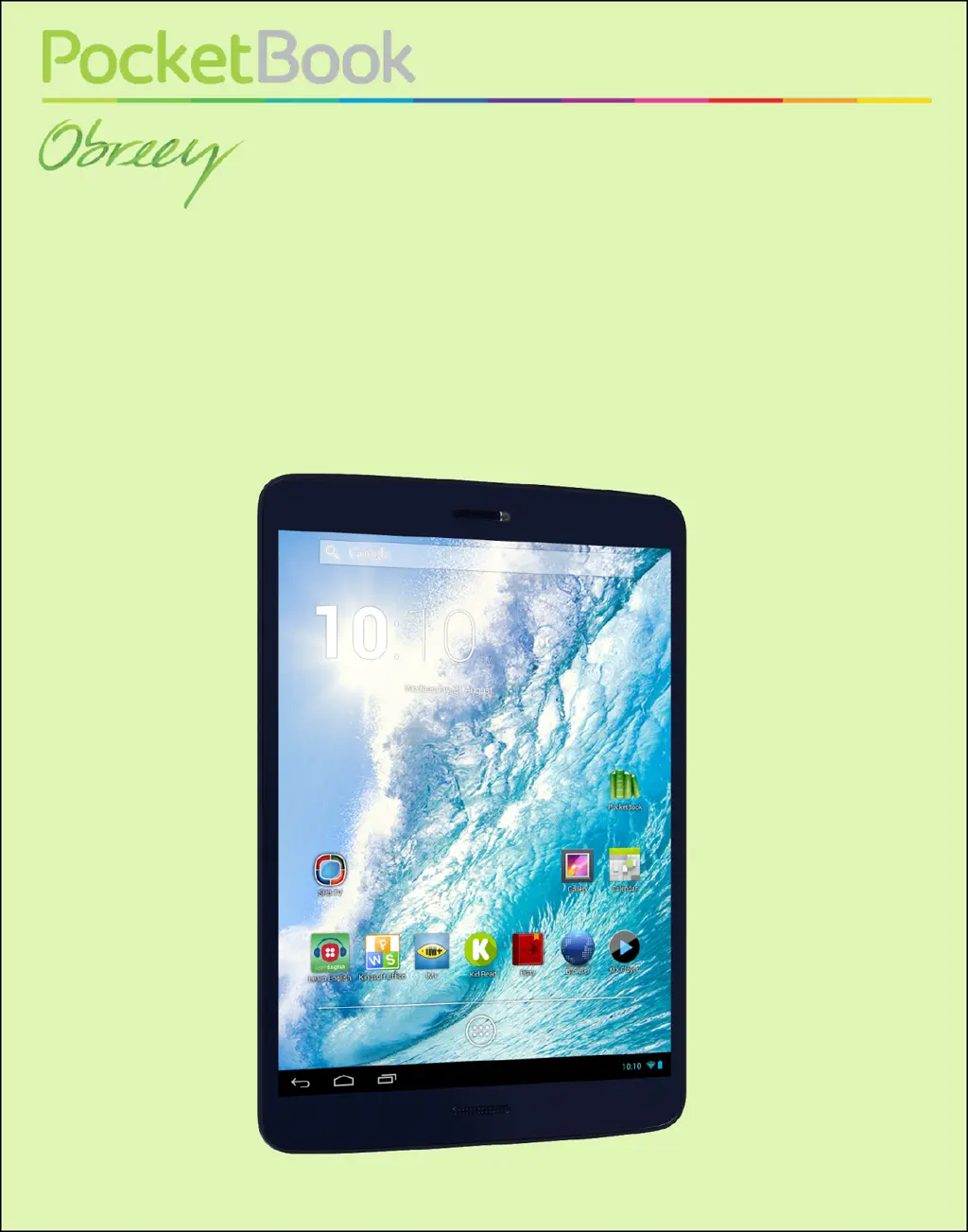
Pocketbook SURFpad 3 - User Manual

Pocketbook SURFpad 3
49 pages
Print Icon
To Next Page IconTo Next Page
Loading...
User Manual
PocketBook SURFpad 3
7,85’’

Questions and Answers

  • C
    Cheryl ShahAug 10, 2025
    What to do if Pocketbook SURFpad 3 doesn’t respond to screen touches?
    • M
      Ms. Melissa RomeroAug 10, 2025
      If your Pocketbook Tablet becomes unresponsive to screen touches or key presses, try restarting it. Press and hold the On/Off button for 10 seconds until the device turns off. Holding the On/Off button for an additional 5 seconds will completely reboot the device's power management system. To turn the device back on, press the power button as usual. If this doesn't resolve the issue, use a thin object to press the Reset button located on the side panel.
  • J
    Jessica LinAug 15, 2025
    What to do if Pocketbook SURFpad 3 stuck on splash screen?
    • C
      Carlos NovakAug 16, 2025
      If your Pocketbook Tablet only displays the splash screen after turning on, you can perform a factory reset. Here’s how: 1. Turn off the device by pressing and holding the power button. 2. Press and hold the Volume + button, then switch the device on by pressing the power button. 3. Release the Volume + button when the Android system recovery menu appears (Android logo with an exclamation mark). 4. Use the Volume +/- hardware keys to select 'wipe data/factory reset' and press the On/Off key to confirm. 5. Select 'yes – delete all user data' and press the Menu button. 6. In the service menu, select 'reboot system now' and press the Menu button.
  • A
    Andrew GarciaAug 21, 2025
    What to do if my Pocketbook SURFpad 3 Tablet is stuck on the splash screen?
    • J
      Jason KingAug 21, 2025
      If your Pocketbook Tablet only shows the splash screen after turning it on, you should turn the device off by pressing the power button continuously. Then, press and hold the Volume + button while switching the device on using the power button. When the Android system recovery menu appears (Android logo with an exclamation mark), release the Volume + button. Use the Volume +/- keys to select 'wipe data/factory reset' and confirm with the On/Off key. Next, select 'yes – delete all user data' and press Menu. Finally, in the service menu, choose 'reboot system now' and press Menu.
  • N
    Nancy YangAug 27, 2025
    How to fix a Pocketbook SURFpad 3 that is not responding?
    • W
      Whitney MannAug 27, 2025
      If your Pocketbook Tablet isn't responding to screen touches or key presses, try restarting it. Press and hold the On/Off button for 10 seconds until the device turns off. Continue holding the On/Off button for 5 more seconds to completely reboot the power management system. To turn the device back on, press the power button as usual. If this doesn't work, use a thin object to press the Reset button on the side panel.
  • W
    Wayne MoralesSep 3, 2025
    What to do if Pocketbook SURFpad 3 Tablet doesn't respond to touches?
    • S
      Shaun BanksSep 3, 2025
      If your Pocketbook Tablet is unresponsive to screen touches or key presses, try restarting it. Press and hold the On/Off button for 10 seconds until the device turns off. If it doesn't help, continue holding the On/Off button for 5 more seconds to completely reboot the power management system. Then, press the power button again to switch the device on as usual. As an alternative, you can press the Reset button on the side panel using a thin object.

Summary

Safety Precautions

Storage, Carriage and Usage Conditions

Guidelines for safe storage, transport, and environmental conditions for the device.

Maintenance

Instructions for cleaning, care, and avoiding damage to the device and its components.

Getting Started

Charging The Battery

Step-by-step instructions for charging the device's battery.

Unlock Your Device

Methods and gestures for unlocking the device's screen.

Finger Gestures

Explanation of common touch gestures used for device interaction.

Establishing Wi-Fi

Steps to connect the device to a Wi-Fi network.

Mobile Networks Connection

How to connect the device to mobile networks for internet access.

Software

Manage Data

Using the File Manager to organize, copy, and delete files on the device.

Settings

Language & Input

Configuring device language, keyboard layout, and text input settings.

Restore Your Tablet to Factory Settings

Resetting the device to its original factory state, erasing all data.

Wi-Fi Connection

Connecting to Wi-Fi networks, including automatic and manual configurations.

Firmware Update

Automatic Update

How to automatically update the device's firmware via the internet.

Manual Update

Procedures for updating firmware manually from a computer.

Troubleshooting

Solutions for common issues like device unresponsiveness or boot problems.

Pocketbook SURFpad 3 Specifications

General IconGeneral
Processor Speed1.6 GHz
RAM1 GB
Internal Storage8 GB
Expandable StoragemicroSD up to 32 GB
Rear Camera5 MP
Front Camera2 MP
WirelessWi-Fi 802.11 b/g/n
BluetoothBluetooth 4.0
DisplayIPS
ProcessorQuad Core
Operating SystemAndroid 4.4

Related product manuals