EasyManua.ls Logo

Pocketbook Touch Lux 5 - User Manual

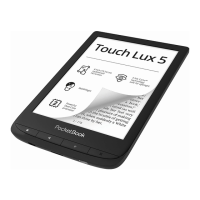
Pocketbook Touch Lux 5
94 pages
Print Icon
To Next Page IconTo Next Page
Loading...
User Manual

Questions and Answers

  • T
    Terry DukeAug 16, 2025
    What to do if my Pocketbook Touch Lux 5 eBook Reader is not responding?
    • C
      Claudia KennedyAug 16, 2025
      If your Pocketbook eBook Reader is not responding when you press any key, it might be frozen, possibly due to downloading damaged or large books. To resolve this, simultaneously press the / keys for 1–2 seconds to close the frozen application.
  • R
    Ryan FosterAug 19, 2025
    Why does my Pocketbook eBook Reader battery discharges too fast?
    • J
      Joseph PowellSep 12, 2025
      If your Pocketbook eBook Reader's battery is draining too quickly, check if the automatic turning off feature is disabled. To enable it, go to Settings > Date/Time in the Main Menu and select an automatic turn off time in the Auto Turn Off in… item.
  • L
    Lisa WeaverAug 22, 2025
    How to fix Pocketbook Touch Lux 5 eBook Reader that won't turn on?
    • S
      Stephen BarrAug 22, 2025
      If your Pocketbook eBook Reader does not turn on, or if it turns on but only the logo is loaded, the battery is likely low. Charge the battery to resolve this issue.
  • E
    Elizabeth HillAug 26, 2025
    Why Pocketbook Touch Lux 5 disks are not displayed in Explorer?
    • W
      William MarksAug 26, 2025
      If your Pocketbook eBook Reader doesn't display disks in Explorer after connecting to a PC, it could be in battery charging mode. To fix this, check the USB mode in Settings under the Main Menu. Set the connection to PC or choose 'Ask at Connection'.
  • H
    heathermarshallAug 28, 2025
    What to do if Pocketbook eBook Reader disks are not displayed in Explorer after connection?
    • R
      Rachel MunozAug 28, 2025
      If your Pocketbook eBook Reader doesn't display disks in Explorer after connecting to a PC, the USB cable might have a poor connection or be damaged. Check the USB cable's condition and ensure it's properly connected. Try connecting the USB cable to another port.
  • A
    Alexander MirandaAug 31, 2025
    How to fix incorrect symbols on Pocketbook eBook Reader?
    • M
      Mr. Michael Hart IIAug 31, 2025
      If your Pocketbook eBook Reader displays various symbols or question marks instead of letters when you open a book, the encoding is likely incorrect. To fix this, switch to reading mode, select Settings, and change the encoding.
  • S
    Scott PittmanSep 3, 2025
    Why Pocketbook Touch Lux 5 cannot save bookmarks?
    • S
      sanchezlawrenceSep 3, 2025
      If your Pocketbook eBook Reader fails to save bookmarks, settings, or your current position in a file, the internal memory might be full. Delete unnecessary books, images, or music files to free up space.
  • P
    Patty CraneSep 6, 2025
    What to do if Pocketbook eBook Reader bookmarks cannot be saved?
    • D
      Dale VillaSep 6, 2025
      If your Pocketbook eBook Reader fails to save bookmarks, settings, or your current position in a file, the file system might be damaged. Connect the device to a PC and check the disks by opening 'My Computer', right-clicking on the selected disk, and selecting 'Properties > Service > Check Disk'.
  • M
    Maureen JenkinsSep 8, 2025
    How to fix 'Book is probably damaged' error on Pocketbook eBook Reader?
    • P
      Pamela TuckerSep 9, 2025
      If a book won't open on your Pocketbook eBook Reader and displays a message like 'Book is probably damaged or protected,' or if nothing happens, the book file may be damaged. If downloaded from an online store, try reloading it. If the file opens on your PC but not on the device, save the book in another format like TXT, DOC, or PDF.
  • R
    Rebecca FryeSep 12, 2025
    Why HTML book opens incorrectly on Pocketbook Touch Lux 5?
    • C
      Cameron PerezSep 12, 2025
      If an HTML book opens on your Pocketbook eBook Reader but is displayed incorrectly (e.g., empty pages, missing text), the HTML file likely contains non-text elements like frames, JAVA-scripts, or flash elements. Save the page in TXT format to resolve this.

Summary

Safety Precautions

Storage, Carriage, and Usage Conditions

Device operating temperature range and impact avoidance guidelines.

Maintenance and Cleaning Guidelines

Device care, damage prevention, proper cleaning, and battery advice.

Screen Fragility and RF Safety

Warning on screen fragility and RF interference with medical devices.

Wireless Communication and Disposal

Wireless use restrictions and responsible device disposal.

Device Appearance

Physical Buttons and Ports

Description of device buttons and connection ports like USB and MicroSD.

Technical Specifications

Getting Started

Charging the Battery

Instructions for charging the device via PC or power adapter.

Device Management and Task Manager

Powering, locking, restarting the device, and using the Task Manager.

Main Menu and Notification Panel

Understanding the main menu and utilizing the notification panel.

Gesture Controls and On-Screen Keyboard

Navigating with touch gestures and using the on-screen keyboard for input.

Frontlight and SMARTlight Adjustment

Adjusting frontlight brightness and SMARTlight color temperature.

Connecting to the Internet

Steps for connecting to Wi-Fi networks, including hidden ones.

Inserting Micro SD Card

Instructions for inserting and removing a Micro SD card.

Applications

Library and Book Store

Managing e-books with Library and accessing content from the Book Store.

Browser and Standard Apps

Using the web browser, calendar, calculator, and scribble tools.

Games and Interactive Apps

Playing included games and using RSS News for updates.

Cloud Services: Dropbox and Send-to-PocketBook

Integrating with Dropbox and using Send-to-PocketBook for file transfer.

PocketBook Cloud Service

Syncing books, progress, and favorites with PocketBook Cloud.

Reading Books

Basic Reading and Gestures

Opening books, navigating with gestures, and accessing the reading menu.

Reading Menu and Settings

Adjusting frontlight, display, text formatting, and page numbering.

Social Networks and ReadRate Integration

Sharing book activity and rating books via social networks.

Bookmarks, Dictionary, and Notes

Managing bookmarks, using the dictionary, and creating notes.

File Loading and DRM Protection

Loading files, downloading protected e-books, and managing DRM.

Library Management and Synchronization

Organizing books in the library and syncing with network services.

Settings

Wi-Fi Configuration

Setting up and managing Wi-Fi network connections.

Account and Synchronization Services

Managing PocketBook Store, Cloud, Dropbox, Send-to-PocketBook, and ReadRate.

Personalization and Display Settings

Customizing frontlight, logo, startup, page refresh, and user profiles.

Language, Time, and Battery Settings

Configuring language, dictionaries, date/time, and battery saving.

Maintenance, Privacy, and Reset Options

Managing USB mode, backups, password protection, and device resets.

Software Updates and Device Information

Checking firmware, updating software, and viewing device details.

Firmware Update

Automatic and Manual Update Procedures

Step-by-step guides for updating the device firmware.

Troubleshooting Firmware Updates

Common errors and solutions for firmware update issues.

Troubleshooting

General Device Malfunctions and Solutions

Resolving common issues like startup errors, book opening, and encoding.

Connectivity and Storage Troubleshooting

Addressing PC connection, file saving, and battery discharge problems.

Customer Support

Compliance with International Standards

Product Specifications and Wireless Use

Product details, power source, and wireless LAN frequency use conditions.

EMC, FCC, and RF Safety Information

Compliance with EMC, FCC rules, and radio frequency safety.

SAR Exposure Guidelines

Information on Specific Absorption Rate (SAR) and exposure limits.

Pocketbook Touch Lux 5 Specifications

General IconGeneral
ColorNo
TechnologyE Ink Carta
Display diagonal6 \
Grayscale levels16
Display resolution758 x 1024 pixels
Processor frequency1000 MHz
RAM capacity512 MB
Compatible memory cardsMicroSD (TransFlash)
Maximum memory card size32 GB
Internal storage capacity8 GB
Product colorBlack
Battery capacity1500 mAh
Battery life (max)720 h
Headphone out-
USB connector typeMicro-USB
Operating system installedLinux
Audio formats supportedM4A, M4B, MP3, OGG
Image formats supportedBMP, JPEG, PNG, TIFF
Document formats supportedCBR, CBZ, CHM, DOC, DOCX, DjVu, EPUB DRM, FB2, FB2.ZIP, HTM, HTML, MOBI, PDF, PRC, RTF, TXT, ePub
Weight and Dimensions IconWeight and Dimensions
Depth8 mm
Width108 mm
Height161.3 mm
Weight155 g

Related product manuals