EasyManua.ls Logo

Pocketbook Basic Lux 3 - User Manual

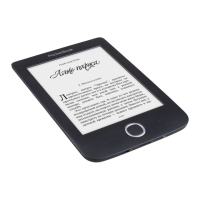
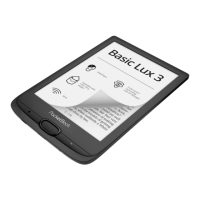
Pocketbook Basic Lux 3
78 pages
Print Icon
To Next Page IconTo Next Page
Loading...
User Guide

Questions and Answers

  • J
    Jason GilbertJul 28, 2025
    What to do if my Pocketbook eBook Reader is not responding to key presses?
    • C
      Cynthia CruzJul 28, 2025
      If your Pocketbook eBook Reader is not responding when you press any key, it may be frozen, especially after downloading damaged or large books. To resolve this, try closing the frozen application by pressing the keys / simultaneously for 1–2 seconds. Another reason could be that your device is in battery charging mode. To change this, check the USB mode in Settings under the Main Menu and set the Connection to PC or Ask at Connection.
  • S
    Samuel MccoyAug 1, 2025
    Why does my Pocketbook Basic Lux 3 eBook Reader battery discharge too fast?
    • B
      Brandon HillAug 1, 2025
      If your Pocketbook eBook Reader's battery is draining too quickly, check if the automatic turning off feature is disabled. To enable it, go to Settings > Date/Time in the Main Menu and select an automatic turn off time in the Auto Turn Off in… item.
  • P
    Patrick AshleyAug 5, 2025
    How to fix a Pocketbook Basic Lux 3 that won't turn on?
    • P
      paulaolsenAug 5, 2025
      If your Pocketbook eBook Reader does not turn on, or turns on but only loads the logo, the battery is likely low. Charge the battery to resolve this issue.
  • M
    Mary LucasAug 10, 2025
    Why does my Pocketbook Basic Lux 3 eBook Reader show symbols instead of letters?
    • A
      Alyssa WilliamsAug 10, 2025
      If your Pocketbook eBook Reader displays various symbols or question marks instead of letters when you open a book, it is likely due to incorrect encoding. To fix this, switch to reading mode, select Settings, and change the encoding.
  • P
    Philip HuffAug 13, 2025
    What to do if my Pocketbook Basic Lux 3 won't save bookmarks?
    • D
      Dean JohnsonAug 14, 2025
      If your Pocketbook eBook Reader fails to save bookmarks, settings, or your current position in a file, it could be due to a damaged file system or a full internal memory. To address a damaged file system, connect the device to a PC and check the disks by opening My Computer, right-clicking on the selected disk, and selecting Properties > Service > Check Disk. If the internal memory is full, delete unnecessary books, images, and/or music files.
  • D
    Daniel EstesAug 18, 2025
    What to do if a book won't open on my Pocketbook Basic Lux 3?
    • W
      wilkinsjimAug 18, 2025
      If a book won't open on your Pocketbook eBook Reader and you see a message like 'Book is probably damaged or protected,' or nothing happens at all, it's possible the book file is damaged. If the book was downloaded from an online store, try reloading it. If the file opens on your PC but not on the device, save the book in another format such as TXT, DOC, or PDF.
  • M
    Mark ParsonsAug 22, 2025
    Why does my Pocketbook eBook Reader display HTML books incorrectly?
    • J
      Jeffrey ValdezAug 23, 2025
      If an HTML book opens on your Pocketbook eBook Reader but is displayed incorrectly (e.g., empty pages, missing text), it could be due to non-text elements like frames, JAVA-scripts, or flash-elements within the HTML file. Save the page in TXT format.

Summary

Safety Precautions

Storage, Carriage and Usage Conditions

Device operating temperature range and conditions to avoid.

Maintenance Guidelines

Guidelines for maintaining the device, including cleaning and care.

Device Appearance

Device Controls and Ports

Explains the function of physical buttons and connection ports.

Getting Started

Charging the Battery

Instructions on how to charge the device's battery.

Device Management

How to turn on, turn off, lock, unlock, and restart the device.

On-Screen Keyboard Usage

How to use the virtual keyboard for text input.

Loading Files to Device

Steps to transfer files to the device from a PC.

Inserting Micro SD Card

Guide on how to insert a microSD card for storage expansion.

Reading Books

Settings

Wi-Fi Configuration

Configuring network connection settings for Wi-Fi.

Accounts and Synchronization

Managing accounts like Adobe DRM and Send-to-PocketBook.

PocketBook Cloud Integration

Managing PocketBook Cloud account and sync options.

Firmware Update

Automatic Firmware Update

How to automatically update the device's firmware.

Manual Firmware Update

Steps to manually update the device's firmware.

Troubleshooting

Error Messages and Corrections

Common error messages and their correction methods.

Malfunctions and Solutions

Lists common malfunctions, reasons, and solutions.

Pocketbook Basic Lux 3 Specifications

General IconGeneral
TechnologyE Ink Carta
Display diagonal6 \
Grayscale levels16
Display resolution758 x 1024 pixels
Audio formats supportedNot supported
Image formats supportedBMP, JPEG, PNG, TIFF
Document formats supportedACSM, CBR, CBZ, CHM, DOC, DOCX, DjVu, EPUB DRM, FB2, FB2.ZIP, HTM, HTML, MOBI, PDF, PRC, RTF, TXT
Built-in processorYes
Processor frequency1000 MHz
RAM capacity512 MB
Compatible memory cardsMicroSD (TransFlash)
Maximum memory card size- GB
Internal storage capacity8 GB
USB connector typeMicro-USB
Menu languages-
Product colorWhite
Bundled softwarePocketBook Cloud, ReadRate, Dropbox, Send-to-PocketBook, Library, Dictionary, Gallery, Calculator, Chess, Klondike, Snake, Sudoku.
Operating system installedLinux
Battery capacity1300 mAh
Battery life (max)- h
Weight and Dimensions IconWeight and Dimensions
Depth8 mm
Width161.3 mm
Height108 mm
Weight155 g

Related product manuals