EasyManua.ls Logo

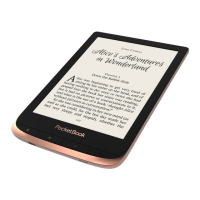
Pocketbook Color Lux - User Manual

Pocketbook Color Lux
89 pages
Print Icon
To Next Page IconTo Next Page
Loading...
User Manual
Tap here
to open

Questions and Answers

  • M
    Matthew ClarkAug 10, 2025
    What to do if Pocketbook eBook Reader says no upgrade image found?
    • J
      Jessica SmallAug 10, 2025
      If you encounter a 'No upgrade image found' error on your Pocketbook eBook Reader, it means the SWUPDATE.BIN file is missing from your microSD card. To fix this, format your microSD card after backing up its contents, then copy the SWUPDATE.BIN file to the root directory of the empty card. If the problem continues, try using a different microSD card.
  • J
    Joshua WileyAug 18, 2025
    Why does my Pocketbook Color Lux say upgrade image is corrupted?
    • R
      Rodney OrozcoAug 18, 2025
      If your Pocketbook eBook Reader displays 'Upgrade image is corrupted or Image is empty', it indicates the SWUPDATE.BIN file is either damaged or there is insufficient space on your microSD card. Resolve this by deleting unnecessary files from your card and recopying the SWUPDATE.BIN file. If the issue persists, redownload the file from www.pocketbook-int.com or try using another microSD card.
  • A
    Alan RhodesAug 26, 2025
    How to fix 'Error. A different firmware version is installed on the device' on Pocketbook eBook Reader?
    • J
      Joshua TurnerAug 27, 2025
      If you receive a 'Error. A different firmware version is installed on the device' message on your Pocketbook eBook Reader, it means an older firmware file is present in the device's internal memory. You should delete the old firmware file from the root folder of the device's internal memory.
  • J
    Jennifer HowardSep 3, 2025
    What to do if Pocketbook Color Lux eBook Reader shows a file read error?
    • H
      hmyersSep 3, 2025
      If your Pocketbook eBook Reader shows a 'File read error', it suggests there's an issue with your microSD card. The suggested solution is to try using a different microSD card.

Summary

Safety Precautions

Getting Started

Charging Battery

Guide on how to charge the device's battery for the first time.

Power Management

Instructions for turning the device on/off and managing power settings.

Loading Files

Steps to transfer files to the device using a PC.

Gestures

Explanation of touch screen gestures for device navigation and interaction.

Working with On-Screen Keyboard

How to use the on-screen keyboard for text input.

Connecting to the Internet

Steps to connect the device to Wi-Fi networks.

Main Menu

Library

Manages e-books, allowing filtering, grouping, sorting, and search.

Applications

Access to pre-installed applications like Calculator, Chess, Browser, etc.

Book Store

Provides access to download licensed content from the Book Store portal.

Reading Books

Social Networks & ReadRate

Share book quotations, add comments, and interact on social networks.

Settings

Network

Setting up Wi-Fi connections, including hidden networks and available networks.

Saving Battery

Settings to conserve battery charge, like LED indication and power-off timers.

Firmware Update

Automatic Update

Steps to perform an automatic firmware update via device settings.

Manual Update

Procedure for manually updating firmware from a PC.

Troubleshooting

Customer Support

Pocketbook Color Lux Specifications

General IconGeneral
BrandPocketbook
ModelColor Lux
CategoryeBook Reader
LanguageEnglish

Related product manuals