EasyManua.ls Logo

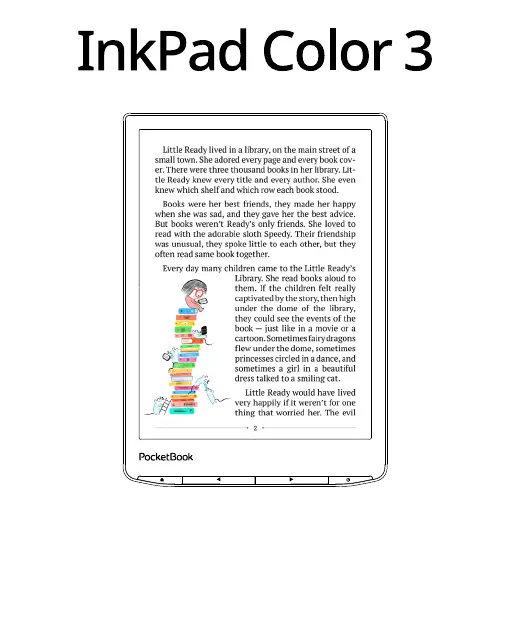
Pocketbook InkPad Color 3 - User Manual

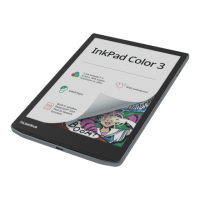
Pocketbook InkPad Color 3
122 pages
Print Icon
To Next Page IconTo Next Page
Loading...
User Manual

Questions and Answers

  • L
    Luis BrownJul 28, 2025
    Why does my Pocketbook eBook Reader battery discharge too fast?
    • K
      Kenneth SandersJul 28, 2025
      A possible reason for rapid battery discharge is that the automatic turning off function is disabled. To resolve this, navigate to Settings > Date/Time in the Main Menu and select an automatic turn off time in the Auto Turn Off in… item.
  • C
    Carla WrightAug 1, 2025
    What to do if my Pocketbook InkPad Color 3 does not turn on?
    • P
      Paula EdwardsAug 2, 2025
      If your device doesn't turn on or only loads the logo, the battery may be low. Try charging the battery.
  • J
    John DeleonAug 6, 2025
    What to do if my Pocketbook eBook Reader bookmarks, settings and current position in file cannot be saved?
    • M
      Matthew YoungAug 6, 2025
      This issue may occur if the file system is damaged or if the internal memory is full. Connect the device to a PC and check the disks by opening My Computer, right-clicking on the selected disk, and selecting Properties > Service > Check Disk. Also, delete any unnecessary books, images, or music files to free up space in the internal memory.
  • C
    Courtney WadeAug 10, 2025
    What to do if my Pocketbook InkPad Color 3 HTML book opens but is displayed incorrectly?
    • G
      George RiceAug 10, 2025
      If an HTML book opens but displays incorrectly with empty pages or missing text, the HTML file might contain non-text elements like frames, JAVA-scripts, or flash elements. Try saving the page in TXT format.
  • D
    David SotoAug 14, 2025
    What to do if my Pocketbook eBook Reader disks are not displayed in Explorer after connecting to PC?
    • M
      Mathew ThompsonAug 14, 2025
      This issue may occur if your device is in battery charging mode. To fix this, check the USB mode in Settings > Main Menu and set it to Connection to PC or Ask at Connection. Alternatively, the USB cable may have a poor connection or be damaged. Check the USB cable's condition and its connection to the connector, or try connecting the USB cable to another port.
  • A
    ashley68Aug 19, 2025
    What to do if my Pocketbook InkPad Color 3 eBook Reader book does not open and shows 'Book is probably damaged or protected'?
    • L
      lwatsonAug 19, 2025
      If you see a message indicating the book is damaged or protected, or if nothing happens when you try to open it, the book file may be corrupted. If the book was downloaded from an online store, try reloading it. If the file opens on your PC but not on the device, save the book in another format such as TXT, DOC, or PDF.
  • J
    Jonathan GeorgeAug 23, 2025
    Why does my Pocketbook InkPad Color 3 display various symbols instead of letters?
    • L
      Lori WilkinsAug 23, 2025
      If you see incorrect symbols in place of letters, the encoding may be wrong. To correct this, switch to reading mode, select Settings, and change the encoding.

Summary

Safety Precautions

Storage, Carriage and Usage Conditions

Guidelines for handling the device to prevent damage from environmental factors.

Appearance

Device Components and Ports

Overview of the device's physical parts, buttons, and connectivity options.

Technical Specifications

Device Specifications

Detailed technical parameters including display, processor, memory, and supported formats.

Getting Started

Charging the Battery

Instructions on how to charge the device's battery using USB or a power adapter.

Device Management

Procedures for turning on/off, locking, unlocking, and restarting the device.

Main Menu Overview

Explanation of the main screen layout, notification panel, and application menu access.

Gestures

Explanation of touch gestures like tap, touch & hold, slide, flick, and scaling for device interaction.

On-Screen Keyboard

Guide to using the on-screen keyboard for text input, character selection, and language switching.

Frontlight Control

How to adjust frontlight brightness and SMARTlight temperature for comfortable reading.

Connecting to the Internet

Steps to connect the device to Wi-Fi networks, including hidden networks.

Bluetooth Pairing

Instructions for pairing Bluetooth devices like headsets and speakers with the e-reader.

Applications

Library

E-books file manager for grouping, sorting, and searching content.

Store

Accessing the PocketBook bookstore portal for licensed content.

Browser

Using the web browser for viewing web pages and navigating.

Notes

Managing notes within books, including filtering and exporting.

General Applications

Overview of utility applications like Calendar, Calculator, and Gallery.

Audiobooks

Playing audio books in supported formats.

Games

Information on available games such as Klondike, Sudoku, and Chess.

Services

Details on services like Dropbox PocketBook and Send-to-PocketBook.

Reading Books

Gestures in Reading Mode

Specific touch gestures for page turning, bookmarking, and accessing the reading menu.

Reading Menu

Explanation of the reading menu options for navigation, search, and book settings.

Adjusting Reading Settings

How to adjust frontlight, SMARTlight, and other reading preferences.

Contents and Bookmarks

Using the table of contents and creating/managing bookmarks within a book.

Dictionary and Notes

Utilizing the built-in dictionary for translations and creating notes within books.

Voice (Text-to-Speech)

Using the Text-to-Speech feature to convert book text into audio.

Book Format Settings

Configuring reading settings specific to various book formats like EPUB, FB2, PDF, and DjVu.

Following Links

How to navigate internal and external links within books.

Loading Files

Transferring files to the device via PC.

Downloading Protected E-books

Procedures for downloading and activating DRM-protected e-books.

PocketBook Cloud

Accessing and syncing books across devices using PocketBook Cloud.

Settings

Wi-Fi and Bluetooth

Configuring network connections, including Wi-Fi and Bluetooth pairing.

Accounts and Synchronization

Managing user accounts and data synchronization services.

Personalize Settings

Customizing frontlight, DARKmode, logos, and gesture settings.

Languages and Date;Time

Setting interface language, keyboard layouts, and device date/time.

Power Saving and Maintenance

Optimizing battery life and managing device maintenance tasks.

Software and Device Information

Updating software, checking firmware version, and viewing device details.

Firmware Update

Automatic and Manual Update

Procedures for updating the device's firmware via automatic or manual methods.

Troubleshooting

Device Malfunctions and Solutions

Common issues like device not turning on, books not opening, and freezing, with their solutions.

Customer Support

Contact Information

Provides contact details for customer support services in various countries.

Compliance with International Standards

RF Exposure and Safety Information

Details on radio frequency output power, SAR values, and FCC compliance.

Pocketbook InkPad Color 3 Specifications

General IconGeneral
Display Size7.8 inches
Display TypeE Ink Kaleido 3
Color Depth4096 colors
Storage32 GB
Battery Capacity2900 mAh
Weight225 g
FrontlightYes
Color Temperature ControlYes
RAM1 GB
Audio OutputYes, via Bluetooth
Operating SystemLinux-based
WaterproofNo
Resolution1404 x 1872
MicroSD SupportYes
ConnectivityWi-Fi, Bluetooth
Supported FormatsEPUB, PDF, FB2, MOBI, HTML, DOC, DOCX, TXT, RTF
ProcessorQuad Core (1.8 GHz)

Related product manuals