EasyManua.ls Logo

Pocketbook Basic Lux 2 - User Manual

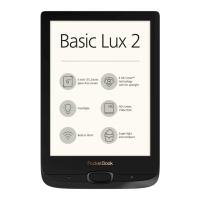
Pocketbook Basic Lux 2
62 pages
Print Icon
To Next Page IconTo Next Page
Loading...
User Guide

Questions and Answers

  • R
    reedamandaAug 17, 2025
    How to fix Pocketbook eBook Reader battery draining fast?
    • L
      Luis MichaelAug 17, 2025
      If your Pocketbook eBook Reader's battery is draining too quickly, the automatic turning off feature might be disabled. To resolve this, go to Settings > Date/Time in the Main Menu and select an automatic turn off time in the Auto Turn Off in… item.
  • N
    nina76Aug 20, 2025
    How to fix 'Upgrade image is corrupted' error on Pocketbook Basic Lux 2 eBook Reader?
    • E
      Erin StoutAug 20, 2025
      If you're getting an 'Upgrade image is corrupted or Image is empty' error on your Pocketbook eBook Reader, the SWUPDATE.BIN file may be damaged, or there may not be enough space on the microSD card. Try deleting some files from your card and copying the SWUPDATE.BIN file onto it again. Re-download the file from www.pocketbook-int.com. If the error persists, try using a different card.
  • J
    Jacqueline MirandaAug 22, 2025
    How to fix incorrect symbols displayed on Pocketbook eBook Reader?
    • B
      Brian FranklinAug 23, 2025
      If your Pocketbook eBook Reader is displaying various symbols or question marks instead of letters when you open a book, the encoding is likely incorrect. To fix this, switch to reading mode, select Settings, and change the encoding.
  • M
    Morgan BoydAug 25, 2025
    How to fix 'Different firmware version' error on Pocketbook Basic Lux 2 eBook Reader?
    • J
      john13Aug 26, 2025
      If your Pocketbook eBook Reader shows an error indicating that a different firmware version is installed on the device, an older version of the firmware file is stored in the device's internal memory. Delete the old version of the firmware file from the Device’s internal memory root folder.
  • W
    Wendy ClarkAug 28, 2025
    Why my Pocketbook Basic Lux 2 eBook Reader does not turn on?
    • S
      Stephen CoxAug 28, 2025
      If your Pocketbook eBook Reader isn't turning on or only shows the logo, the battery is likely low. You should charge the device.
  • A
    Ashley FrenchAug 30, 2025
    What to do if Pocketbook Basic Lux 2 eBook Reader doesn't open a book?
    • J
      james42Aug 30, 2025
      If your Pocketbook eBook Reader displays a message that a book is damaged or protected, or if nothing happens when you try to open it, the book file may be corrupted. If the book was downloaded from an online store, try downloading it again. If the file opens on your PC but not on your device, save the book in another format such as TXT, DOC, or PDF.
  • V
    Vanessa ChapmanSep 1, 2025
    Why Pocketbook Basic Lux 2 disks are not displayed in Explorer after connecting to PC?
    • M
      morenomeganSep 2, 2025
      If the disks of your Pocketbook eBook Reader are not showing up in Explorer after connecting to your PC, your device is likely in battery charging mode. To fix this, check the USB mode in Settings > Main Menu. Set the mode to 'Connection to PC' or 'Ask at Connection'.
  • A
    Alvin ShawSep 4, 2025
    What to do if Pocketbook eBook Reader is not responding to key presses?
    • J
      Jason FergusonSep 4, 2025
      If your Pocketbook eBook Reader is not responding when you press any key, the device may have frozen. This can happen when downloading damaged or very large books. To close the frozen application, press the / keys simultaneously for 1–2 seconds.
  • P
    Patricia SmithSep 7, 2025
    Why Pocketbook eBook Reader cannot save bookmarks, settings, and current position?
    • J
      Joseph JohnsonSep 7, 2025
      If your Pocketbook eBook Reader is unable to save bookmarks, settings, or your current position in a file, it could be due to a damaged file system or full internal memory. To check the disk, connect the device to a PC and check the disks: open My Computer, right-click on the selected disk, and select Properties > Service > Check Disk. Alternatively, delete books, images, or music files that you no longer need to free up space.
  • J
    John HarmonSep 9, 2025
    What to do if Pocketbook eBook Reader says 'No upgrade image found'?
    • N
      Nicole CoxSep 9, 2025
      If your Pocketbook eBook Reader displays a 'No upgrade image found' error, it means the SWUPDATE.BIN file cannot be found on the microSD card. Try formatting your Micro SD card (make backup copies of all its content prior to formatting) and copy the file to the root of the empty card. If the error continues, use another card.

Summary

Safety Precautions

Storage, Carriage and Usage Conditions

Specifies operating temperature range and conditions to avoid.

RF Safety

Covers radio frequency interference and usage in sensitive locations.

Utilization

Information on proper disposal and recycling of the device.

Appearance

Technical Characteristics

Getting Started

Charging Battery

Instructions for charging the device's battery for the first time.

Device Management

How to turn on/off, lock, and unlock the device.

Main Menu Overview

Explains the main menu structure and its components.

Navigation

How to use navigation buttons to select items and turn pages.

Working with On-Screen Keyboard

Guide to using the virtual keyboard for text input.

Recent Events

Displays a list of recently opened and loaded books.

Loading Files

Steps for connecting to a PC and transferring files.

Frontlight

How to adjust the frontlight level for reading.

Inserting Micro SD Card

Instructions for inserting and ejecting a microSD card.

Applications

Calculator

Details on the engineering calculator features.

Chess

How to play the Chess game on the device.

Dictionary

Guide to using the dictionary for word lookups.

Klondike

Description of the classic solitaire game.

Gallery

How to view images stored on the device.

Snake

Instructions for playing the Snake game.

Sudoku

How to play the popular Japanese puzzle game.

Library

E-books file manager for grouping and sorting books.

Dropbox PocketBook

How to download and synchronize files using Dropbox.

Send-to-PocketBook

How to send files to the device via email.

Reading Books

Library

E-books file manager for organizing books.

Turning Pages

How to navigate between pages in a book.

Changing Font Size

How to adjust the text font size for reading.

Reading Menu

Accessing reader options like search, bookmark, and settings.

Search

How to search for text within books.

Settings

Configuring reading settings for different book formats.

Dictionary

Using the dictionary for single-word translations.

Settings

Wi-Fi

Configuring network connection parameters.

Accounts and Synchronization

Managing Adobe DRM and cloud synchronization.

Personalize

Customizing device appearance and behavior.

Languages

Selecting the device interface and keyboard languages.

Saving Power

Adjusting settings to conserve battery life.

Maintenance

Managing USB mode, backup, and recovery options.

Software

Checking firmware version and managing updates.

Firmware Update

Automatic Update

Steps for updating firmware automatically.

Manual Update

Steps for updating firmware manually from a PC.

Troubleshooting

Customer Support

Compliance with International Standards

Certification Information (SAR)

Device compliance with radio wave exposure guidelines.

Pocketbook Basic Lux 2 Specifications

General IconGeneral
BrandPocketbook
ModelBasic Lux 2
CategoryeBook Reader
LanguageEnglish

Related product manuals