10 7
Note : When play DVD disc, you can repeat certain point only in 1 title, when you move to other title this will
cancel REPEAT A-B function. When play SVCD/VCD/CD/MP3 disc, you can repeat certain point only in 1 track,
when you move to other track this will cancel REPEAT A-B function.
Fast Forward/Reverse
Press “ ” (fast forward) or “ ” (fast reverse) button when play, player
will, forward/reverse with 2x faster than normal speed. If the button is pressed
again, the speed will increase 4 times, 8 times, 16 times, 32 times and if it is
pressed again, it will back to normal.
Next/Previous
Next : When play, press NEXT ( ) button to go to the next chapter (DVD) or track (SVCD/
VCD/CD). Previous : When play, press PREVIOUS ( ) button to go to chapter (DVD) or
track (SVCD/VCD/CD).
Track/Chapter Selection
When playing a disc, you can select track/chapter directly
using “0-9” numeric buttons. For VCD 2.0 disc, turn OFF PBC
function first. To play track 8, press “8” numeric button.
Example : For track 18 press “1” numeric button followed “8”
numeric button. On the TV screen will display :
Slow (slow motion play)
When play, press “SLOW” button to activate this function. Repeat pressing
“SLOW” until you get the preferred speed. Available slow motion speed : 1/2,
1/4, 1/8, 1/16 then normal for DVD/SVCD/VCD/MPEG4 disc. To return to normal play, press “ / ”.
Step (frame by frame play)
When you play DVD/SVCD/VCD/MPEG4 disc, step is used to play the picture frame by frame.
Press “STEP” button to activate step function. Each time “STEP” button is pressed, the
picture played frame by frame. Press and hold “STEP” button to play STEP function continuously. Press “ /
” button to resume to normal play.
Audio language
Many DVD disc has soundtrack that recorded in many language. “AUDIO” button
is used to select different soundtrack. This button also can be used to select
SURROUND sound format that recorced in disc (ex : Dolby Digital, Stereo and
DTS). The change the language when play the disc, press “AUDIO” button until
appear OSD name character of preferred audio language.
Subtitle
Many DVD disc recorded with multi subtitles. “SUB-T” button is used to select
preferred subtitle. To change the subtitle wwhen play the disc, press “SUB-T” button
until appear OSD name character of preferred subtitle language. To disappear subtitle, press “SUB-T” button
repeatedly until character SUBTITLE OFF displayed on the screen.
Note : Not all DVD disc have multi subtitle in some languages.
Camera angle
Some DVD disc provide facility camera angle that enable you to
watch the picture in many camera angles. If you set ANGLE
MARK to ON (refer to “GENERAL”), so camera icon will be displayed on the screen corner to indicate that there
are available camera angle. Pressing “ANGLE” button afterward will change to the next angle and so on.
Playing DVD/SVCD/VCD/CD disc
Play : Press “ ” (open/close) to open the Disc Tray. Insert the preferred disc that you want to play. Press “ ”
(open/close) button again to close the Disc Tray. Player directly playing the disc. For DVD disc, on the TV
screen will comes up disc menu and DVD symbol on the display lights up. While for SVCD/VCD 2.0 disc onn
the TV screen will comes up disc menu.
Pause : To freeze the picture temporary (pause), when play press “ ” (pause) on the remote control or press
“ ” on the front panel of the unit to freeze the picture playback, press again “ ” (pause) or “ / ” button
to return to normal play.
Stop : To stop play (stop) press “ ” (stop) button once, so player will remember your last position when “ ”
(stop) button pressed (resume). On the TV screen comes up “ ” sign and “PRESS PLAY KEY TO CONTINUE”
appearance, press “ / ” button to play from point when “ ” (stop) button is pressed. To permanently stop,
press “ ” (stop) button 2x (disable resume function).
Playing MPEG4/MP3/JPEG disc
MP4 is a compression system of the digital video data with MPEG4 international standard and use MP3/AC3
or others audio format. MPEG4 itself is a compression system of digital video data that produced almost equal
MPEG2 (DVD) picture quality with smaller size. As sample, used extension is “*.avi”.
MP3 is a compression system of digital audio data with MPEG audio layer 3 format that produces data savings
12 - 14 times more than conventional system with equalize CDDA quality that be able to save more than 600
minutes play time. While JPEG disc is a disc that contains many pictures in JPEG format (Joint Photographic
Expert Group).
Operation mode of MP3/MPEG4/JPEG disc : When playing MP3/MPEG4/JPEG disc, there are 3 operation
mode : FILELIST, FOLDER and PLAYLIST. When in stop condition press “PROG” button repeatedly to select the
one of the operation mode.
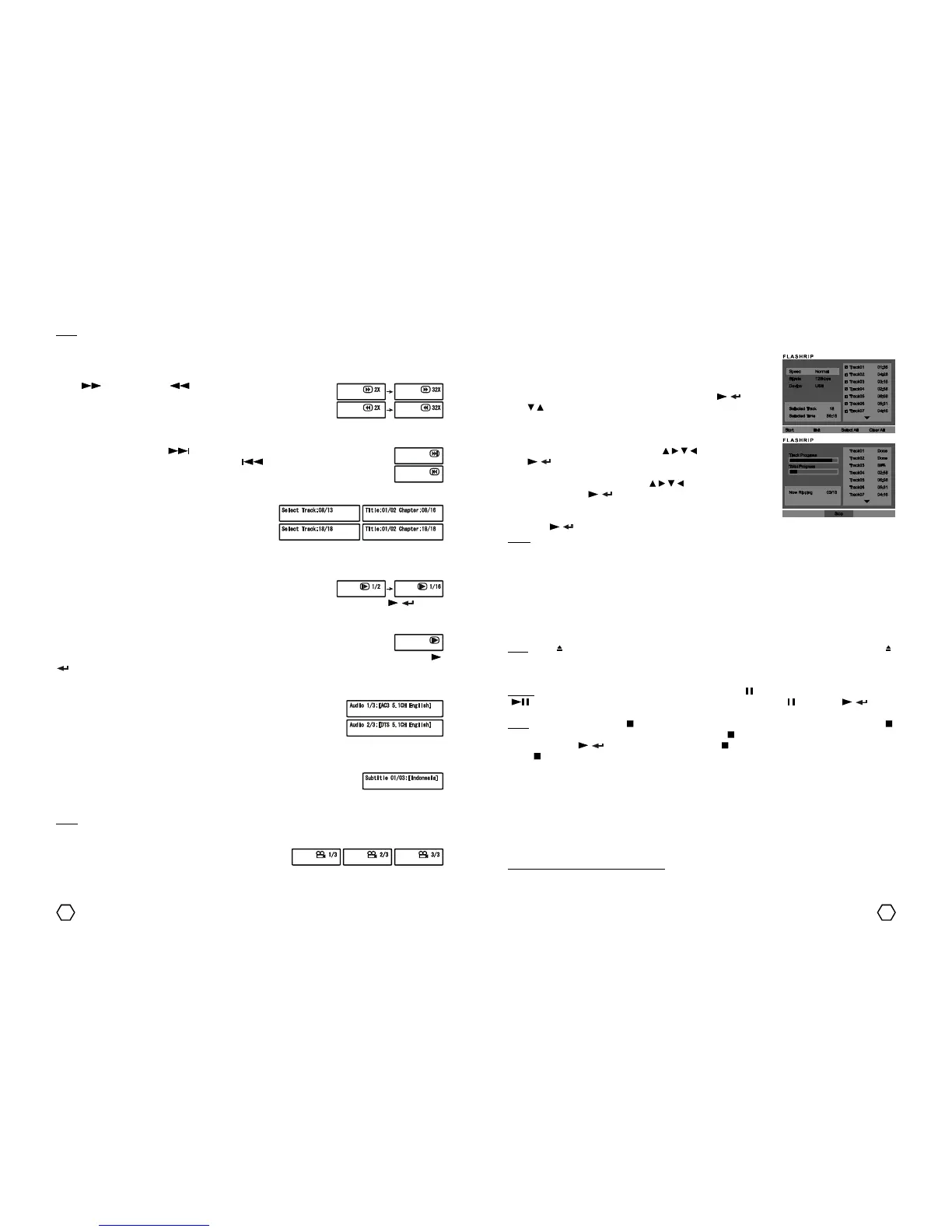
CDDA rip using the FLASHRIP function
With this features, enable you to rip the CDDA to be MP3 file format that is stored to the USB Flashdisk.
1. Plug the USB Flashdisk to the USB terminal.
2. Insert the CDDA disc to be converted to the disc tray.
3. After CDDA had read, press “FLASHRIP” button on the remote control.
On the TV screen will displayed FLASHRIP menu.
4. Set the SPEED and BITRATE by entering them using “ / ” and use
“ / ” button to confirm the desired SPEED and BITRATE.
5. Select the track to be converted using “ / / / ” navigator button and
“ / ” button, if you want to converted all available tracks, choose
SELECT ALL.
6. To start RIPPING process, press “ / / / ” button to select START
tab, then press “ / ” button. Wait the RIPPING process until it
finish.
7. After done, to get out from the RIPPING menu, select the EXIT tab then
press “ / ” button or by pressing “FLASHRIP” button once more.
Note :
The result of the conversion with MP3 format will be placed on the FLSHRIP folder with POLY_XX.MP3 names
format, XX is the sequence number of the conversion.
Volume adjustment and Mute
You can adjust the volume with “-VOL+” button on the remote control to decrease or increase the volume
level. If you want to mute the sound press “MUTE” button and press “MUTE” again or “VOL+” button to back
to normal.



 To Next Page
 Loading...