Telephone mode (optional) 27
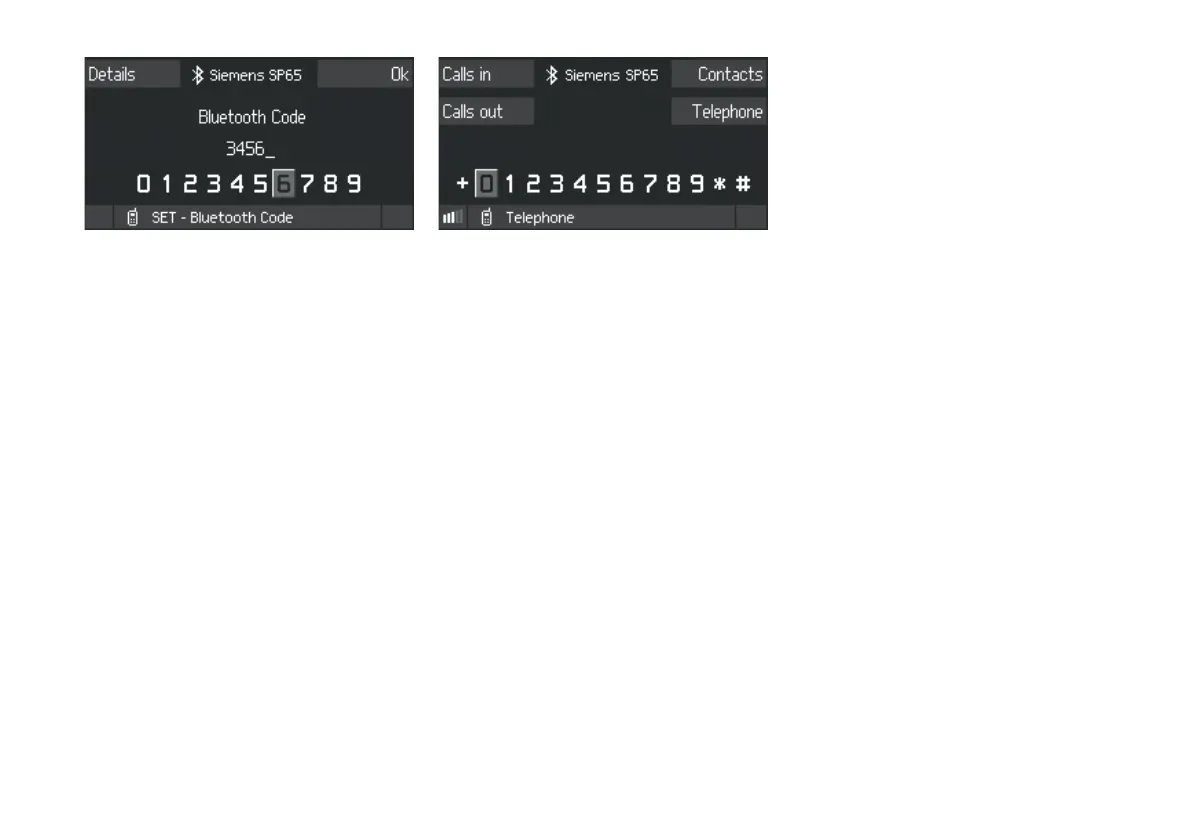
8.The CDR30 will suggest a four-digit Bluetooth
Code ("3456" here). Make a note of this code
or, if preferred, enter a more easily
remembered code.
9.Press the
Ok SoftKey.
10.Enter the Bluetooth Code in the mobile
telephone and confirm.
The mobile telephone is now be authorised and
will be connected to the CDR30 automatically.
The following prompt will appear: "Would you
like to receive vCards?"
11.Select "Yes" if you want to transfer electronic
business cards (vCards) from the mobile
telephone. Please refer to Section „RECEIVING
ELECTRONIC BUSINESS CARDS (VCARDS)“ on
page 32.
The following screen will be displayed when the
mobile telephone is connected to the CDR30:
The central area shows the name of the
connected mobile telephone. The numbers "0" to
"9" and the additional characters "+", "*" and "#"
will be displayed.
Important
If the CDR30 display shows the message "Error
during authorisation process" then the permitted
time may have been exceeded. Repeat the
procedure in this case.
Connecting an authorised mobile
telephone
Usually, the CDR30 will detect when a previously
authorised mobile telephone is in range and will
send a connection request to the mobile
telephone.
f Accept the request on the mobile telephone.
The CDR30 will connect automatically to the
mobile telephone.
Important
With some mobile telephones it is possible to
activate a setting that allows previously authorised
connections to be automatically re-established as
soon as the device is in range. Please refer to the
instruction manual for the mobile telephone for
further information.


 To Next Page