- 11 -
(4) Your Note will be exported to MyScript® Notes application. MyScript® Notes will be
opened with your Note in the “Conversion”area.
Using the Photo Sketcher
Photo Sketcher gives you the ability to sketch on top of any jpeg picture file. You can add
annotations on top of any picture. Then, you can save it and share it.
Installing Photo Sketcher
Insert the Note Manager application CD into your
PC, select “Photo Sketcher”and then install it
following the wizard’s instruction. A desktop icon
will be added once installation complete.
Using Photo Sketcher
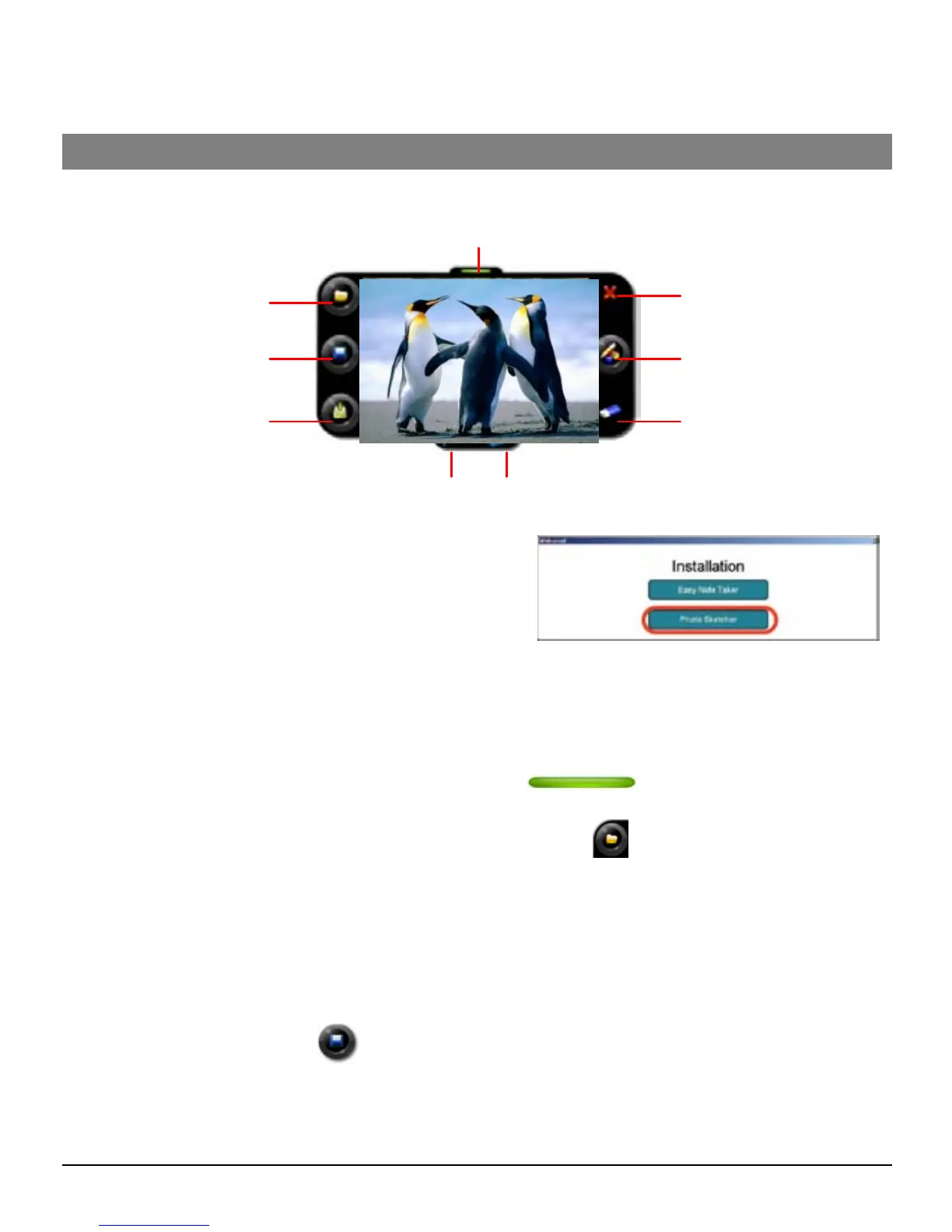
Run the Photo Sketcher by clicking the desktop icon.
1) Connect the Digital Pen
Before you can use the ‘Photo Sketcher’, your Digital Pen must be connected to your
computer properly. A connection icon will be Green , indicating the Digital Pen
is properly connected.
(2) Load a picture file by clicking the application ‘File’icon . Browse to the file you
would like to edit and select ‘Open’.
(3) Sketch on a picture file
Once a picture is loaded, use your Digital Pen to sketch anywhere you like on the picture.
Use the Pen, while hovering, to get to the point in which you’d like to sketch. Then, simply
use the Pen as you usually use a Pen, and sketch.
(4) Save a file
To save a picture, press the icon. Now select a path and a name for your file and
select ‘Save’.
Open a picture
Connection Indicator
Save picture
Send picture
Close
Change pen
preference
Eraser/Pen
Redo Undo


 To Previous Page
 Loading...