- 10 -
Using the Vision Objects MyScript® Notes
MyScript® Notes is a well known character recognition engine. It can covert the notes in
your Digital Pen to texts. You can purchase the software from its vendor if you want.
(1) Installing MyScript® Notes. Follow the installation instructions in the software manual.
(2) Operating MyScript® Notes. To use the MyScript® Notes recognition engine, please
make sure you have installed Digital Pen software Suite. Then, you can select a note,
Notes, or a Sticky Note, and export them to the MyScript® Notes recognition engine.
Exportable objects from the Digital Pen to MyScript® Notes:
A New Note
A single Note from “Note Manager”
Multi pages Note from “Note Manager”
Sticky Note from “Note Manager”
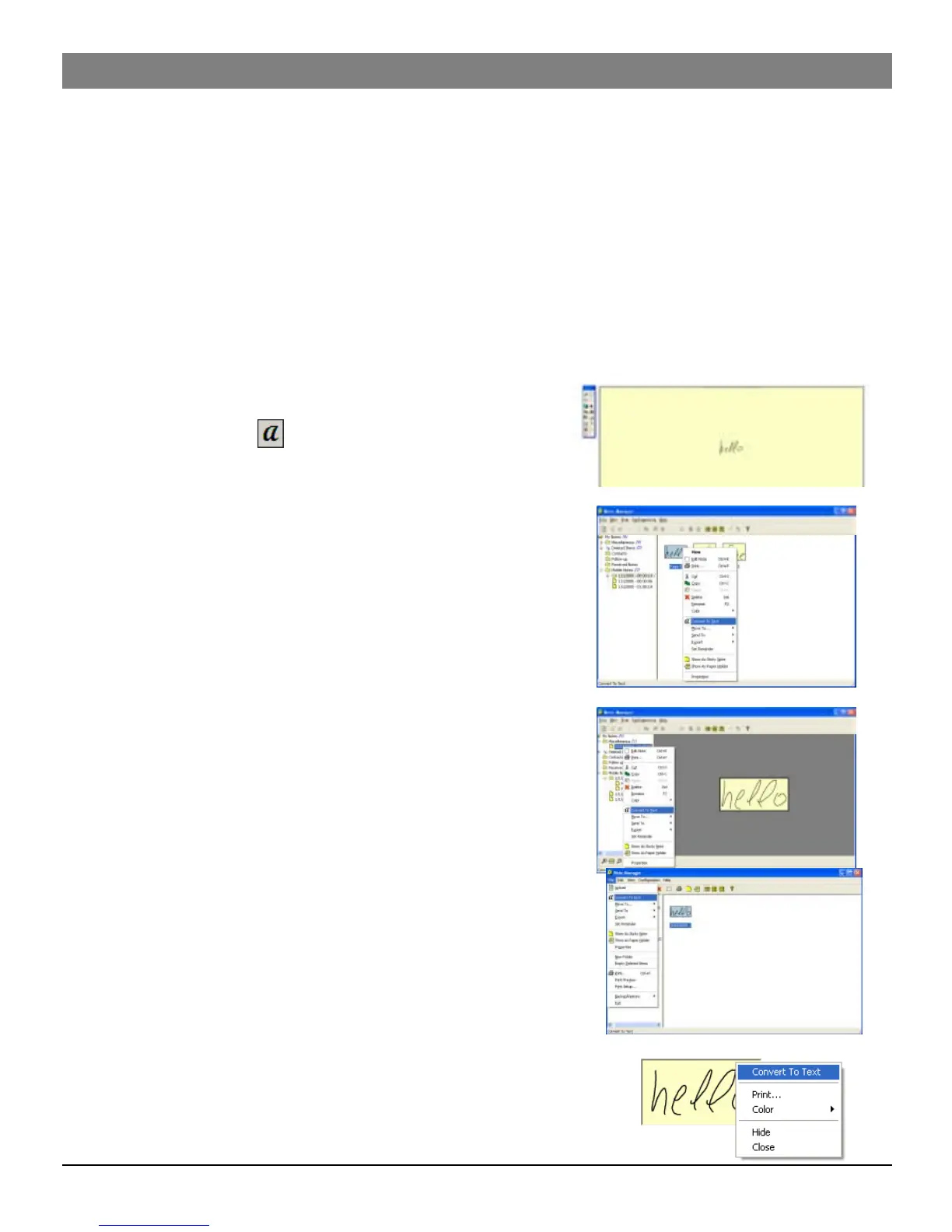
(3) Exporting objects. Use the following methods for each type of object in order to export it
to MyScript® .
a. For a New Note, Click the “Convert to Text”
toolbar button .
b. For a single/multi page Note from “Note
Manager”, right click the Note in the thumbnails
area.
c. Right click the Note in the tree area.
d. Select a note and select “File --> Convert to
Text”menu.
e. For sticky Note from ‘Note Manager’, right click the
“Sticky Note”and select “Convert to Text”menu.


 To Next Page