15
Spark Control Family: Other Functions
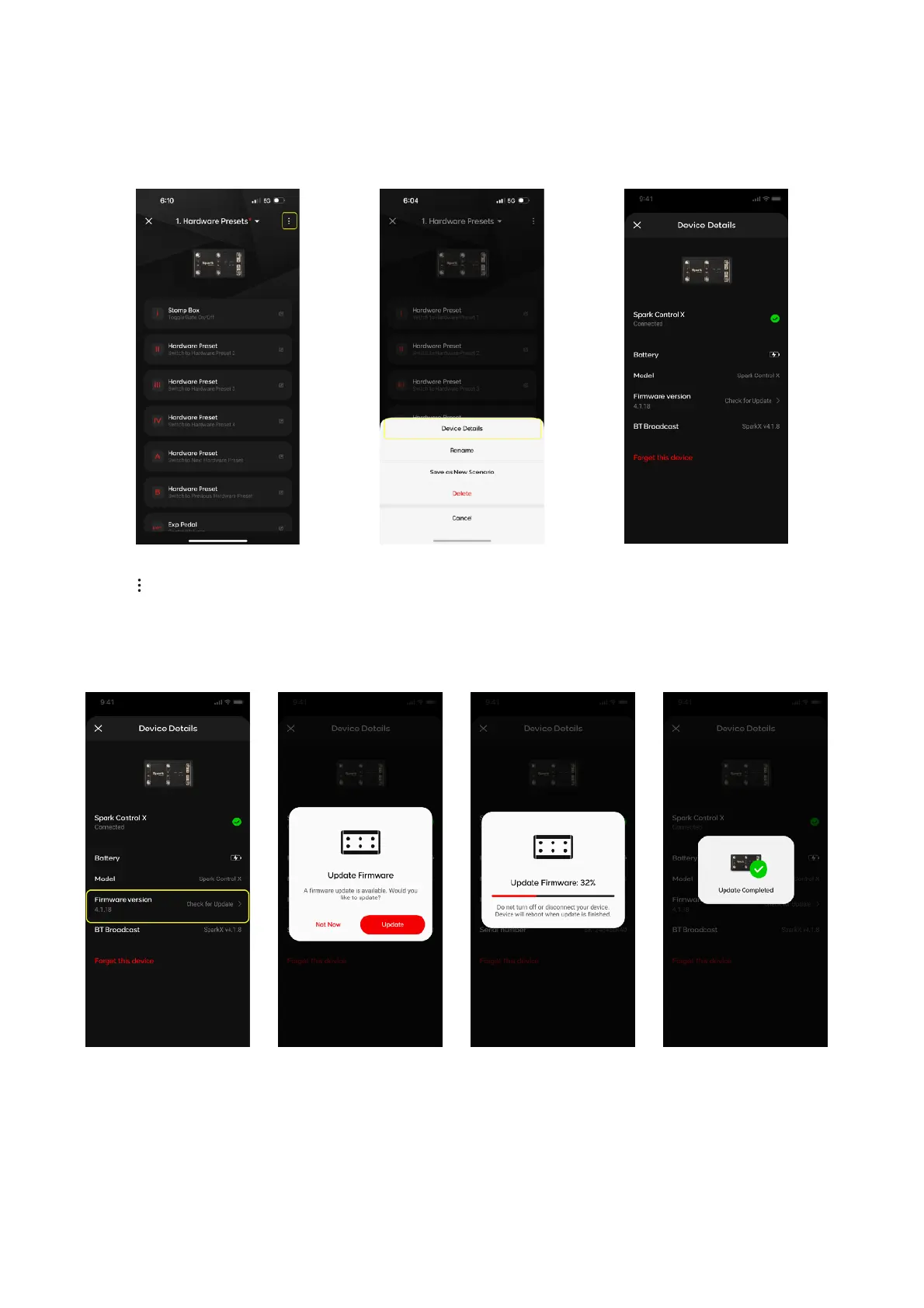
Tap on in the Command Assignment menu, then tap Device Details to see information such as battery
status and firmware version
Device Detail Page
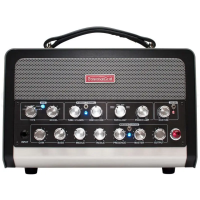
1. In the Device Detail Page of the connected Control X, tap on Check for Update
2. If an update is available, a dialog will appear to confirm whether you would like to update the
firmware. Tap on Update to begin the update process.
3. Once the update is complete, a dialog box will appear indicating that the firmware update is
complete. Your Control X will turn off and install the firmware update. Keep the Control X off for 30
seconds to allow it to install the firmware, then turn it on and reconnect the device.
Control X: Updating Firmware


 To Previous Page