2.
SOFTWARE USAGE
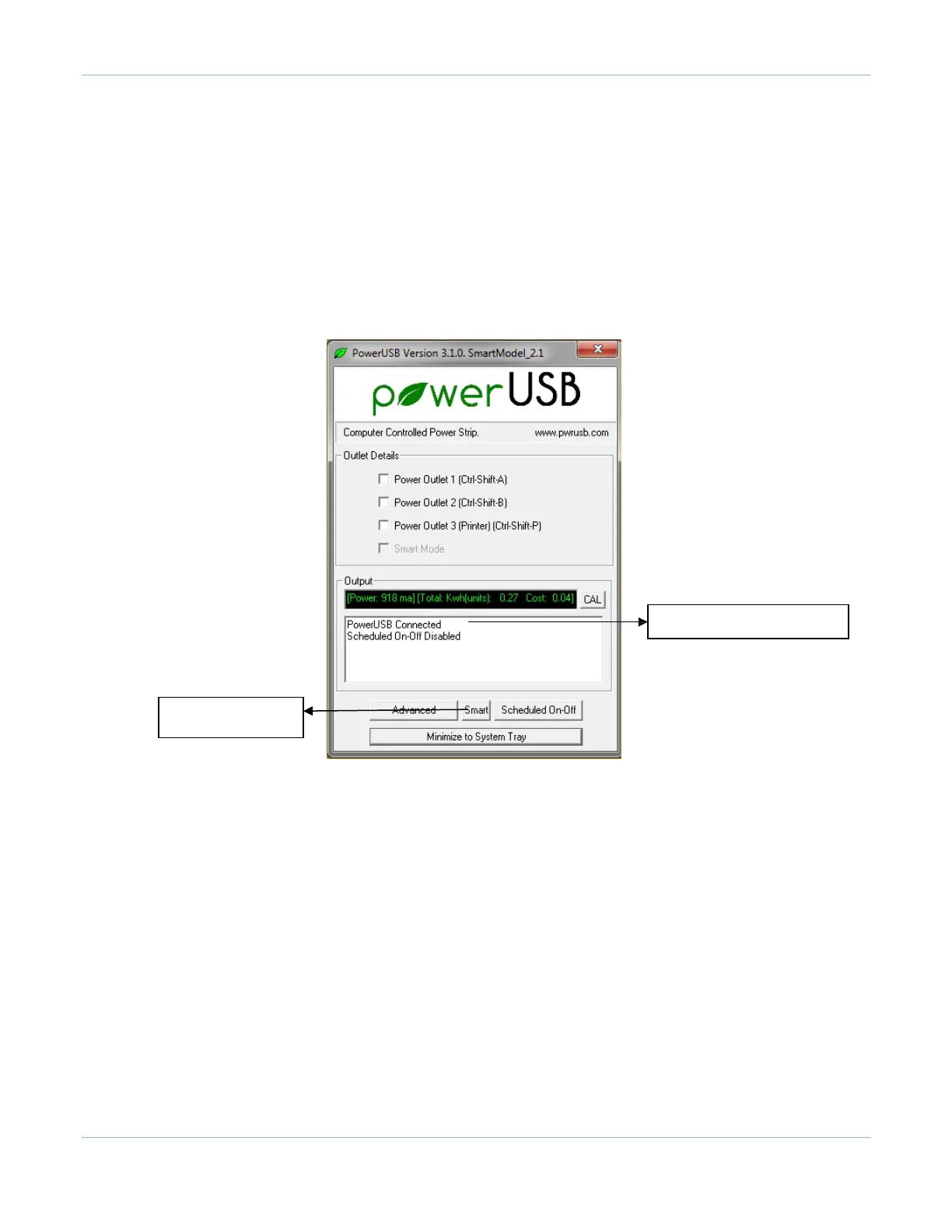
The SMART options are enabled only when a PowerUSB-SMART model is connected to the computer
The SMART model uses the same software application as used for the Basic model. The application will have
the
following changes (as compared to the Basic model) in the main screen. The below screen is
seen only
when a PowerUSB-SMART model is connected to computer
-
The SMART button is enabled for SMART dialog box options
-
The last check box (“SMART Mode”) is disabled
-
The output window displays only the connection status and the scheduled on-off status
Indicates just the connection status and the scheduled on-off status
SMART Options Dialog
Button
Similar to the Basic model, outlets can be manually controlled by the Power Outlet check boxes. This control
is
best done when the unit is using the ALL ON mode. In other modes, the unit can change outlet states
internally.
Similar to the Basic model, power consumption measurements are also displayed.
2.1
Advanced Options
Clicking the Advanced button will open the Advanced Options dialog box. Set options in this dialog by
clicking on ‘OK’ at the bottom of the dialog.
The ‘Default PowerUp State’ for outlets is disabled since the SMART model works differently in different modes.
2.1.1 Power Options
The first two entries in Power options set the default Voltage (110V for the US) and price per unit of power
consumed ($0.15 average for the US). These values can be changed in the dialog box. Changed values are
then stored in the registry.



 To Next Page