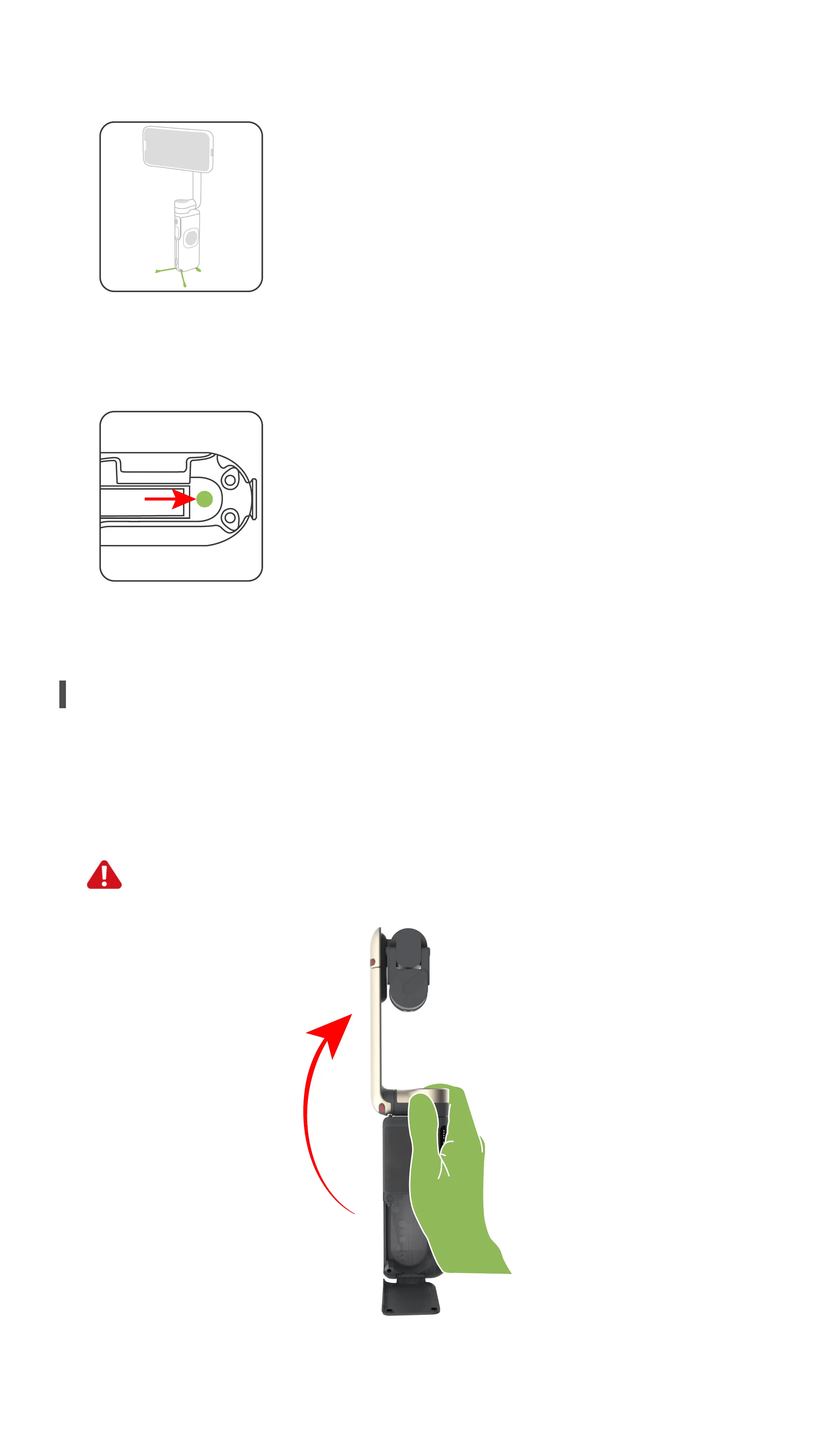
PowerVision S1 features a built-in tripod. Extend and unfold the tripod to place
it on a stable table.
Open the [Motor cover], and rotate the [Main arm] 180 degrees vertically until
level with the device.
◆
Built-in Tripod
Use the 1/4"-20 UNC Port located at the base to connect the gimbal to an exter-
nal tripod.
◆
1/4"-20 UNC Port
PowerVision S1 was designed to be extremely portable. The device can be
folded into a small size, making it easy to store and transport, and can also be used
to charge phones.
Unfolding and storage
:Gesture control switch
There are three types of gesture controls when this switch is enabled.
:Enable or disable Follow
:Take a photo
:Start or stop video recording
3.
Settings
:Gimbal settings
a.Follow Mode
1).Follow: The roll axis is locked, and the tilt axis and the yaw axis follow the move-
ments of the device.
2).Tilt Locked: The roll axis and the tilt axis are locked, and the yaw axis follows the
movements of the device.
3).FPV: The roll, tilt, and yaw axes all follow the movements of the device.
b.Sport Mode Switch: Enables and disables sport mode. When this switch is enabled,
◆
Unfolding
Do not turn on S1 when it is in storage. Please install the phone onto the
gimbal before turning it on and using the device.
the follow speed increases.
c.Zoom Speed: Controls the zoom speed of the zoom slider.
d.Handle Speed: Adjust the control speed of 5-Way button
e.Horizontal Reverse Switch: When this switch is enabled, if you push the handle left
or right, the gimbal's yaw axis will move in the opposite direction of your actual
movements.
f.Vertical Reverse Switch: When this switch is enabled, if you push the handle up or
down, the gimbal's tilt axis will move in the opposite direction of your actual move-
ments.
g.Gimbal Auto Calibration: When the gimbal encounters unexpected horizontal
skewing or drifting, this function automatically recalibrates the gimbal.
h.Gimbal Fine-tuning: This function allows the gimbal's horizontal level to be
ne-tuned.
:General Settings
Manage current connection settings and view setting names, rmware version, and
device serial number, etc.
4、Exposure Parameters
:Real-time display of the current shutter speed, ISO and EV values.
5、Zoom
:Shows the current zoom ratio.Use the zoom function to zoom in
or out.
6、Shooting Mode
Swipe to choose different shooting modes
Timewrap: The phone shoots a time-lapse while in motion.
Timelapse: Includes normal time-lapse and Motionlapse.A normal time-lapse requires
setting the time interval and length of time. For Motionlapse, you can also set up to 4
gimbal positions.
Slowmotion: Chooses a frame rate to shoot in slow motion.
Video: Shoots regular video.
Photo: Takes photos.
Panorama: Uses the gimbal to automatically shoot a panoramic photo. Supports 3*3,
240°, and clone modes.
7、Media Library
:View local media library resources.
8、Exposure Parameter Settings
:Adjust exposure parameters.
9、Camera Button
:Press to start or stop shooting.
10、Shortcut Function Menu
:Different shooting modes have different parameter. Visit the App shooting
page for more details.
11、Front/Rear Camera Switch
:Press to switch between the front and rear cameras
12、Tracking Mode
:Tracking mode helps you to keep your target in the center position in the
frame while photographing or recording.Tracking mode can be enabled using three
methods:
a. Short press the 5-Way button and PowerVision S1 will automatically start tracking
the object in the center of the frame. Press the 5-Way button again to deactivate
object tracking.
b. Manually draw a box on the screen to choose an object to be tracked. Press the
tracking icon to deactivate object tracking.
c. Enable gesture recognition in the status bar of the shooting page. Show the
camera lens with the "Five" gesture and the system will automatically recognize the
object and start tracking it. To deactivate object tracking, make the same gestures to-
wards the camera lens.
13、Focus Frame
:Focus frame
14、Gimbal Battery Level
:Shows the gimbal's current battery level.
15、Gimbal Mode
:Shows the current gimbal mode.
Note: Camera setting functions may differ depending upon the phone model you are
using. Actual supported functions may vary.
7
180°


 To Next Page