12
3 Connecting to a Computer
3.1 Installation for Windows
STUDIO26c and STUDIO68c
Owner’s Manual
3.1.2 Loopback Recording (Windows only)
The windows drivers for the Studio-series interfaces provide two virtual
streams that allow you to record the output of on audio application in
another application. Loopback can be useful in a variety of situations:
• Recording the audio from a video game or YouTube
video for a podcast or livestream.
• Recording a vocal in real time over a karaoke track
played from a web browser or media player.
Power User Tip: Because the Studio-series interfaces are class compliant Core
Audio devices, these virtual streams are not available in OS X. However, there
are several third-party applications that provide this functionality in OS X.
From Universal Control, you can enable or disable Loopback and pick
the streams on which the loopback audio will be recorded.
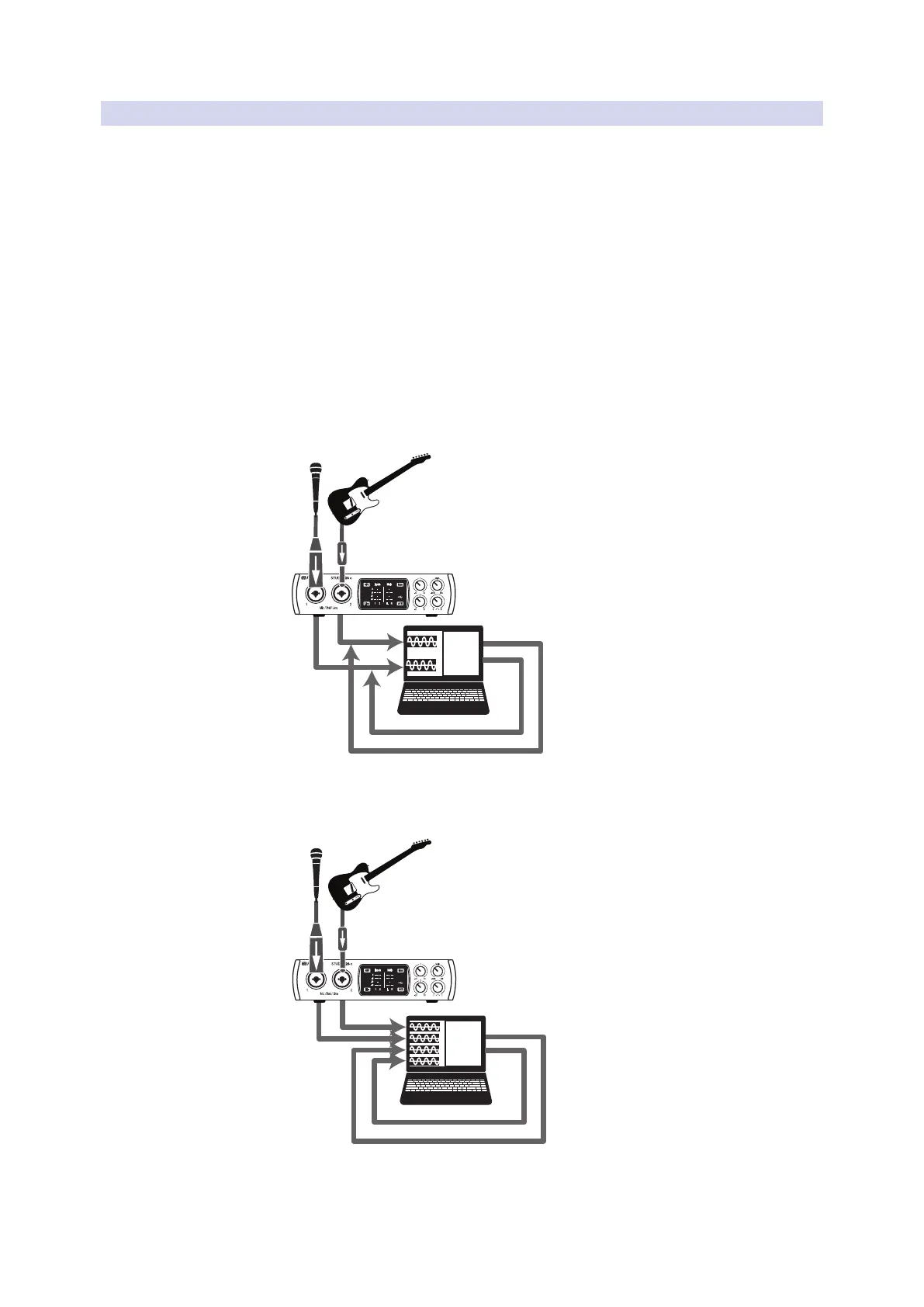
When Loopback is enabled and “Mix 1/2” is selected in Universal Control,
the audio from another application will be recorded with the audio source
connected to analog inputs 1 and 2 on your Studio-series interfaces.
Media Player
Web Browser
Etc.
When Loopback is enabled and “Virtual” is selected in Universal
Control, the audio from another application will be recorded on the
last pair of driver inputs (STUDIO26c: 5/6, STUDIO68c: 7/8).
Media Player
Web Browser
Etc.
Power User Tip: When using either option, it’s important to avoid creating a feedback
loop. To do this, you’ll need to have your monitors or headphones connected to Outputs
3/4 of your interface instead of Outputs 1/2,




 To Next Page