13
3 Connecting to a Computer
3.2 Installation for macOS
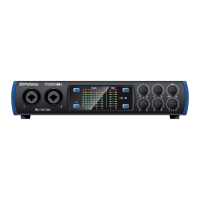
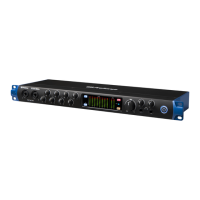
STUDIO26c and STUDIO68c
Owner’s Manual
as Studio One will be listening on Outputs 1/2 to record from. Simultaneously
listening to and monitoring Outputs 1/2 will create the problematic feedback loop.
1. First, select Outputs 1/2 as the audio outputs in the application
you want to record from. (Skype, Chrome, etc.)
2. Select Outputs 3/4 as the audio outputs in Studio
One, which you are recording into.
3. Select Virtual In 1/2 or Input 1/2 as the input source for a stereo track in Studio One.
4. Make sure your headphones or monitors are connected to the
physical Outputs 3/4 on the back of your interface.
5. Set your Main Output Channel in Studio One to Outs
3/4. (The default setting is usually 1/2.)
3.2 Installation for macOS
Your Studio-series interface is a class-compliant Core Audio device in
macOS. No driver installation is necessary for any Studio-series device.
Power User Tip: When installation is complete, you will find the Universal Control
application in your Applications folder. From this application, you can launch UC Surface.
It is recommended that you place this in your Dock for easy access.
3.3 Using the Studio-series interfaces with Popular Audio Applications
Complete setup instructions for Studio One Artist and a brief tutorial on its
features can be found in Section 4 of this manual. However, you can use your
Studio-series interface with any audio-recording application that supports
Core Audio or ASIO. Please consult the documentation that came with
your audio application for specific instructions on how to select the Studio-
series interface driver as the audio-device driver for your software.
Below are basic driver-setup instructions for a few popular audio applications.
Steinberg Cubase 4+
1. Launch Cubase.
2. Go to Devices | Device Setup.
3. Select “VST Audio System” from the Devices column in the Device Setup.
4. Select your Studio-series interface from the ASIO Driver dropdown list.
5. Click “Switch” to begin using the Studio-series Driver.
6. Once you have successfully changed the driver, go to Devices |
VST Connections to enable your input and output buses.
Ableton Live 5+
1. Launch Ableton Live.
2. Go to Options | Preferences | Audio.
3. Choose Driver Type: ASIO | Audio Device: ASIO [Studio-series interface]
4. Go to Input Config : Enable and select the desired Input channels.
5. Go to Output Config : Enable and select the desired Output channels.
6. You may now select your Studio-series interface inputs
and outputs for each track created in Live.




 To Next Page