8
USER MANUAL MultiReader PER5364BC
7. Web & network
You can connect your eReader to Internet and browse webpages.
Connect to Internet
Your eReader connects to Internet whenever necessary, using a Wi-Fi network
(if available).
Connect to a wireless network
Connect the device to a Wi-Fi network to use the Internet. To use Wi-Fi, you need access to a
wireless point or hotspot.
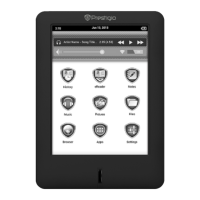
1. Tap Settings on the home screen.
2. Tap Wi-Fi.
3. Tap to turn on Wi-Fi. Detected Wi-Fi networks will be listed.
4. Connect to the desired Wi-Fi network.
If you select a secured network, you’ll be asked to enter the network key or password.
Turn on or turn off Wi-Fi
After connecting to a Wi-Fi network, tap ON or OFF on the home screen to turn on or off Wi-Fi
directly.
Web browse
You can use your eReader to browse the websites. Before browsing a website, please confirm that
you have turn on Wi-Fi.
Browse a webpage
1. On the home screen , tap Browser.
2. Enter your search keywords or a webpage address.
3. While browse a webpage, you can:
- Tap to go to the previous webpage.
- Tap to go to the next webpage.
- Tap to reload the current web page; while the device is loading web pages, this icon
changes to .
- Tap to bookmark the current web page.
- Tap to search for information.
- Tap to browse webpages from Bookmarks, History and Saved pages.
- Tap to close the current tab.
- Tap to open a new tab.
Add a bookmark
1. While viewing a webpage, tap .
2. Tap OK. The current page is added to bookmark.
Open a bookmark
1. While viewing a webpage, tap .
2. Tap Bookmarks.
3. On the Bookmarks tab, tap the bookmark you want to open.
7


 To Next Page