13
USER MANUAL MultiReader PER5364BC
10. File management
Use this application to access all kinds of files stored on your eReader and
memory card. Learn to view, move, copy, or delete your files.
View the files
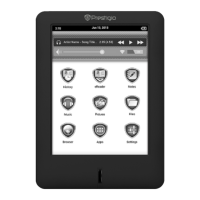
1. Tap Files on the home screen, and then choose a storage source.
2. Tap the desired file to view it.
Move a file
You can move a file from a folder to another folder.
1. Tap Files on the home screen, and then choose a storage source.
2. Press and hold the desired file, tap Cut.
3. Select the folder which you want to move the file to.
4. Slide to M to open menu options, and then tap Paste.
Delete a folder or a file
1. Tap Files on the home screen, and then choose a storage source.
2. Press and hold the desired file, tap Delete.
3. Tap Yes to delete the selected file or folder.
You can also manage files on PC when the eReader is connected.
10


 To Next Page