For many screens, you can automatically change the screen orientation from portrait to landscape
sideways. When entering text, you can turn your
sideways to bring up a bigger keyboard.
Lock the screen orientation
If you do not want the screen content to rotate, you can lock the screen orientation.
or your desired orientation.
2. Open the Action center, and then tap Rotation lock.
• Some applications do not allow screen rotation.
• Some applications display a different screen based on the orientation.
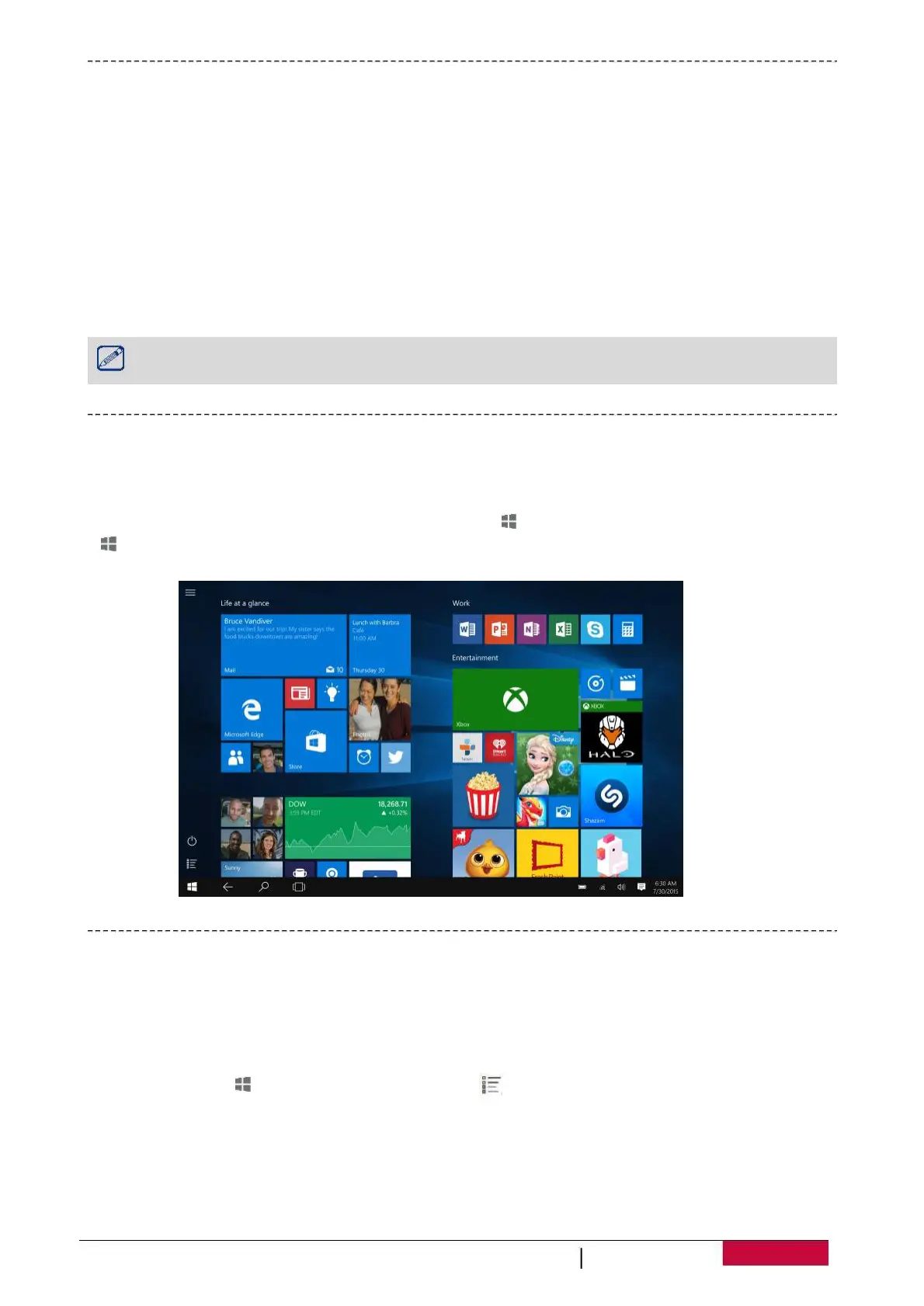
Start is the heart of your
—it is where you open apps, see what your friends
are doing, and get to your favourite websites. The tiles on Start show info, such as new email
messages and the next appointment on your calendar.
• To go back to Start screen, tap the Windows button [ ] on your device; or, tap the Start button [
] in the lower-left corner of the screen.
Customise the Start screen
Tiles on Start act as quick links to apps. You can pin your frequently used apps to the Start screen,
and then rearrange or resize them.
1. Select the Start [ ] button, then select All apps[ ].
2. Press and hold the app you want to pin.
Drag and drop the app from the Most used list or from All apps to pin it to Start.
D
B
D
G
D
B
U
S
Notebook-Transformer


 To Next Page