EasyManua.ls Logo

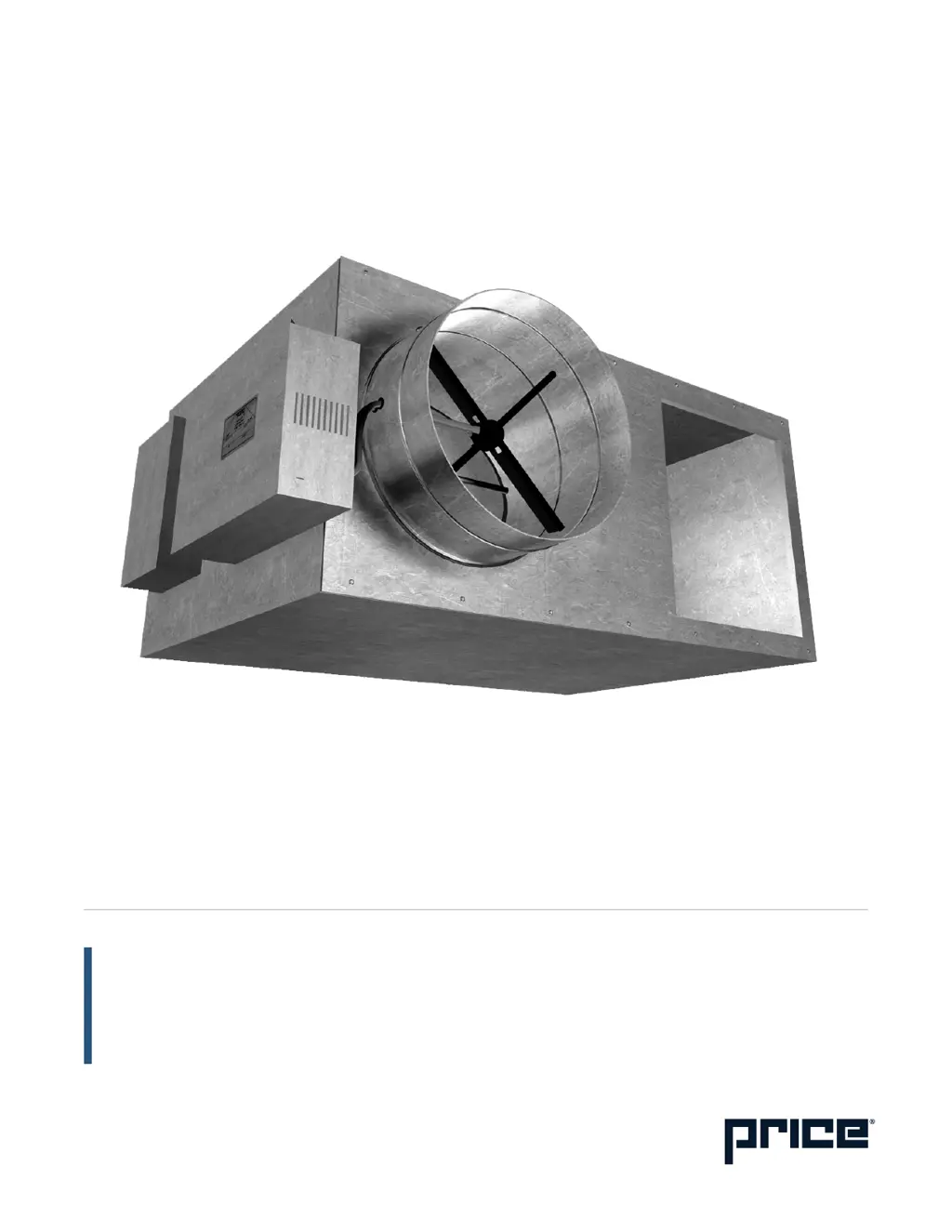
Price FPV Series - User Manual

Price FPV Series
24 pages
Print Icon
To Next Page IconTo Next Page
Loading...
Revision #: 01 Issue Date: 03/17/17
© 2014 Price Industries Limited. All rights reserved.
MANUAL – INSTALLATION
Fan Powered Variable Volume
Terminal Units
FPV, FEV, FDV Series

Questions and Answers

  • J
    jamespriceJul 29, 2025
    What to do if the air volume is not as specified in Price FPV Touch terminals?
    • B
      Bobby NicholsJul 29, 2025
      To address air volume issues with your Price Touch terminals: 1. Inspect the filter for excessive dust accumulation. 2. Check the fan for any particle blockages. 3. Examine the coils for particle blockages. 4. Ensure downstream static pressure is at least 0.10 inches W.G. to prevent the fan from overheating. 5. Confirm the supply voltage matches the wiring diagram specifications, located inside the electrical enclosure or in the controls brochure. 6. Check for loose insulating duct liner. 7. Inspect for leaks or obstructions in the ductwork. 8. Ensure there are no sharp elbows near the fan outlet, and that turning vanes are properly designed.
  • F
    Frances ButlerAug 5, 2025
    What to do if the fan does not operate in Price FPV?
    • K
      Kimberly StevensAug 5, 2025
      If the fan in your Price Touch terminals isn't working, here's what you can do: 1. Compare the unit wiring to the control and wiring diagrams located inside the electrical enclosure. 2. Make sure the disconnect switch or breaker is not open. 3. Check for the correct control signal from the thermostat, monitoring the output for full heating. 4. If the fan cycles on and off, verify that the downstream static pressure is at least 0.10 inches W.G. to prevent overheating. 5. Check if the fan wheel is touching the housing.
  • R
    Richard WeaverAug 13, 2025
    What to do if primary air volume is not as specified in Price FPV Touch terminals?
    • J
      jenkinshaleyAug 13, 2025
      If the primary air volume in your Price Touch terminals isn't as specified: 1. Check the controller operation and adjust if needed. 2. Verify the thermostat sends the correct control signal by cycling the thermostat and monitoring it. 3. Inspect the damper actuator for proper operation and any leakage. 4. Ensure sufficient inlet duct static pressure is available at the terminal unit. 5. Confirm a minimum of 3 duct diameters of straight inlet duct (either sheet metal or flexible) of the same size as the inlet exist between the unit inlet and any transitions, take-offs, or fittings. Poor inlet conditions might require controller recalibration. 6. Check the flow sensor for blockages.
  • J
    James CannonAug 19, 2025
    How to reduce noise from Price FPV Touch terminals?
    • F
      fergusonmichelleAug 19, 2025
      If your Price Touch terminals are generating unusual noise, consider the following: 1. Check for any foreign material in the fan. 2. Address relay chatter. 3. Ensure the fan or duct size isn't too small for the application, causing high air velocity. 4. Inspect for vibrating duct work. 5. See if an unbalanced fan wheel is hitting the housing.

Summary

Installation & Mounting Instructions

Mounting The Unit

Instructions for physically attaching the terminal unit.

Duct Connection

Guidelines for connecting supply and return air ducts.

Electrical Connection

Procedures for making electrical power connections.

Pneumatic Calibration Procedures

CP100;CP200

Calibration steps for CP100 and CP200 pneumatic controllers.

CP101

Calibration steps for the CP101 pneumatic controller.

Direct Acting Cooling or Reverse Acting Heating

Calibration for specific heating/cooling control actions.

Maintenance

Troubleshooting Guide

Guidance for diagnosing and resolving common unit issues.

Price FPV Series Specifications

General IconGeneral
BrandPrice
ModelFPV Series
CategoryTouch terminals
LanguageEnglish

Related product manuals