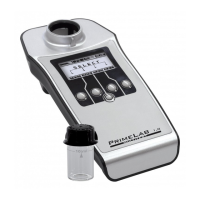
Menu: MEM (Memory)
MEM 1
Browse test results
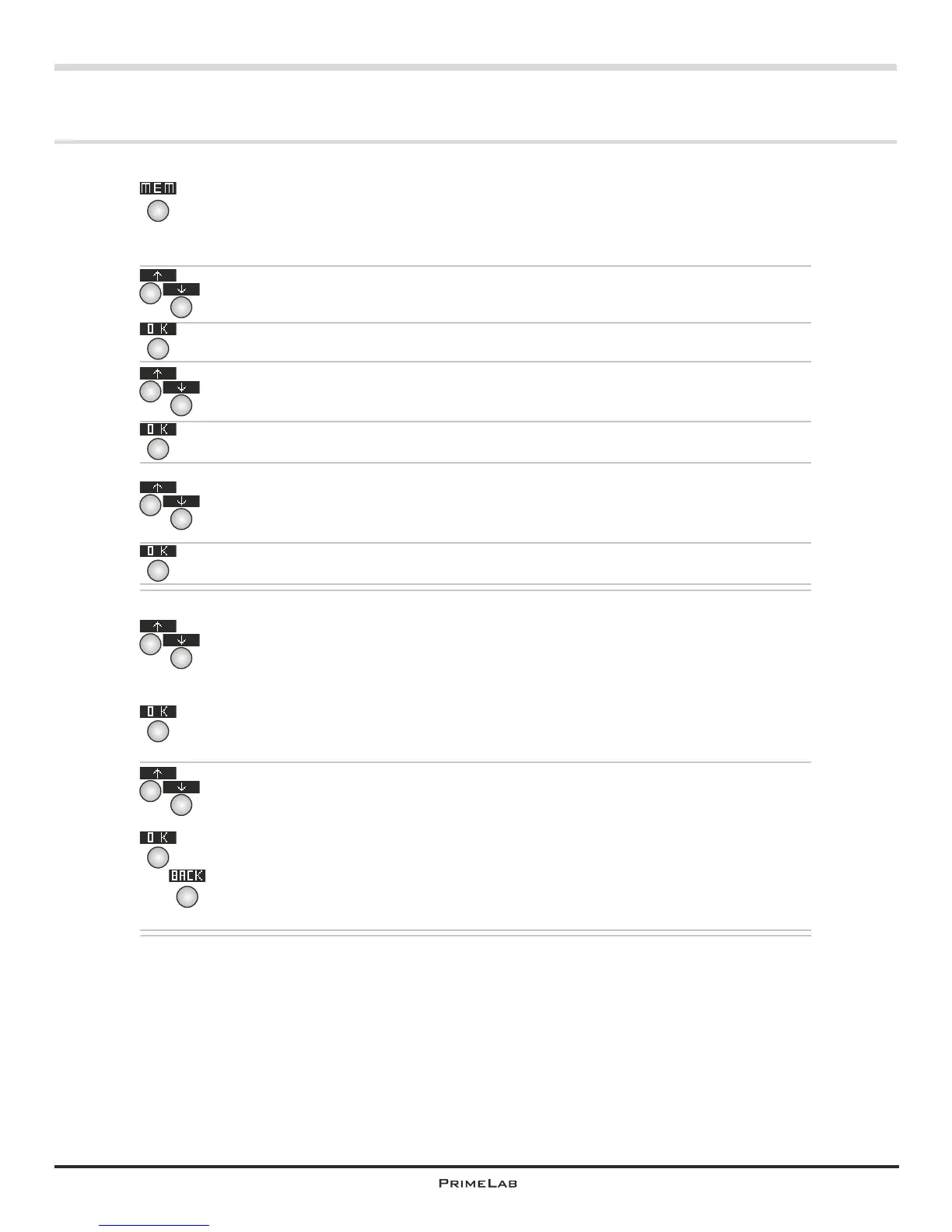
Press button 3 in the start menu to access the MEMORY menu.
First you will see how many data sets are saved in memory. “Used:
28/100” signifies, for example, that 28 saved data sets are stored in a
maximum of 100 memory spaces available.
Scroll up and down the list using button 2 or 3 respectively until the entry
“Browse results” appears white on black”.
Then press button 4.
Select the address data set to which you would like to have the saved test
results displayed.
Confirm your selection by pressing button 4.
Scroll up and down the list using button 2 or 3 respectively and select
either “View by test” (selection a) or “View all data” (selection b).
Confirm your selection by pressing button 4.
Selection a) You selected “View by test” to display a list sorted by
parameters. Scroll up or down the list using the buttons 2 or 3 respectively
until the required parameter list appears white on black.
Confirm the selected parameter group by pressing button 4 and then
select the test method with the buttons 2 and 3 for which you would like to
view the test results.
Confirm your selection by pressing button 4.
Now use the buttons 2 and 3 to scroll through the measurement results.
These will be displayed in chronological order. If you have defined ideal
ranges (Menu: Setup) the test results will display as “Low” / “OK” / “High”.
Press button 4 to change from a unit for which the result has been
displayed (e.g. “mg/l CaCO ” to “°dH”), as far as available, or you can
3
delete the result directly.
Press button 1 to return one step back or up in the menu.
3
4
4
4
4
4
2
3
2
3
2
3
2
3
2
3
1
MEM 1


 To Next Page
 Loading...