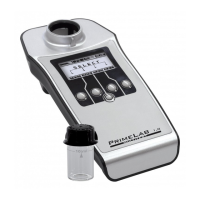
Clear test results
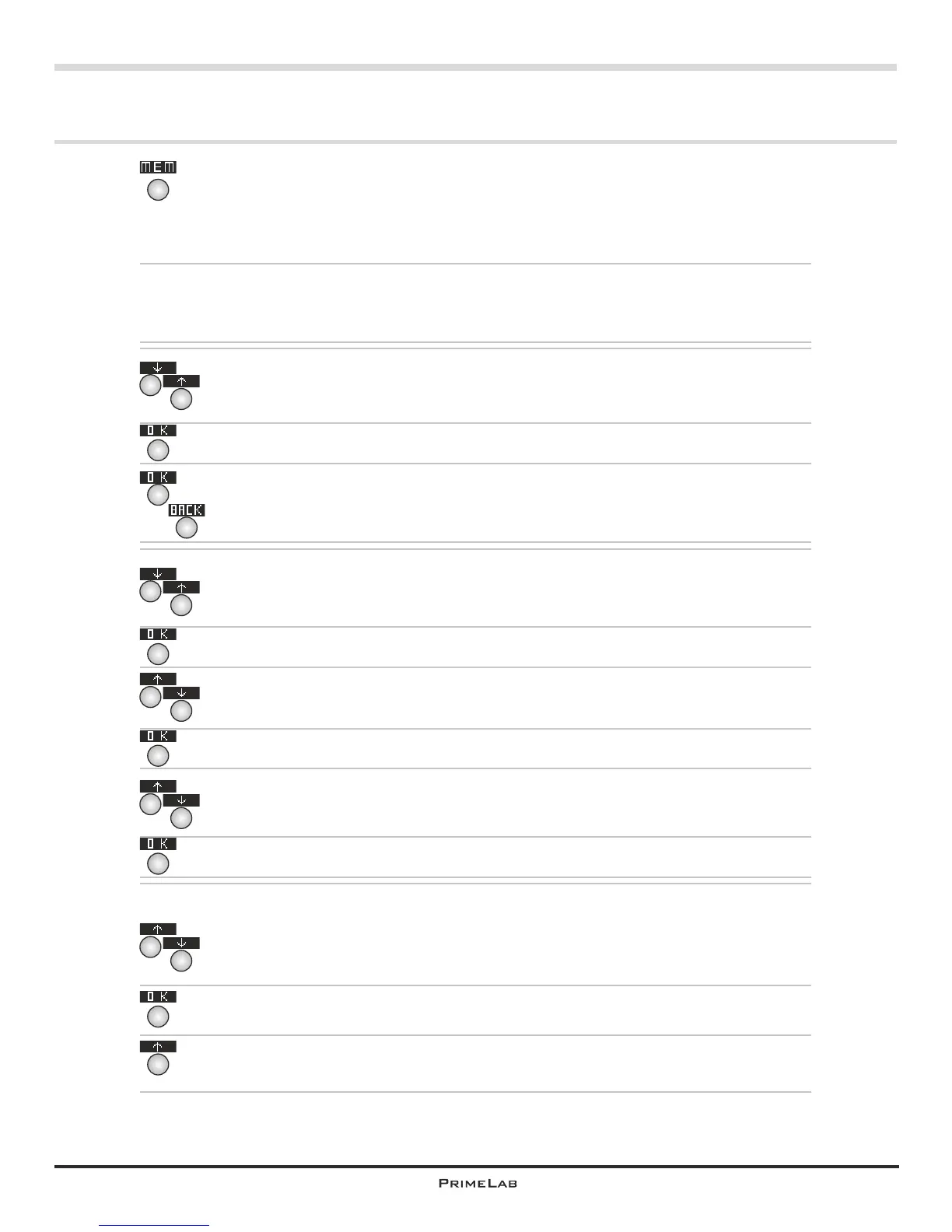
Press button 3 on the start menu to access the MEMORY menu,
First you will see how many data sets are saved in memory. “Used:
28/100” signifies, for example, that 28 saved data sets are stored in a
maximum of 100 memory spaces available.
You now have two options to delete saved results:
Option 1) Delete all saved test results
Option 2) Selectively delete individual test results
Option 1)
Scroll up and down in the list using buttons 2 and 3 respectively, until the
entry “Clear result” appears white on black.
Then press button 4.
You will then be asked if you really want to delete all saved data sets.
Confirm this by pressing button 4 or abort the procedure by pressing
button 1.
Option 2)
Scroll up and down the list using the button 2 (up) and 3 (down) until the
entry “Browse results” appears in white on black.
Then press button 4.
Using the buttons 2 and 3 select an account you want to see the saved
results for.
Confirm your selection by pressing button 4.
Scroll up and down the list using the button 2 and 3 respectively, and then
select “View by test” (selection a) or “View all data (selection b).
Confirm your selection by pressing button 4.
Selection a) You have selected “View by test” to see the stored test
results for this account sorted by parameters. Use button 2 and 3 to scroll
up and down respectively until the parameter group in which you want to
delete test results appears in white on black.
Confirm your selection by pressing button 4.
Now press button 2 or 3 to scroll to the parameter ID of which you want to
delete test results.
Confirm your entry by pressing button 4” on page MEM 4
2
3
4
4
4
Menu: MEM (Memory)
MEM 3
3
Continued...
2
3
2
3
2
3
2
3
4
4
1
4
2
MEM 3


 To Next Page
 Loading...