The Notification bar displays icons that indicate your Laptop’s internet status.
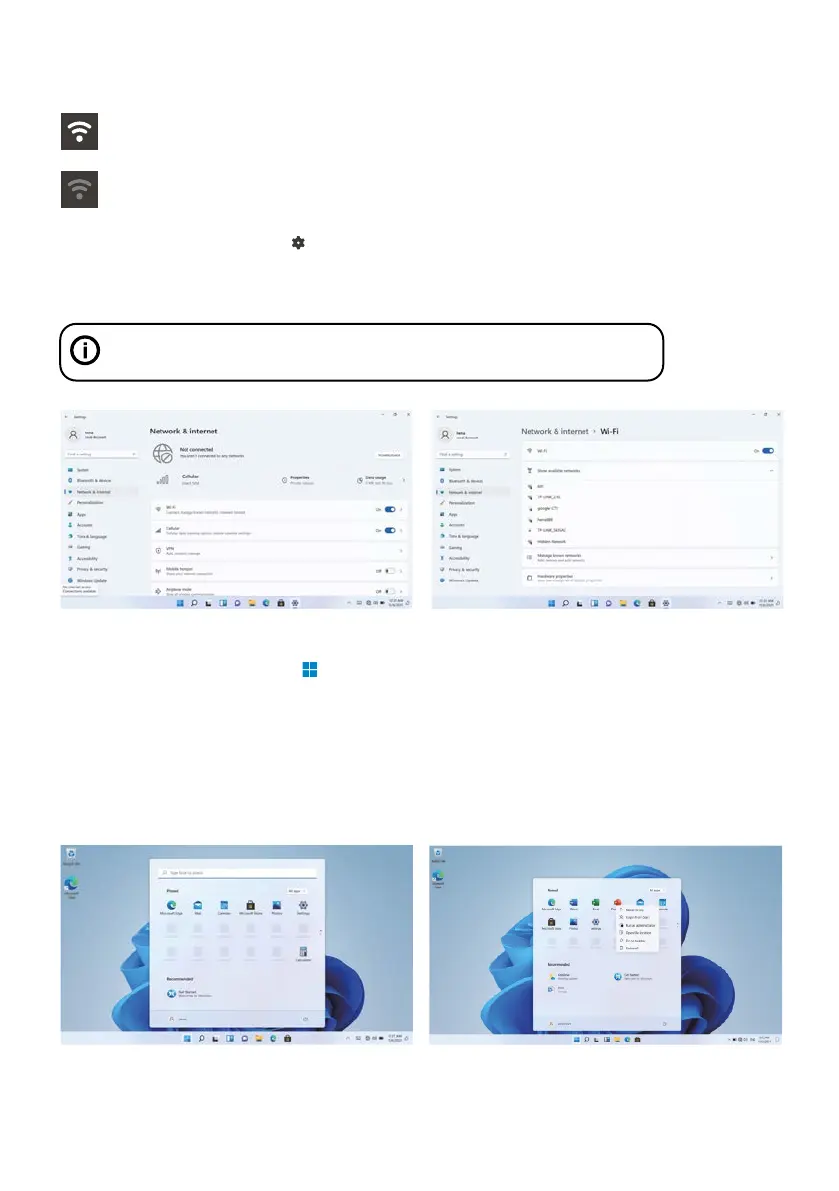
Open the Settings menu by pressing the start button
and clicking on the cog / settings icon
Select your network from the list of available networks. The Laptop will prompt you to confirm connection to the
network. Touch Connect to confirm. If the network is secured (as indicated by a Lock icon), the Laptop will prompt you to
enter a password or other credentials.
Connected to a Wi-Fi network (waves indicate connection strength).
There are no Wi-Fi networks in range, or the Wi-Fi is not connected.
Connect to a Wi-Fi network
User Interface
Start Menu
To open the start menu select the icon in the bottom left hand corner of the desktop. Once the menu has been
opened you will be greeted with a variety of options.
Applications
In addition to already fixed on the start screen of the application, you can open all applications in the home page.
Adding a shortcut tile to start menu
1. Right-click on properties
2. Select fixed at the beginning of the page
Settings icon can also be found on the desktop. Open the Network and Internet menu
and turn the WiFi on.



 To Next Page