REGISTERING USER FINGERPRINTS
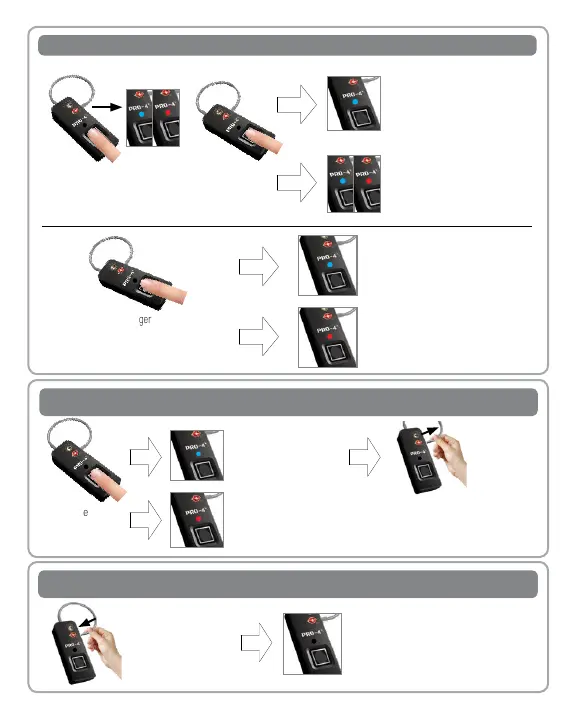
Up to 9 “User” ngerprints can be stored in the Secure Touch Lock’s memory.
1.
Press on the ngerprint pad for 3
seconds. The lock will alternate
between solid BLUE and RED light
waiting for an administrator ngerprint.
2. Place the
administrator
ngerprint on the
ngerprint pad.
If the light alternates BLUE and RED
with 4 beeps, new user registration
has failed; please try again. If the
administrator ngerprint fails 5 times,
the lock goes into standby mode.
If the light displays solid BLUE with
a beep, the lock is ready to register
a new user ngerprint.
Lock shackle
LED instruction
lights
Fingerprint
sensor
TSA007 lock
cylinder
micro-USB
Charging interface
setting button
1.Registered fingerprint
2.Press the setting button after the red light is out.
Lock shackle
LED instruction
lights
Fingerprint
sensor
TSA007 lock
cylinder
micro-USB
Charging interface
setting button
1.Registered fingerprint
2.Press the setting button after the red light is out.
3. Place the new user ngerprint on the pad.
The
BLUE
light will turn o with a beep,
then turn on again. Repeat this process 9
more times.
If the ngerprint entry has failed, or if lock
is full, the light will display RED followed
by 4 beeps, then go into standby mode.
If the light displays solid BLUE followed
by a long beep, then goes into standby
mode, the ngerprint has successfully
been entered.
Lock shackle
LED instruction
lights
Fingerprint
sensor
TSA007 lock
cylinder
micro-USB
Charging interface
setting button
1.Registered fingerprint
2.Press the setting button after the red light is out.
Lock shackle
LED instruction
lights
Fingerprint
sensor
TSA007 lock
cylinder
micro-USB
Charging interface
setting button
1.Registered fingerprint
2.Press the setting button after the red light is out.
UNLOCKING THE CABLE
1. Place a registered
ngerprint on the
ngerprint pad.
If the light displays RED followed
by 4 beeps, the ngerprint failed
to unlock and will go into standby
mode.
If the light displays solid
BLUE
followed by 2 beeps,
the lock is unlocked and the
cable can be removed.
Lock shackle
LED instruction
lights
Fingerprint
sensor
TSA007 lock
cylinder
micro-USB
Charging interface
setting button
1.Registered fingerprint
2.Press the setting button after the red light is out.
Lock shackle
LED instruction
lights
Fingerprint
sensor
TSA007 lock
cylinder
micro-USB
Charging interface
setting button
1.Registered fingerprint
2.Press the setting button after the red light is out.
Lock shackle
LED instruction
lights
Fingerprint
sensor
TSA007 lock
cylinder
micro-USB
Charging interface
setting button
1.Registered fingerprint
2.Press the setting button after the red light is out.
2. Remove the
steel cable
wire from the
locking hole.
LOCKING THE CABLE
1. To lock the cable
wire, insert the cable
wire joint into the
locking hole.
Lock shackle
LED instruction
lights
Fingerprint
sensor
TSA007 lock
cylinder
micro-USB
Charging interface
setting button
1.Registered fingerprint
2.Press the setting button after the red light is out.
If the cable was successfully locked, the
lock will go into standby mode.



 To Next Page
 Loading...