11 © 2009 by Proceq SA
7 Paperlink Software
7.1 Starting Paperlink
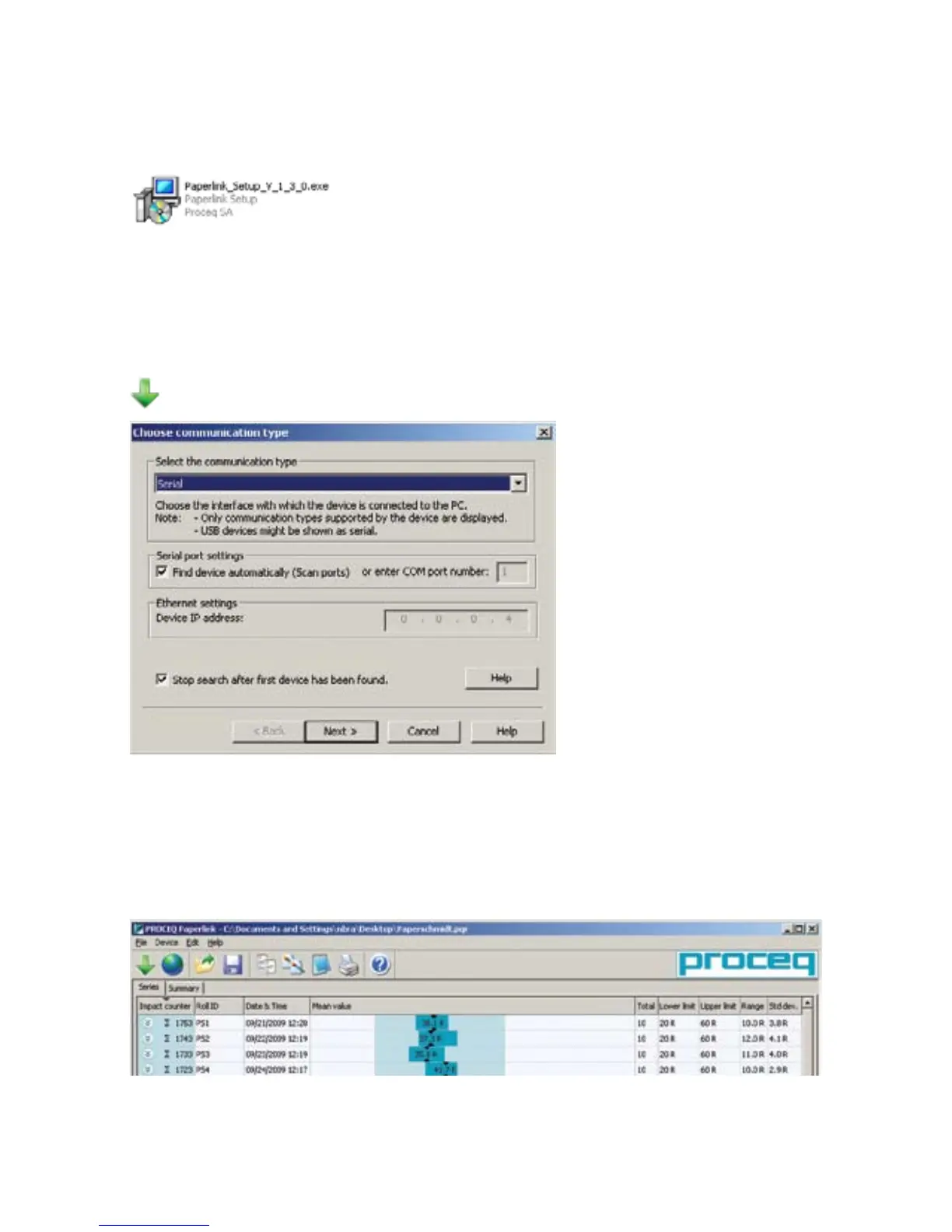
Locate the file “Paperlink_Setup” on your computer or on the CD and click on it. Follow the instruc-
tions you see on the screen.
Application settings
The menu item “File – Application settings” allows the user to select the language and the date and
time format to be used.
Connecting to the PaperSchmidt
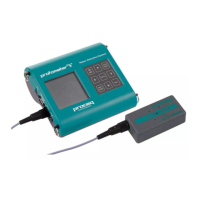
Connect the PaperSchmidt to a USB port, then click on the icon to bring up below window:
Leave the settings as default or if
you know the COM port you can en-
ter it manually.
Click on “Next >”
The USB driver installs a virtual COM port which is used to communicate with the PaperSchmidt.
When a PaperSchmidt has been found, you will see another window. Click on the “Finish” button to
establish the connection.
7.2 Viewing the data
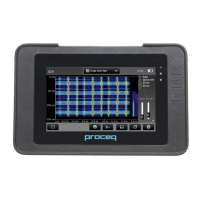
The data stored on your PaperSchmidt will be displayed on the screen:


 To Next Page