Shutting Down Printer
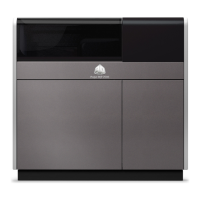
The ProJet® MJP 2500 / ProJet® MJP 2500 Plus printer goes into lower power modes
when it has been idle for a period of time. After 30 minutes, the printer will enter Standby
mode. After 7 hours, the printer will enter Conservemode. The UI status will display as in
Standby during this time. Sending a print job or interacting with the front panel will start
warming up the printer. The printer can be placed in conserve mode by selecting "Standby"
in the Tools>PrinterShutdown tabs.
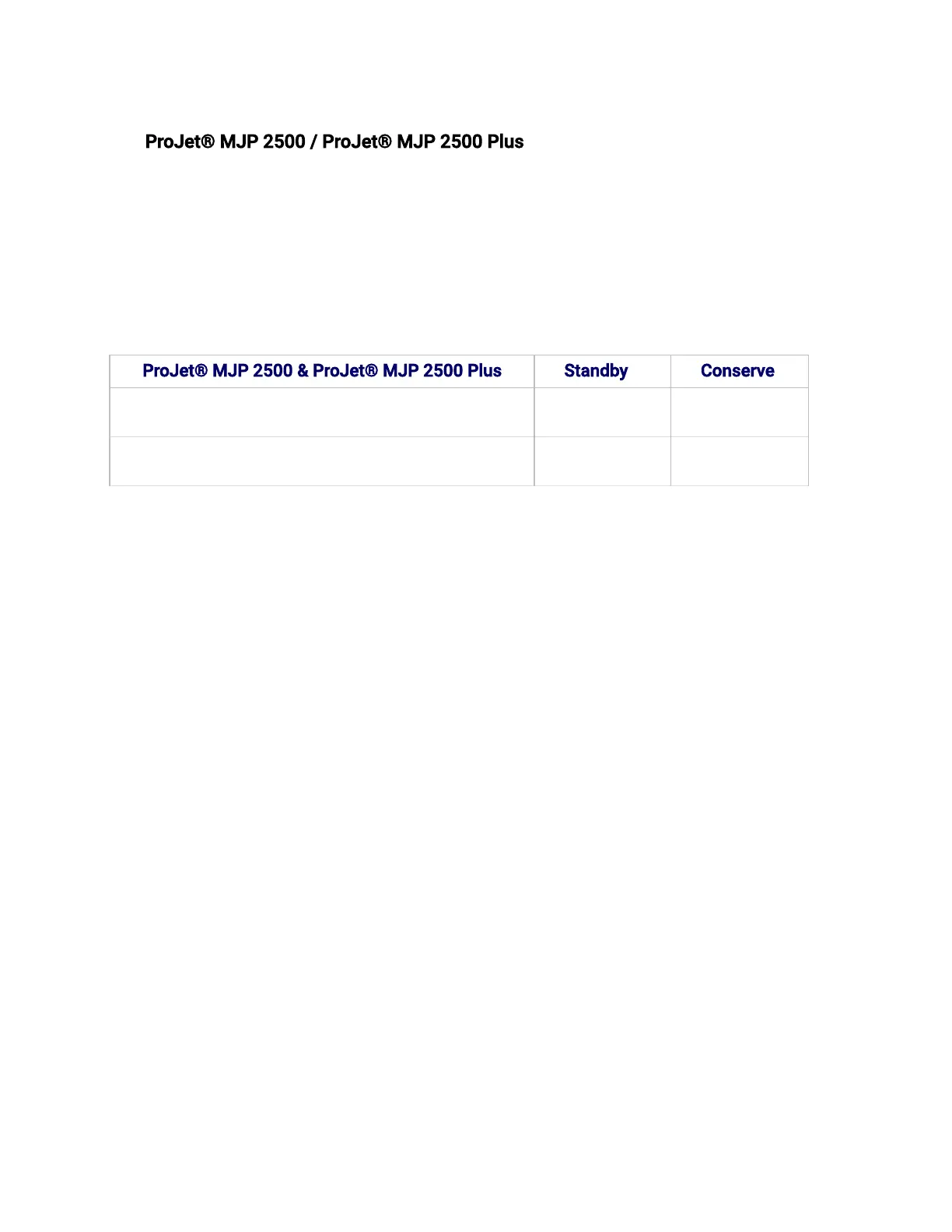
ProJet® MJP 2500 & ProJet® MJP 2500 Plus Standby Conserve
Low power mode (idle state) 30 minutes 7 hours
Ready State (from low power mode) 8 minutes 20 minutes
Storing Printer for Extended Time Frame
When the printeris going to be stored for an extended period of time (>60 days) you will
need to call a Certied Partner to set up a service call for a Dry Out procedure to be
performed. This will clear out any residual material out of printer lines for extended storing.
Printer Shutdown
If you do not plan on operating the 3D printer system on a regular basis and want to shut it
down for an extended period of time, follow these steps:
1. Verify that the printer is not building.
2. Select Toolstab (1).
3. Select Power Options(2) on the Tools menu screen.


 To Next Page