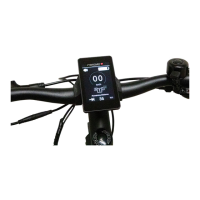
What to do if my Promovec Display Graphic D400+ show low voltage error?
- JJohn GonzalezAug 18, 2025
If you are experiencing a low voltage error with your Promovec Bicycle Accessories, the suggested solution is to recharge the battery.
What to do if my Promovec Display Graphic D400+ show low voltage error?
If you are experiencing a low voltage error with your Promovec Bicycle Accessories, the suggested solution is to recharge the battery.
What to do if my Promovec Display Graphic D400+ Bicycle Accessories display shows an error?
If your Promovec Bicycle Accessories display is showing an error, check the display connection. If issues persist, contact your dealer.
What should I do if my Promovec Bicycle Accessories have a system overload?
If your Promovec Bicycle Accessories are experiencing a system overload, check the connections and restart the system. If the problem continues, contact your retailer.
What should I do if my Promovec Display Graphic D400+ have a speed sensor error?
If your Promovec Bicycle Accessories are showing a speed sensor error, check the distance from the magnet to the sensor and the speed sensor connection. If problems persist, contact your retailer.
What to do if my Promovec Display Graphic D400+ have a throttle error?
If you're encountering a throttle error with your Promovec Bicycle Accessories, reset the throttle to start and check the display connector. If the issue continues, contact your retailer.
What should I do if my Promovec Display Graphic D400+ Bicycle Accessories have a communication error?
If your Promovec Bicycle Accessories are showing a communication error, check the connections. If problems persist, contact your dealer.
What to do if my Promovec Bicycle Accessories have a brake sensor error?
If your Promovec Bicycle Accessories are showing a brake sensor error, reset the handbrake to the start position and check the light connection for moisture. If the issue continues, contact your retailer.
What to do if my Promovec Bicycle Accessories centermotor has a brake/shift sensor error?
If your Promovec Bicycle Accessories centermotor is showing a brake/shift sensor error, reset the handbrake to the start position and check the light and shift sensor connection. If the problem persists, contact your retailer.
What to do if my Promovec Bicycle Accessories motor shows an error?
If your Promovec Bicycle Accessories motor is showing an error, check the motor connection and contact your retailer.
What to do if my Promovec Bicycle Accessories controller shows an error?
If the controller in your Promovec Bicycle Accessories is showing an error, contact your retailer.
Details the types of bike information displayed, including distances, time, power, and clock.
Explains key indicators like battery status, speed, units, and special symbols like Walk Assist.
Describes how the throttle bypasses assist for 'Booster effect' and its utility in traffic.
Details how to select assist levels from 1 to 5 using the 'Up' and 'Down' buttons.
Explains activating Walk Assist via button or throttle for 6 km/h assistance when walking.
Describes how to cycle through various bike info metrics using the menu button.
Provides steps for navigating the 'info' menu to view and reset trip and bike data.
Details how to view battery status, health, error codes, and firmware versions.
Explains setting wheel size for accurate speed readings and provides a reference table.
Guide on how to switch display units between km/h (Metric) and mph (Imperial).
Instructions for adjusting day and night backlight intensity from 1 to 10.
Step-by-step guide to setting the current date and time on the display.
Explains how to choose the preferred time display format (e.g., 12-hour or 24-hour).
Details the two system options and three assist types (Speed, ECO, Set Distance, Normal, Torque).
Provides instructions on how to select and save different assist types via the menu.
Lists conditions like tire pressure, temperature, and load that can impact system capacity.
Explains how Normal and ECO modes provide driving force up to 25 km/h with variable speed.
Describes how Torque mode provides force based on pedal input, enhancing usability.
Explains how this mode manages power for a set distance, optimizing battery consumption.
Lists common error codes, their meanings (e.g., Motor error, Battery malfunction), and suggested solutions.
| Backlight | Yes |
|---|---|
| Mounting Type | Handlebar mount |
| Display Type | LCD |
| Display Size | 2.4 inches |
| Features | Speed, Distance, Time |