EasyManua.ls Logo

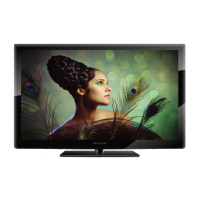
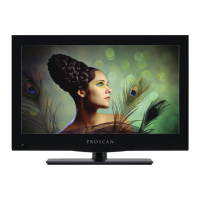
ProScan PLED2963A - User Manual

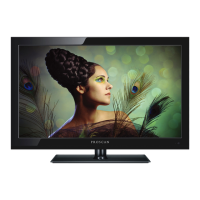
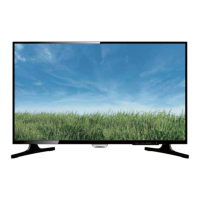
ProScan PLED2963A
73 pages
Print Icon
To Next Page IconTo Next Page
Loading...
USER’S MANUAL
PLED2963A-B
LED TV

Questions and Answers

  • C
    Christopher DominguezSep 23, 2025
    What are the tips for letterbox content users of ProScan PLED2963A TV?
    • S
      Samantha AndersonSep 23, 2025
      Letterboxed (Widescreen) versions of DVD movies are commonly formatted for standard 4:3 TVs. This ProScan TV can expand this content to fill the entire screen, potentially affecting image proportion. Use the aspect button on the remote to cycle through available options.
  • J
    Jacqueline WilliamsAug 25, 2025
    What to do if the ProScan PLED2963A remote control does not work?
    • M
      Matthew RobertsAug 25, 2025
      If your ProScan TV remote control isn't working, try these steps: Turn off the TV and unplug it. Remove the batteries from the remote for 30 minutes. Press the remote buttons and the power button randomly for about 2 seconds, then reinstall the batteries. Also, ensure there is a clear line of sight between the remote's front sensor and the TV's remote sensor, which is located near the power indicator light.
  • M
    mnguyenAug 25, 2025
    What to do if ProScan PLED2963A shows weak signal or no program symbol?
    • J
      Jordan HartAug 26, 2025
      If your ProScan TV displays a weak signal or no program symbol, change the direction of your antenna and rescan your channels. If you have cable, contact your cable company to inquire about the signal strength of your local cable.
  • B
    Brenda RichmondAug 27, 2025
    How to fix abnormal colors on ProScan TV?
    • K
      Kristi WhiteAug 27, 2025
      To correct abnormal colors on your ProScan TV, ensure that the colors on the cables match the ports on the back of the TV. For example, connect the red cable to the red-colored port.
  • K
    kathrynhendersonSep 23, 2025
    Where are the volume and channel changing buttons on ProScan PLED2963A TV?
    • J
      Jason ParkSep 23, 2025
      The volume and channel changing buttons on the ProScan TV are represented by the buttons located on the remote control: changes the channels and changes the volume.
  • S
    sarah95Sep 13, 2025
    Why is the picture quality horrible on my ProScan TV?
    • P
      Patricia HuntSep 13, 2025
      For the best image quality on your ProScan TV, view HD widescreen programs whenever possible. If HD content is unavailable, view 'Standard Definition' from a digital source. Standard analog TV will always appear noticeably inferior to HD due to the TV's advanced video capabilities.
  • M
    Monica SchwartzSep 12, 2025
    How to unblock channels on ProScan PLED2963A?
    • S
      Stephen MercadoSep 12, 2025
      To unblock channels on your ProScan TV, check your auto lock function's settings inside the OSD. You may have inadvertently locked some channels.
  • B
    Brittany BautistaSep 12, 2025
    How to remove big black box in the middle of ProScan PLED2963A TV screen?
    • D
      Derrick BowenSep 12, 2025
      The big black box in the middle of your ProScan TV screen indicates that closed captioning is turned on and set to TEXT1 – TEXT4. Change the setting to CC1 or turn off closed captioning to remove the box.
  • J
    Jason HillSep 4, 2025
    Why does my ProScan PLED2963A TV HDCP video have no audio?
    • S
      Scott McdonaldSep 4, 2025
      If your ProScan TV's HDCP video has no audio, ensure a 3.5 mm mini-jack cable is connected from your HDCP video device's sound output to the TV's VGA STEREO INPUT. If your HDCP video device uses RCA AUDIO jacks, you'll need an RCA audio converter to a 3.5 mm mini-jack cable.
  • E
    Elizabeth MeyersSep 2, 2025
    How to brighten the picture on a ProScan TV if it's too dark?
    • B
      Benjamin KentSep 2, 2025
      If the picture on your ProScan TV is too dark, adjust the contrast, brightness, and lamp settings from the OSD Menu. These controls will help you brighten the picture.

ProScan PLED2963A Specifications

General IconGeneral
Screen Size29 inches
Resolution1366 x 768
Display TypeLED
HDMI Ports3
USB Ports1
Aspect Ratio16:9
Refresh Rate60 Hz
Sound Output10W
Power Consumption45W
InputsHDMI, USB

Related product manuals