4826 Sterling Drive, Boulder, CO 80301
PH: 720.406.8946 service@psaudio.com www.psaudio.com
9
®
Operation Guide
©2012 PS Audio International Inc. All rights reserved.
Owner’s Reference P3
The third and nal way to control the P3 is through the use of PS Audio’s own servers and the
GlobalNet website. GlobalNet gives a user the unique ability to control and monitor a P3 from
anywhere in the world on either a computer or web enabled mobile device. To access GlobalNet,
rst connect the P3 either directly to a router or to a wireless Ethernet bridge. This is done with a
CATV Ethernet cable. The P3 will indicate that it is successfully connected to the internet when the
blue LED is lit on the unit’s display. Next, open a web browser on your computer or mobile device
and enter http://powerplay.psaudio.com in the address bar. An alternate way to access GlobalNet is
to simply go to www.psaudio.com and click the PowerPlay button at the top of the screen.
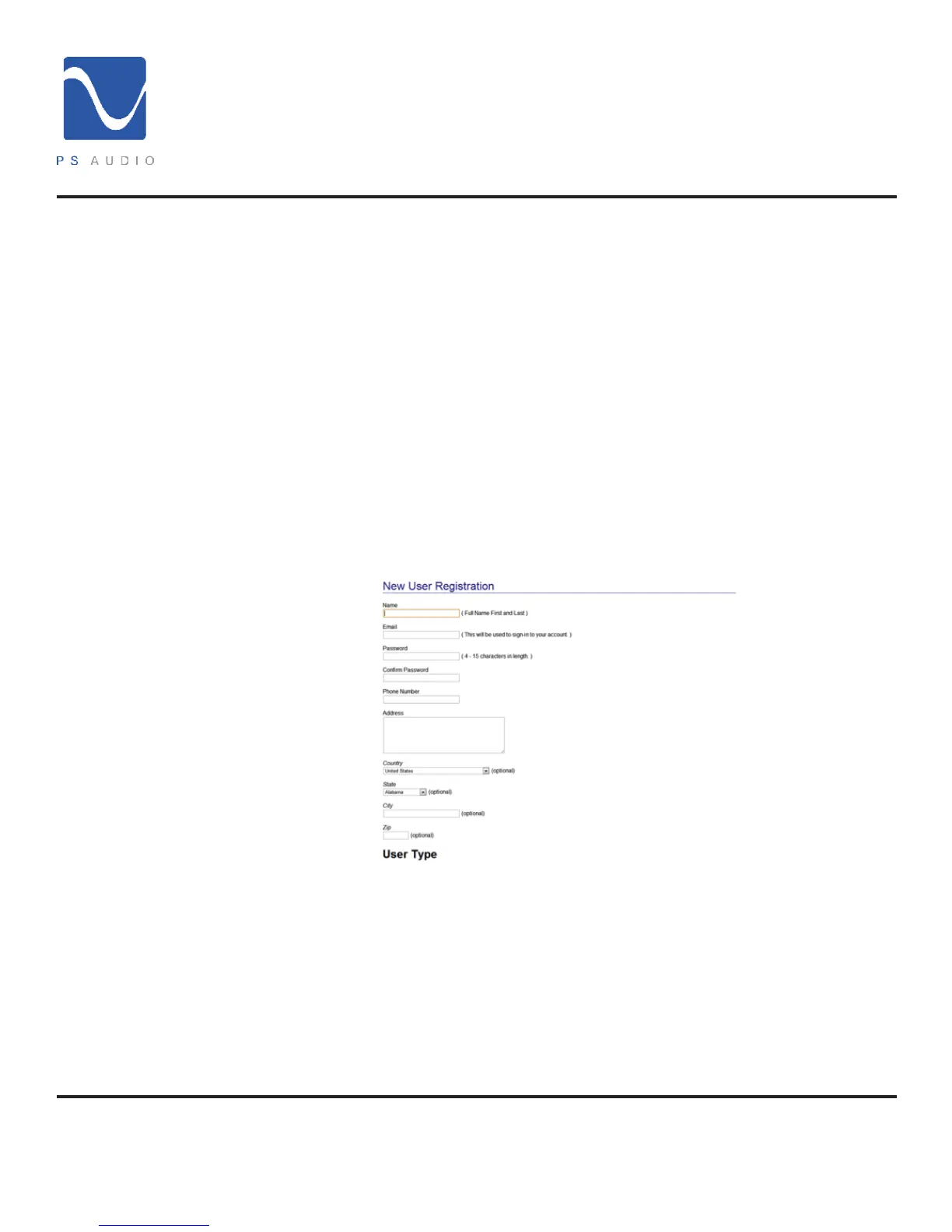
Once a user has arrived at GlobalNet, rst time users will need to register to gain access to
control functions. To do so, click the ‘Register’ button located in the upper left hand corner of the
screen. After inputting the necessary information and selecting ‘End User’ under ‘User Type’. Once
successfully registered, log in to GlobalNet with the username and password selected.
Next, click the ‘Register Device’ icon. In the window that appears, input the P3’s unit ID in the ‘Unit
ID #’ eld (the unit ID number can be obtained from silver sticker on the rear panel of the device).
Finally, click the ‘Add’ button, and the unit registration process is complete. Close this registration
window and refresh the web browser being used. Click on the ‘Command Center’ icon to access
the Control Panel.
The Control Panel is the rst page available to the user and gives a snapshot of the current status
of the P3. Here, current input/output voltage and THD readings as well as the wattage will be
displayed. Power to the entire unit can easily be cycled by clicking the ‘Master Power’ button. Power
to individual zones can also be easily cycled by clicking the desired zone’s icon.
The CONFIGURE tab is the most powerful page for your P3. From this page you can label each
outlet to match the device connected, toggle the power for each of the zones, set the switch mode
for each zone.
Control Panel
Congure
GlobalNet


 To Next Page
 Loading...