EasyManua.ls Logo

Pulsar TELOS - Page 54

Pulsar TELOS
78 pages
Print Icon
To Next Page IconTo Next Page
To Previous Page IconTo Previous Page
Loading...
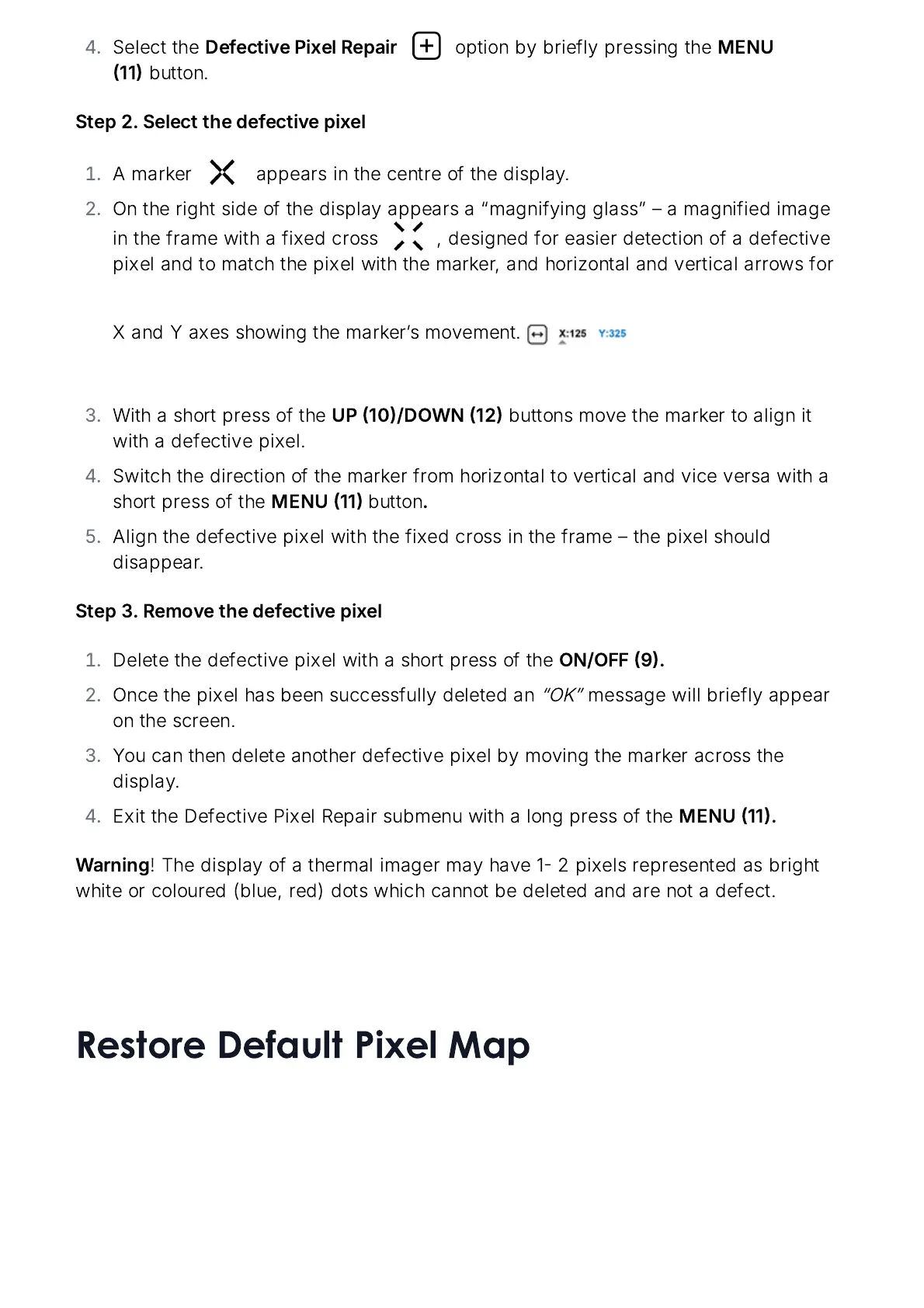
Select
the
Defective
Pixel
Repair
option
by
briefly
pressing
the
MENU
11
button
.
Step
2.
Select
the
defective
pixel
A
marker
appears
in
the
centre
of
the
display
.
On
the
right
side
of
the
display
appears
a
magnifying
glass
a
magnified
image
in
the
frame
with
a
fixed
cross
,
designed
for
easier
detection
of
a
defective
pixel
and
to
match
the
pixel
with
the
marker
,
and
horizontal
and
vertical
arrows
for
X
and
Y
axes
showing
the
marker
ʼ
s
movement
.
With
a
short
press
of
the
UP
10/
DOWN
12
buttons
move
the
marker
to
align
it
with
a
defective
pixel
.
Switch
the
direction
of
the
marker
from
horizontal
to
vertical
and
vice
versa
with
a
short
press
of
the
MENU
11
button
.
Align
the
defective
pixel
with
the
fixed
cross
in
the
frame
the
pixel
should
disappear
.
Step
3.
Remove
the
defective
pixel
Delete
the
defective
pixel
with
a
short
press
of
the
ON
/
OFF
9.
Once
the
pixel
has
been
successfully
deleted
an
OK
message
will
briefly
appear
on
the
screen
.
You
can
then
delete
another
defective
pixel
by
moving
the
marker
across
the
display
.
Exit
the
Defective
Pixel
Repair
submenu
with
a
long
press
of
the
MENU
11.
Warning
!
The
display
of
a
thermal
imager
may
have
1 2
pixels
represented
as
bright
white
or
coloured
(
blue
,
red
)
dots
which
cannot
be
deleted
and
are
not
a
defect
.
Restore Default Pixel Map

Related product manuals