15
EN
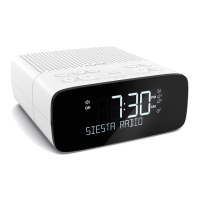
Display settings
Adjusting the display brightness
You can adjust the brightness of the display when Siesta is switched on or in
standby. To change the brightness of Siesta’s display:
1. Press the Menu button.
2. Scroll < > to ‘DISPLAY’ and press the Select button.
3. Scroll < > to ‘BACKLIGHT’ and press the Select button.
4. Scroll < > to ‘ACTIVE’ and press the Select button to change the settings
that apply when Siesta is switched on, or scroll to < > ‘STANDBY’ and press
the Select button to change settings that apply in standby.
5. Scroll < > to ‘BRIGHTNESS’ and press the Select button.
6. Scroll < > to choose a brightness level between ‘1’ and ‘5’ or Auto.
7. Press the Select button to confirm the brightness setting.
Adjusting how long the display backlight stays on for
You can adjust how long Siesta’s display backlight stays on for:
1. Press the Menu button.
2. Scroll < > to ‘DISPLAY’ and press the Select button.
3. Scroll < > to ‘BACKLIGHT’ and press the Select button.
4. Scroll < > to ‘ACTIVE’ and press the Select button to change the settings
that apply when Siesta is switched on, or scroll to < > ‘STANDBY’ and press
the Select button to change settings that apply in standby.
5. Scroll < > to ‘DURATION’ and press the Select button.
6. Scroll < > and press the Select button to choose one of the following options:
ALWAYS ON: Choose this option if you want the backlight to always stay on.
TIMED OFF: Choose this option if you want the backlight to turn off after
10 seconds.


 To Next Page
 Loading...