8
After your phone is powered on, system information appears in the
display.
1. Press MENU. LCD CONTRAST appears in the display. Press CALL
BACK/OK to display the current level, then press UP/DOWN to select
one of five settings. Press CALL BACK/OK to confirm and go to time
and date setting. TIME/DATE appears.
2. Press CALL BACK/OK to display the time, then press UP/DOWN
to set the time, month and date. Press CALL BACK/OK to confirm.
LANGUAGE appears.
3. Press CALL BACK/OK to display the current language, then press
UP/DOWN to select the desired language. Press CALL BACK/OK to
confirm and go to voice setting. VOICE appears.
4. Press CALL BACK/OK to display the language, then press UP/DOWN
to select the desired language or VOICE OFF. Press CALL BACK/OK
to confirm.
5. Repeatedly press MENU until FLASH appears, press CALL BACK/OK
to display the current setting, then press UP/DOWN to select flash
time. Press CALL BACK/OK to confirm and go to tone/pulse setting.
6. TONE/PULSE appears, press CALL BACK/OK to display the current
setting, then press UP/DOWN to select tone or pulse 40/60 setting.
Press CALL BACK/OK to confirm.
Notes:
• If you do not press a button within 20 seconds, the phone returns to
the standby mode, or press PHONE/CID to return to standby mode.
• The default setting for voice is English, if you select other languages,
the phone will announce the phone number, digits and phone/CID
only.
Setting the Remote Pendant
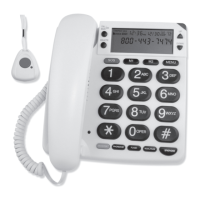
The phone comes with one remote pendant for emergency, you can pair
up to 5 pendants to your phone, FULL appears if you pair the 6
th
pendant.
To pair the pendant to your phone:
1. Repeatedly press MENU until REMOTE PENDANT appears, press CALL
BACK/OK, press UP/DOWN to pair (PAIRING appears) or cancel
pairing (DELETE? appears) your pendant.
Setting Your Phone


 To Next Page