EasyManua.ls Logo

PXN V3PRO - Page 2

PXN V3PRO
3 pages
Print Icon
To Next Page IconTo Next Page
To Previous Page IconTo Previous Page
Loading...
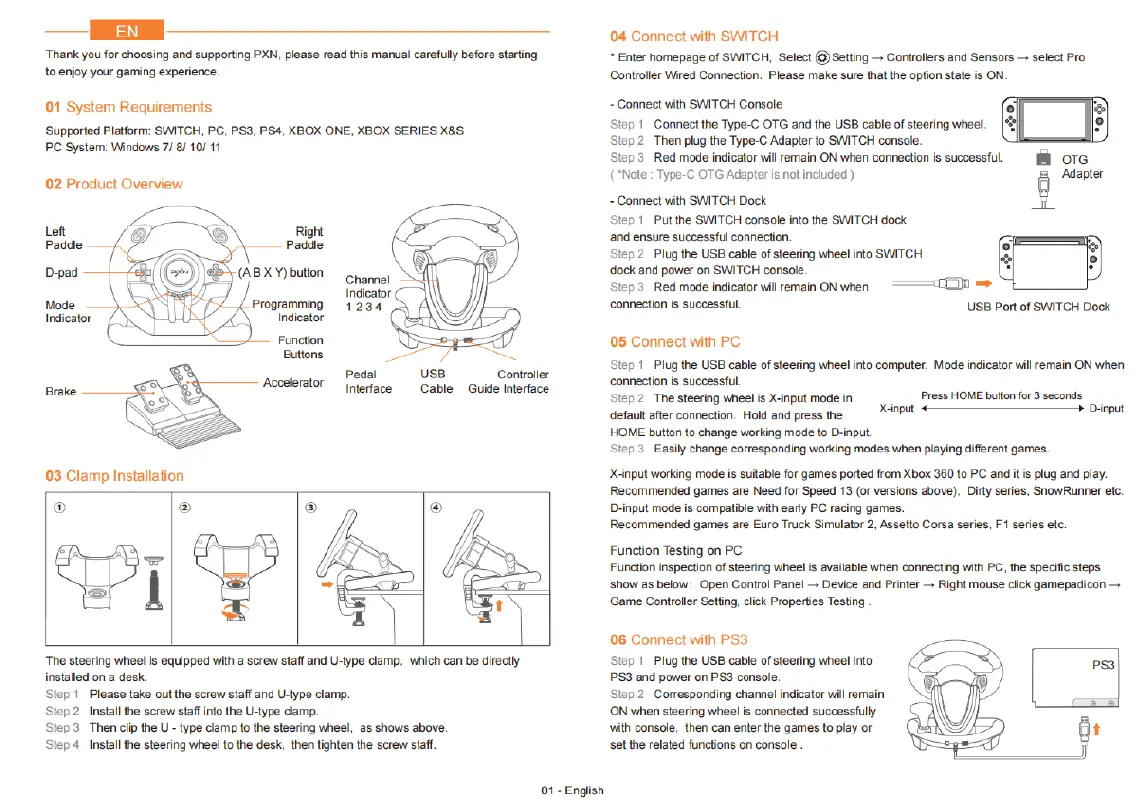
EN
Thank
you
for
choosing
and
supporting
PXN,
please
read
this
manual
carefully
before
starting
to
enjoy your
gaming
experience.
01
System
Requirements
‘Supported
Platiorm:
SWITCH,
PC,
PS3,
PS4,
XBOX
ONE,
XBOX
SERIES
X&S
PC
System:
Windows
7/ 8/
10/
11
02
Product
Overview
03
Clamp
Installation
@
‘The
steering
wheel
is
equipped
with
a
screw
staff
and
U-type
clamp,
which
can
be
directly
installed
on
&
desk.
Step
1
Please
take
outthe
screw
staff
and
U-type
clamp.
Step2
Install
the
screw
staff
into
the U-type clamp.
Slep3 Then
ciip
the
U
-
type
clamp
o
the
steering
wheel,
s
shows
above.
Slep
4
Install
the
steering
wheel
to
the
desk,
then
tighten
the
screw
staff.
01-
English
04
Connect
with
SWITCH
*
Enter
homepage
of
SWITCH,
Select
(8)Settng
Controllers
and
Sensors
select
Pro
Controller
Wired
Connection.
Please
make
sure
that
t
option
state
is
ON
-
Connect
with
SWITCH
Console
Step
1
Gonnectihe
Type-C
OTG
and
the
USB
cable of
steering
wheel.
Step2
Then
plug
the
Type-C
Adapter
to
SWITCH
console.
Step
&
Red
mode
indicator
will
remain
ON
when
connection
is
successful.
[
OTG
(*Note
:
Type-C
OTG
Adapter
is
notinciuded
)
B
Adapter
-
Connect
with
SWITCH
Dock
'l
Step
1
Putthe
SMTCH
console
nto the
SWITCH
dock
and
ensure
successful
connection
Step
2
Plug
the
USB
cable
of
steering
wheel
irto
SWITCH
dock
and
power
on
SWITCH
console.
Step 3
Red
mode
indicator
wil
remain
ONwhen
~
———— (Ll
=
connection
i
successful
USB
Port of
SWITCH
Dock
05
Connect
with
PC
Step
1
Plug
the
USB
cable
of steering
wheel
into
computer.
Mode
indicator
will
remain
ON
when
connection
is
successful.
Step
2
The
steering
wheel
is
X-input
mode
in
defaul
after
connection.
Hold
and
press
the.
HOME
button
to
change
working
mode
to
D-nput.
Step 3
Easlly
change
corresponding
working
modes
when
playing
different
games.
X-input
working
mode
is
suitabe
for
games
ported
from
Xbox
360
to
PC
and
itis
plug
and
play.
Recommended
games
are
Need
for
Speed
13
(or
versions
above).
Dirty
series,
SnowRunner
efc.
D-input
mode
is
compativle
with
early
PC
racing
games.
Recommended
games
are
Euro
Truck
Simulator
2,
Assetto
Corsa
series,
F1
series
elc.
Press
HOME
buton
for
3
seconds.
Xeinput
4~
Dinput
Function
Testing
on
PC
Function
inspection
of
steering
wheelis
available
when
connecting
with
PC.
the
specific
steps
‘show
as
below:
Open
Control
Panel
Device
and
Printer
Right
mouse
click
gamepadicon
Game
Controller
Setting,
click
Properties
Testing
06
Connect
with
PS3
Step
1
Plug
the
USE
cable of
steering
wheel
into
PS3
and
power
on
PS3
console.
Step
2
Comesponding
channel
indicator
will
remain
ON
when
steering
wheel
is
connected
successfully
with
console,
then
can
enter
the
games
to
play
or
setthe
related
functions
on
console .

Related product manuals