EasyManua.ls Logo

Qtx DMX-192 - User Manual

Qtx DMX-192
6 pages
Print Icon
To Next Page IconTo Next Page
Loading...
www.avsl.com 154.103UK User Manual
DMX-192
192 Channel DMX Controller
Item ref: 154.103UK
User Manual
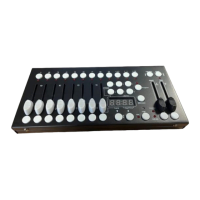
A small yet versatile 192 channel DMX controller with 12 fixtures. Each fixture controls up to 16 channels
per unit. There are 23 programmable bank buttons each holding 8 scenes. These scenes can be
programmed into 6 chase sequences each holding up to 240 scenes which can be triggered by sound,
manually by tap or automatically by the time faders between 0.1 seconds and 10 minutes. A lightweight
and portable controller, ideal for small theatres or stage applications.
In the box:
Your DMX-192 should arrive with you in a single carton in good condition. The carton should contain
1 x main unit, 1 x UK power adaptor and 1 x user guide.
Controls Overview:
Please read through this manual thoroughly before use, any damage
caused by misuse of product will not be covered by warranty.
1.
2.
3.
4.
6.
7.
5.
8.
9.
10.
11.
12.
13.
14.
15.
16.
17.
Question and Answer IconNeed help?

Do you have a question about the Qtx DMX-192 and is the answer not in the manual?

Summary

Controls Overview

Fixture Selection Buttons

Press to select the desired lighting fixture.

Fixture Indicator LEDs

Lit to indicate the current selected fixture.

Channel Faders

Slide to adjust DMX parameter values.

Scene Selection Buttons

Press to store and select scenes.

LCD Display

Displays current parameters or status.

Bank Up;Down Buttons

Step forward/backward scenes/steps in banks/chases.

Page Selection Button

Switches faders between 1-8 and 9-16.

MIDI Add Button

Press to confirm current procedure or add to it.

Auto Del Button

Activate Auto mode/Delete key during Program mode.

Blackout Button

Press to set all fixtures to zero.

Speed Fader

Slide to adjust scene hold time or step time.

Fade Time Fader

Slide to adjust the rate of fading or cross fading.

Program Button

Press to enter Program mode.

Music;Bank Copy Button

Activate music mode/Copy key during program mode.

Tap Sync Display Button

Tap tempo sync during playback/Switch DMX display.

Chase Buttons

Chase memory selection 1-6.

Setting Up

Operation Modes

Manual Mode

Operate the controller in manual mode to adjust fixture parameters.

Review a Scene or Chase

Review and adjust previously recorded scenes and chases.

Programming

Creating a Scene

Learn to create and store static lighting states (scenes) in banks.

Running a Program

Learn how to run programmed banks of scenes automatically or via tap sync.

Checking a Program

Review programmed banks and individual scenes.

Editing a Program

Modify existing scenes within programmed banks.

Copying a Program

Duplicate programmed banks to new locations.

Chase Programming

Creating a Chase

Build chases by arranging scenes as steps, up to 240 steps.

Running a Chase

Execute programmed chases manually or via auto-del.

Checking a Chase

Review the sequence of scenes within a chase.

Editing a Chase (copying a Bank into a Chase)

Copy an entire bank of scenes into a chase.

Editing a Chase (copying a Scene into a Chase)

Copy individual scenes into a chase from a bank.

Editing a Chase (inserting a Scene into a Chase)

Insert a scene at a specific point within a chase.

Deleting Scenes and Chases

Deleting a Scene from a Chase

Remove a specific scene from a chase sequence.

Deleting a Chase

Permanently remove an entire chase program.

Deleting all Chase Programs

Clear all stored chase programs from memory.

Scene Programming Operations

Inserting a Scene

Add a scene into a chase at a specific step.

Copying a Scene

Duplicate a scene to a different location.

Deleting a Scene

Remove a scene from its current bank, setting values to zero.

Deleting All Scenes

Reset all scenes to zero values, an irreversible process.

Playback Modes

Running in Sound Mode

Trigger programs and chases using the built-in microphone.

Running in Auto Mode

Run programmed banks or chases automatically.

Blackout Function

Specifications

Summary

Controls Overview

Fixture Selection Buttons

Press to select the desired lighting fixture.

Fixture Indicator LEDs

Lit to indicate the current selected fixture.

Channel Faders

Slide to adjust DMX parameter values.

Scene Selection Buttons

Press to store and select scenes.

LCD Display

Displays current parameters or status.

Bank Up;Down Buttons

Step forward/backward scenes/steps in banks/chases.

Page Selection Button

Switches faders between 1-8 and 9-16.

MIDI Add Button

Press to confirm current procedure or add to it.

Auto Del Button

Activate Auto mode/Delete key during Program mode.

Blackout Button

Press to set all fixtures to zero.

Speed Fader

Slide to adjust scene hold time or step time.

Fade Time Fader

Slide to adjust the rate of fading or cross fading.

Program Button

Press to enter Program mode.

Music;Bank Copy Button

Activate music mode/Copy key during program mode.

Tap Sync Display Button

Tap tempo sync during playback/Switch DMX display.

Chase Buttons

Chase memory selection 1-6.

Setting Up

Operation Modes

Manual Mode

Operate the controller in manual mode to adjust fixture parameters.

Review a Scene or Chase

Review and adjust previously recorded scenes and chases.

Programming

Creating a Scene

Learn to create and store static lighting states (scenes) in banks.

Running a Program

Learn how to run programmed banks of scenes automatically or via tap sync.

Checking a Program

Review programmed banks and individual scenes.

Editing a Program

Modify existing scenes within programmed banks.

Copying a Program

Duplicate programmed banks to new locations.

Chase Programming

Creating a Chase

Build chases by arranging scenes as steps, up to 240 steps.

Running a Chase

Execute programmed chases manually or via auto-del.

Checking a Chase

Review the sequence of scenes within a chase.

Editing a Chase (copying a Bank into a Chase)

Copy an entire bank of scenes into a chase.

Editing a Chase (copying a Scene into a Chase)

Copy individual scenes into a chase from a bank.

Editing a Chase (inserting a Scene into a Chase)

Insert a scene at a specific point within a chase.

Deleting Scenes and Chases

Deleting a Scene from a Chase

Remove a specific scene from a chase sequence.

Deleting a Chase

Permanently remove an entire chase program.

Deleting all Chase Programs

Clear all stored chase programs from memory.

Scene Programming Operations

Inserting a Scene

Add a scene into a chase at a specific step.

Copying a Scene

Duplicate a scene to a different location.

Deleting a Scene

Remove a scene from its current bank, setting values to zero.

Deleting All Scenes

Reset all scenes to zero values, an irreversible process.

Playback Modes

Running in Sound Mode

Trigger programs and chases using the built-in microphone.

Running in Auto Mode

Run programmed banks or chases automatically.

Blackout Function

Specifications

Overview

The DMX-192 is a versatile 192-channel DMX controller designed for small theatres or stage applications. It offers comprehensive control over lighting fixtures, scenes, and chases, with a user-friendly interface for programming and playback.

Function Description:

The DMX-192 controller manages up to 12 fixtures, with each fixture capable of controlling up to 16 DMX channels. It features 23 programmable bank buttons, each storing 8 scenes, allowing for a total of 184 scenes. These scenes can be organized into 6 chase sequences, with each chase capable of holding up to 240 steps (scenes). Chases can be triggered by sound, manually via a tap tempo function, or automatically with adjustable time faders ranging from 0.1 seconds to 10 minutes.

The controller operates in several modes:

  • Manual Mode: Allows for real-time adjustment of DMX parameters for selected fixtures using channel faders. Changes made in this mode are temporary and not recorded. Users can switch between fader control pages (Ch1-8 and Ch9-16) and toggle the output indicator on the LCD display between DMX values (0-255) and percentage (0-100).
  • Programming Mode: Enables the creation and editing of scenes and chases. Scenes are static lighting states stored in banks, while chases are sequences of scenes.
  • Playback Mode (Sound Mode): Triggers programs (banks or chases) based on sound input from the built-in microphone. The duration time can be adjusted using the Fade time fader. Multiple selected chases will loop and run in their original order.
  • Playback Mode (Auto Mode): Automatically runs BANK programs or selected CHASE sequences. The time between steps can be adjusted using the Speed fader, and the duration of each step can be set with the Fade time fader.
  • Blackout Function: Instantly sets all DMX values to zero, providing a temporary blackout.

Important Technical Specifications:

  • DMX Channels: 192
  • Power Supply: 12Vdc, 1500mA
  • Dimensions: 260 x 125 x 50mm
  • Weight: 876g

Usage Features:

Setup:

  1. Connect the power supply to the unit and a mains socket.
  2. Connect a DMX lead to the unit and a compatible DMX-512 device.
  3. Switch on the controller; it will perform a self-test (LCD will show "192") and then display "101" when ready.

Controls Overview:

  • Fixture Selection Buttons (1): Select desired lighting fixtures.
  • Fixture Indicator LEDs (2): Indicate currently selected fixtures.
  • Channel Faders (3): Adjust DMX parameter values.
  • Scene Selection Buttons (4): Store and select scenes.
  • LCD Display (5): Shows current parameters or status.
  • Bank Up/Down Buttons (6, 7): Step forward/backward through scenes/steps in banks/chases.
  • Page Selection Button (8): Switches faders between channels 1-8 and 9-16.
  • MIDI Add Button (9): Confirms procedures or adds to them.
  • Auto Del Button (10): Activates Auto mode or acts as a Delete key in Program mode.
  • Blackout Button (11): Sets all fixtures to zero.
  • Speed Fader (12): Adjusts scene hold time or step time.
  • Fade Time Fader (13): Adjusts the rate of fading or cross-fading.
  • Program Button (14): Enters Program mode.
  • Music/Bank Copy Button (15): Activates music mode or acts as a Copy key in Program mode.
  • Tap Sync Display Button (16): Tap tempo sync during playback or switches DMX display to percentage in Program mode.
  • Chase Buttons (17): Select chase memory 1-6.

Programming Scenes:

  1. Hold the Program button until its LED blinks.
  2. Set Speed and Fade time sliders to their lowest position.
  3. Select fixture(s) and adjust DMX values using faders.
  4. De-select fixtures to hold DMX values.
  5. Press the MIDI Add button.
  6. Select a Bank and then a Scene to store the scene.
  7. Press the Program button to store.
  8. Repeat for up to 8 scenes per bank.
  9. Hold the Program button to exit.

Programming Chases:

  1. Hold the Program button until its LED blinks.
  2. Press the desired Chase button.
  3. Change Bank if needed to locate the desired scene.
  4. Select the Scene to insert.
  5. Press the MIDI Add button to store.
  6. Repeat steps 3-5 to add up to 240 steps.
  7. Hold the Program button to save the chase.

Editing and Deleting:

  • Editing a Program/Scene: Requires modifying each scene manually in Program mode. Select the bank, fixture, adjust faders, press MIDI Add, and select the scene to store.
  • Copying a Program: In Program mode, select the source bank, press MIDI Add, select the destination bank, and press Music/Bank Copy.
  • Deleting a Scene from a Chase: In Program mode, select the chase, press Tap Sync to step view, navigate to the scene, and press Auto Del.
  • Deleting a Chase: In Program mode, select the chase, then hold Auto Del and the Chase button.
  • Deleting All Chase Programs: Turn off power, hold Bank Down and Auto Del, then power on.
  • Inserting a Scene into a Chase: In Program mode, select the chase, press Tap Sync, navigate to the insertion point, press MIDI Add, navigate to the scene to be inserted, press the corresponding Scene button, and press MIDI Add.
  • Copying a Scene: In Program mode, navigate to the source bank, press the Scene button, press MIDI Add, navigate to the destination bank, and press the destination Scene button.
  • Deleting a Scene: In Program mode, navigate to the bank, hold Auto Del, and press the Scene button. Deleting a scene sets all 192 DMX channels for that scene to zero.
  • Deleting All Scenes: Hold Program and Bank Down buttons while switching the unit off, then turn it back on. This process is irreversible.

Maintenance Features:

  • Self-Test: The controller performs a self-test upon power-on, displaying "192" on the LCD.
  • Caution: The device contains high voltage and should not be opened by the end user. All servicing and repairs must be performed by qualified personnel.
  • Disposal: This product is classified as Electrical or Electronic equipment and must be disposed of according to local council guidelines, not with household or commercial waste.

Qtx DMX-192 Specifications

General IconGeneral
BrandQtx
ModelDMX-192
CategoryDJ Equipment
LanguageEnglish

Related product manuals