EasyManua.ls Logo

Racelogic VBOX Sport - User Manual

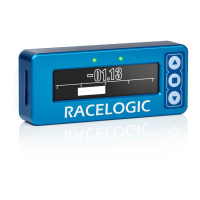
Racelogic VBOX Sport
9 pages
Print Icon
To Next Page IconTo Next Page
Loading...
VBOX Sport - Getting started
Using as Standalone Logger
If you are using the internal antenna, then the unit should be mounted low down in the windscreen to maximise the view
to the sky. Optional accessories available on our website include a windscreen suction mount and an external antenna.
The external antenna gives the optimum GPS performance and also means that the VBOX Sport can be mounted
anywhere convenient.
After mounting the VBOX Sport, insert the SD card, and briefly press the power button to switch on. Wait for the satellite
led to stop flashing, and then logging will start as soon as you start moving. Alternatively, you can select ‘record
continuously’ mode by pressing the logging button.
Pairing with an iPhone/iPad
VBOX Sport contains an Apple certified Bluetooth chip, which makes pairing a very simple process.
1. Ensure Bluetooth is enabled within the 'Settings' menu and that VBOX Sport is switched on.
https://en.racelogic.support//Product_Info/Performance_Meters/VBOX__Sport/Quick_Start_Guide/VBOX_Sport_-_Getting_started
1
Question and Answer IconNeed help?

Do you have a question about the Racelogic VBOX Sport and is the answer not in the manual?

Overview

The VBOX Sport is a GPS-based performance meter and data logger designed for automotive applications, offering precise measurement of vehicle dynamics and performance metrics. It can operate as a standalone logger or connect to iOS devices and laptops for enhanced functionality and data visualization.

Function Description:

The primary function of the VBOX Sport is to accurately log GPS data, enabling the measurement of various performance parameters such as acceleration, braking, and lap times. It utilizes an internal antenna for GPS signal reception, with an option for an external antenna to optimize performance, especially when the unit cannot be mounted with a clear view of the sky.

When used as a standalone logger, the device records data onto an SD card. Logging begins automatically once the unit detects movement after acquiring a satellite lock, or it can be manually initiated into "record continuously" mode.

For more interactive use, the VBOX Sport features an Apple-certified Bluetooth chip, allowing seamless pairing with iPhones and iPads. This connectivity enables users to leverage dedicated iOS applications, such as the "VBOX Sport Performance Test App" and "VBOX Laptimer," for real-time data display, performance testing, and analysis.

The device also supports connection to a laptop running "VBOX Test Suite" software via Bluetooth. This provides a comprehensive platform for viewing live data, displaying dashboard gauges, and performing various tests with detailed graphical analysis.

Important Technical Specifications:

  • GPS Performance: Utilizes GPS for accurate speed, distance, and acceleration measurements. The use of an external antenna is recommended for optimal GPS performance, allowing flexible mounting options.
  • Data Storage: Records data onto an SD card, which needs to be inserted for logging operations.
  • Connectivity:
    • Bluetooth: Features an Apple-certified Bluetooth chip for wireless connection to iOS devices (iPhone/iPad) and laptops.
    • USB: While not explicitly detailed for data transfer, it's implied for potential firmware updates or specific configurations.
  • Power: Powered by an internal battery, activated by a brief press of the power button.
  • Indicators: Includes an LED for satellite lock status (flashing until lock is acquired). The Bluetooth LED flashes rapidly during the pairing process with a second device.

Usage Features:

  • Standalone Logging:
    • Mount the unit low on the windscreen for optimal satellite view (with internal antenna).
    • Insert an SD card.
    • Press the power button briefly to switch on.
    • Wait for the satellite LED to stop flashing (indicating satellite lock).
    • Logging starts automatically upon movement or can be manually set to "record continuously" via the logging button.
  • Pairing with iPhone/iPad:
    • Ensure Bluetooth is enabled on the iOS device and the VBOX Sport is on.
    • The VBOX Sport's serial number will appear in the 'DEVICES' area of the iOS Bluetooth settings.
    • Tap the device to connect. Once connected, it moves to 'MY DEVICES'.
    • Automatic reconnection occurs when the device is in range and Bluetooth is on.
  • Pairing with a Second iOS Device:
    • The VBOX Sport connects to only one iOS device at a time.
    • To connect to a new device, first "Forget This Device" from the 'MY DEVICES' list on the previous iOS device.
    • Then, clear the automatic pairing function on the VBOX Sport by pressing and holding both buttons for 2 seconds until the Bluetooth LED flashes rapidly.
    • Repeat the initial pairing procedure with the new device.
  • Using the Performance Test App (iOS):
    • Download the free 'VBOX Sport Performance Test App' from the iTunes™ store.
    • The app displays a Bluetooth icon at the top left of the 'Test' menu, indicating connection status.
    • Acceleration Testing: Press 'Start' in the app. Timing begins when the car moves and ends upon deceleration. Results can be viewed in 'Details' (numerical) and 'Graph' (visual) modes.
    • Brake Testing: Select 'Brake' mode via the 'Setup' button. The test starts upon deceleration.
    • Zero to Zero Testing: Use the '0 to 0' function for tests like 0-100-0 acceleration and braking.
    • Dyno Testing: Ascertain horsepower details of a vehicle.
    • User Defined Tests: Set custom test ranges for acceleration and braking. Distance acceleration tests automatically calculate Mile, 1/2, 1/4, and 1/8 Mile results.
  • Connecting to VBOX Test Suite (Laptop):
    • Mount the VBOX Sport and insert the SD card.
    • Press the Power button to switch on.
    • If connecting for the first time, navigate to Bluetooth Settings on the laptop, add a new device, and select the VBOX Sport.
    • Open VBOX Test Suite software, go to the 'Home' tab, select 'Online', and choose the correct COM port.
    • Dashboard gauges will display live data. 'Start', 'Stop', and 'Reset' buttons appear for managing tests.
    • The COM port selection can be cancelled before online communications are fully open by selecting the 'X' button in the software window.
    • If connection is lost, a 'Disconnected' message appears; select 'Try Reconnect' to re-establish.

Maintenance Features:

  • SD Card Management: Requires an SD card for data logging. Regular checks and formatting may be necessary to ensure optimal performance and prevent data loss.
  • Battery Charging: While not explicitly detailed, as a portable electronic device, it would require periodic charging.
  • Firmware Updates: Although not mentioned in the provided text, typically, such devices benefit from occasional firmware updates to improve functionality or address bugs.
  • Cleaning: General care for electronic devices, such as keeping it clean and dry, would be applicable.
  • Troubleshooting: The manual provides guidance on troubleshooting connection issues, such as re-pairing with a second device or reconnecting to the VBOX Test Suite.

Racelogic VBOX Sport Specifications

General IconGeneral
BrandRacelogic
ModelVBOX Sport
CategoryData Loggers
LanguageEnglish

Related product manuals