Configuring Radiant POS terminals 5
13. Click the Ports tab, select an unused Serial Port (e.g., COM4), and then click OK.
NOTE: Alternatively, you can delete the Epson TM-T88 - Serial printer, instead of assigning
it to an unused port.
14. Start CounterPoint and log in to your company database.
15. Select File Utilities / Special / System / Update pre-defined data.
16. Select Yes from the Are you sure you want to do this ? prompt, and then press Enter to
load the pre-defined device codes for Radiant POS terminals.
17. When the pre-defined data is updated, press ESC to return to the main menu.
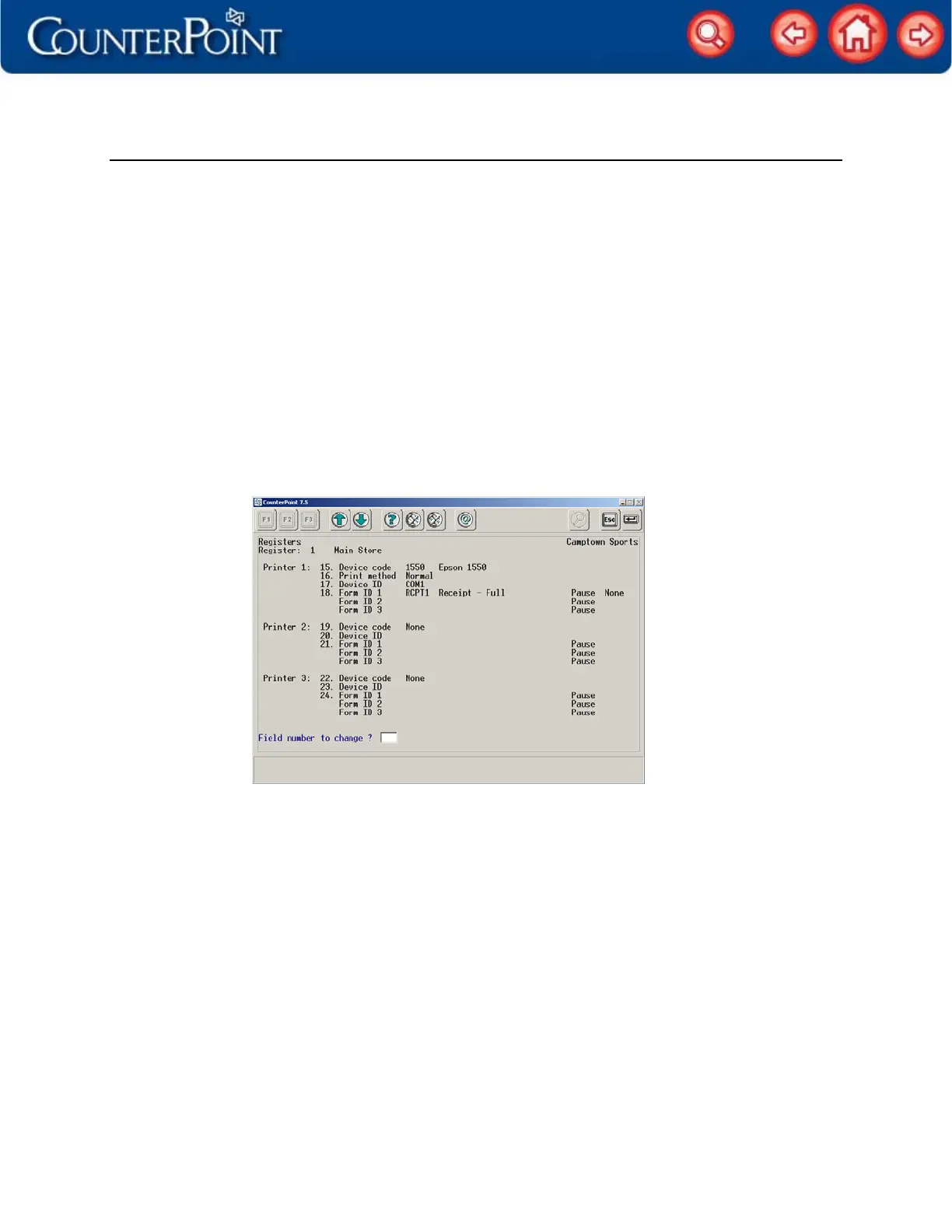
18. Select Setup / Point of Sale / Registers, specify a Register number for your POS terminal,
and then complete the remaining fields on the first Registers screen.
19. On the next Registers screen, enter 1550 in the Device code field for the Printer 1 device,
select the Print method you want to use, and then enter COM1 in the corresponding
Device ID field.
20. Enter or look up one or more Form ID options to specify the forms you want to print
with your receipt printer.


 To Next Page