Configuring Radiant POS terminals 4
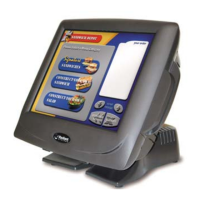
Configuring the P1550 POS terminal
Follow these steps to configure a P1550 POS terminal for use with CounterPoint:
1. If you are using any of the following external devices with your P1550 POS terminal,
connect them to the following ports:
Device Radiant Part # Port
Printer-driven cash drawer
(16” or 18.8”)
P000F024 or
P000F031
DK (on Epson TM-T88)
Epson TM-T88 series receipt printer
(RS232 interface)
P201F019 or
P201F039
Serial 1
2x20 display (POS mount or
pole mount)
P703F000 or
P703F001
Serial 2
Serial modem N/A
USB (with USB to serial adapter)
NOTE: If you are using a serial modem with your P1550, follow the instructions included
with your USB to serial adapter to connect the modem to an available USB port.
2. Browse to the top-level directory on your CounterPoint server (e.g., C:\SYN) and
double-click the SYNRUN.SYN file to open it in Notepad or another text editor.
3. Add the following lines to SYNRUN.SYN:
CPSIO1=C
SYNCOM1=98n1
4. If you are not running CounterPoint over Terminal Services, add the following line to
SYNRUN.SYN:
CPSIO2=W
5. Save the modified SYNRUN.SYN file, and then close your text editor.
6. Copy the CP1550Mode.bat and OPOSim.exe files from your top-level directory to the
Windows Startup directory for all users (i.e., C:\Documents and Settings\All Users\Start
Menu\Programs\Startup) on your POS terminal.
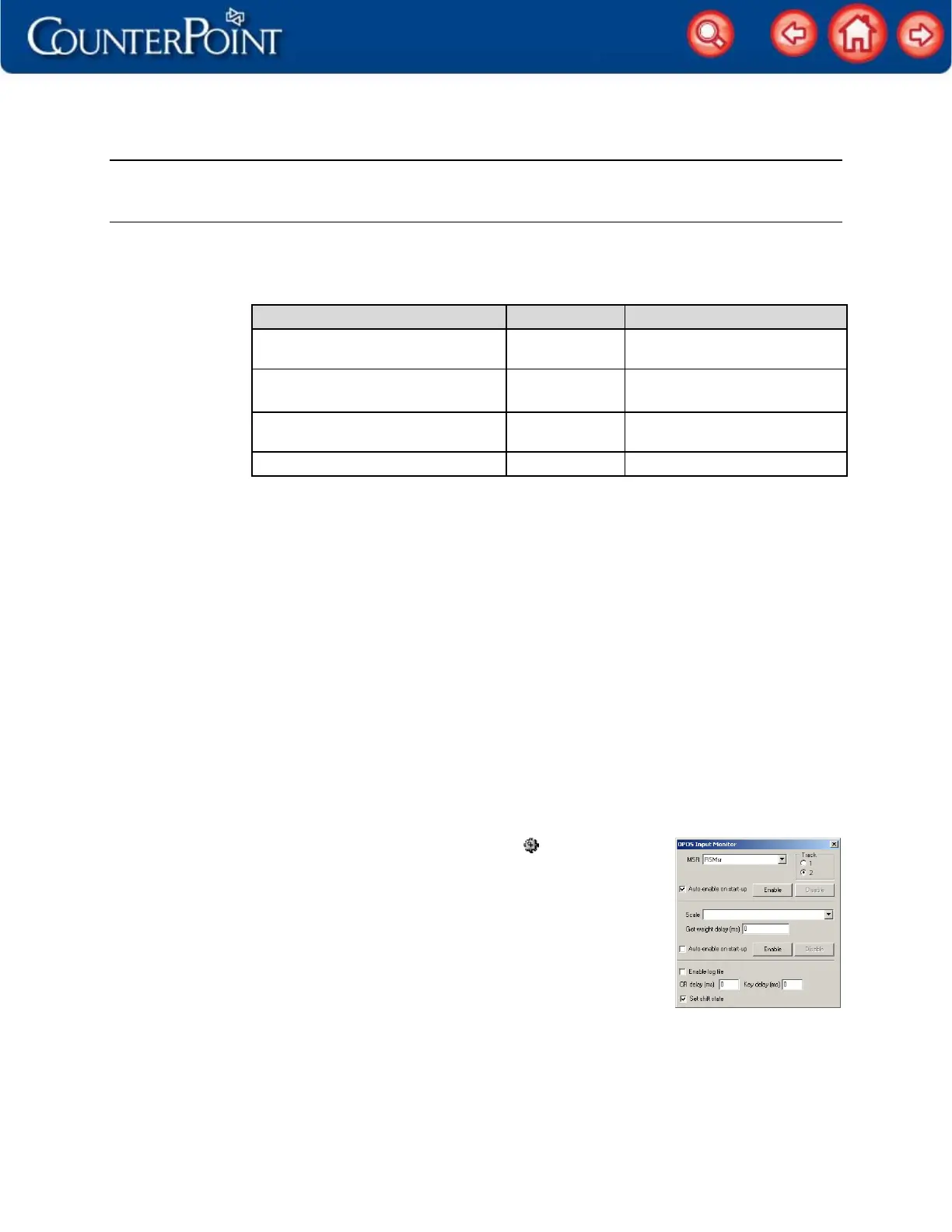
7. Double-click OPOSim.exe in the Startup directory to start the OPOS Input Manager.
8. Right-click the OPOS Input Manager icon (
) in the Windows
system tray and select Options to display the OPOS Input
Manager window.
9. Select RSMsr from the MSR list, and then select the Track
you want to read.
NOTE: If you are processing debit cards, select track 2.
10. Select the Auto-enable on start-up check box, and then click
the Enable button.
11. Close the OPOS Input Manager window.
12. Select Start / Settings / Printers and Faxes, right-click the Epson TM-T88 - Serial printer, and
then click Properties.


 To Next Page